Overview
The tab the dashboard opens on: the last seven days at a glance, who is waiting for you right now, your newest orders or next meetings, and whether every channel is live.
What this tab is for
One look in the morning. It answers four questions without opening anything else: how busy was the week, is anyone waiting for me, what came in, and is the bot actually on everywhere.
Every number is real and current. The week's figures are the same ones Analytics shows for 7 days; the lists are the same chats, orders and channels you find in their own tabs.
Around every tab
Every page opens the same way: the date, a greeting with your business name, a search box, the bell and one button, Train your bot, which opens Bot Training. On a phone the tab's name takes the greeting's place and the search sits behind the magnifier.
The search looks through your customers, orders and products at once, as you type. Pick a customer and their chat opens; an order opens in Orders; a product opens Inventory with that search already filled in. Arrow keys and Enter work too.
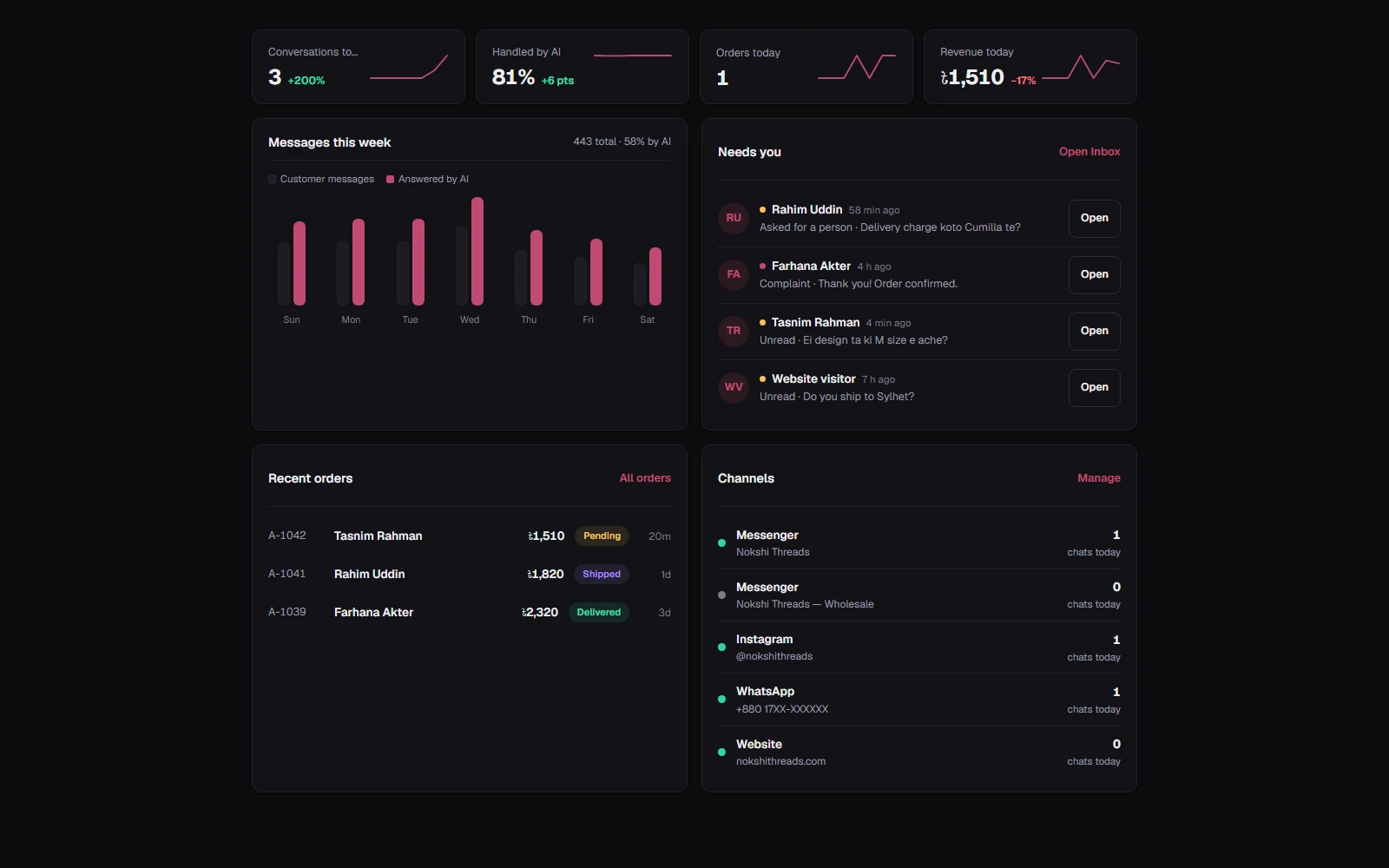
The menu on the left is one plain list. Inbox carries the number of unread chats and Orders the number still waiting to be confirmed. At the bottom, your package and how much of this month's bot replies it has used so far — tap it to see the full picture on Billing. Language, refresh and the light/dark switch sit just under it.
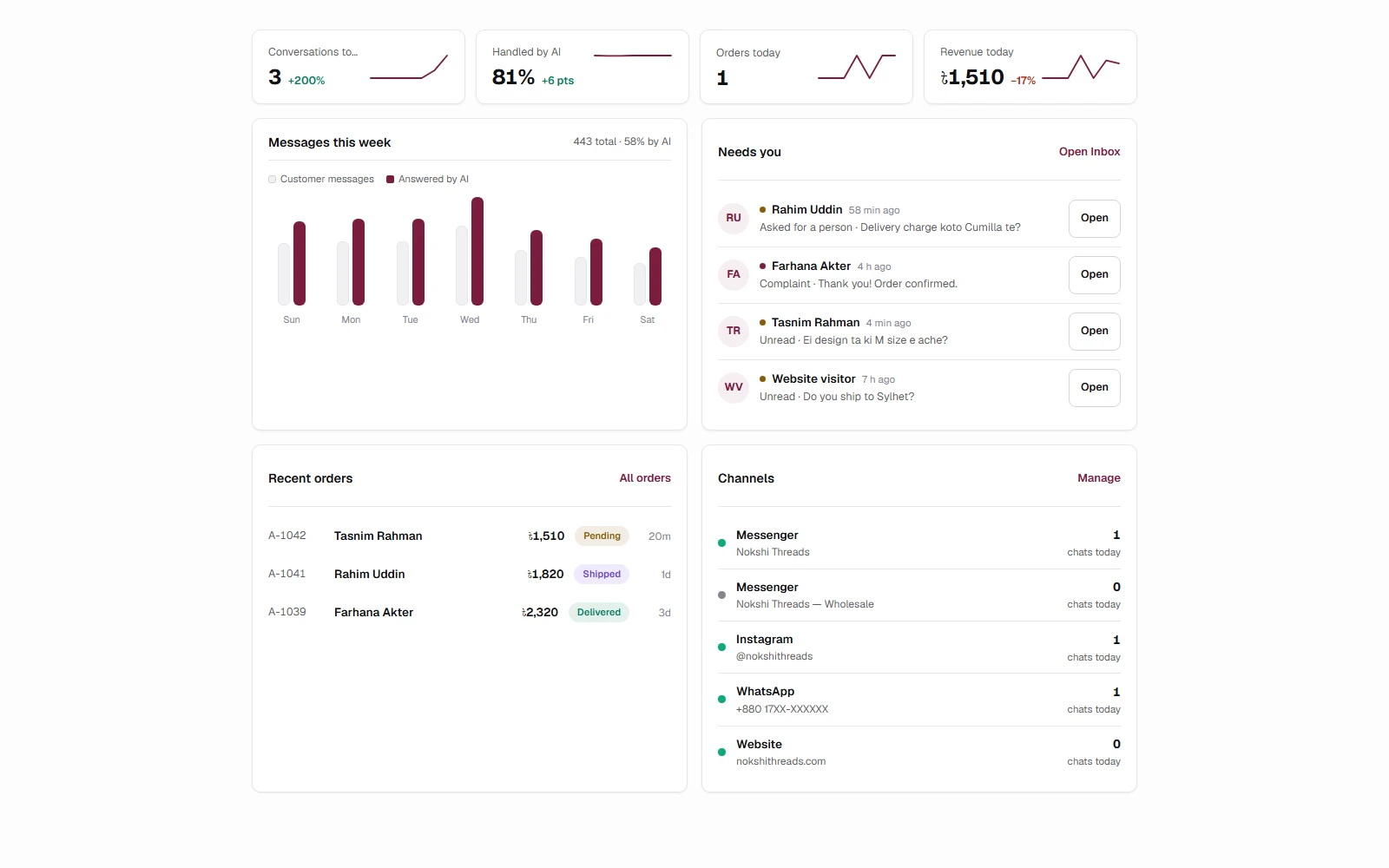
The four cards
| Card | What it shows |
|---|---|
| Messages | Every message in and out over the last 7 days, with today's count, and a small line showing the day-by-day shape |
| Customers | How many different people wrote, and how many of them were new |
| Answered by AI | The share of conversations the bot finished on its own, and how many needed you |
| Revenue | Money from orders this week and the order count |
| Card | What it shows |
|---|---|
| Bookings | Meetings booked this week, and what share of your customers booked |
The arrow beside each number compares this week with the week before. The Analytics tab has the longer view and the reasons behind it.
Messages this week
One bar per day. The full bar is every message that day; the filled part is how many the bot answered. A bar that is mostly filled means the bot is carrying the load; a bar that is mostly empty means people were writing while the bot was paused, or you were answering by hand.
Needs you
Chats that want a person, in the order that matters: someone who asked for a person (or got upset), a chat tagged as a complaint, then anything you have not read yet. Tap a row to open that chat in the Inbox. When the list is empty, the bot has everything covered.
Recent orders
The five newest orders with their status and total. Tap one to open it in Orders.
Next meetings
Your upcoming bookings in time order, with a Join button when a Meet link exists. The Bookings tab has the full calendar.
Channels
One line per connected Page, account or number: Live (green dot) means the bot is answering there, Paused means messages wait for you, Expired means the platform dropped the connection and you need to reconnect. The pill at the top of the page says the same thing in one line, and a red bar appears when any connection has expired.