Connected accounts
Where TellMore AI answers. Connect as many Facebook Pages, Instagram accounts and WhatsApp numbers as you need — each one takes a single click and its own on/off switch.
What a channel is
A channel is one place customers can write to you: a Facebook Page, an Instagram Business account, a WhatsApp Business number, or your own website.
You can connect as many as you like. Each Page, account or number can belong to only one TellMore AI account — so if a Page is already connected somewhere else, disconnect it there first.
The same goes for a WhatsApp number and other apps or platforms: Meta lets a number work with one partner at a time. Before you connect, check that the number is not already linked to another app — in the WhatsApp Business app under Settings → Business tools, and in your Meta business portfolio under WhatsApp accounts → Partners. If it is, release it there first (remove that partner, or ask that provider to release the number), then connect it here. A number that is still held elsewhere shows as not eligible in Meta's window.
Connecting one
- 1Press Connect new channel.
- 2Pick Facebook, Instagram or WhatsApp.
- 3A window opens and you log in with your own account — the same one you use every day.
- 4Choose which Page or account to connect, and approve.
- 5The window closes and a green card confirms it. TellMore AI is answering from that moment.
Reading the list
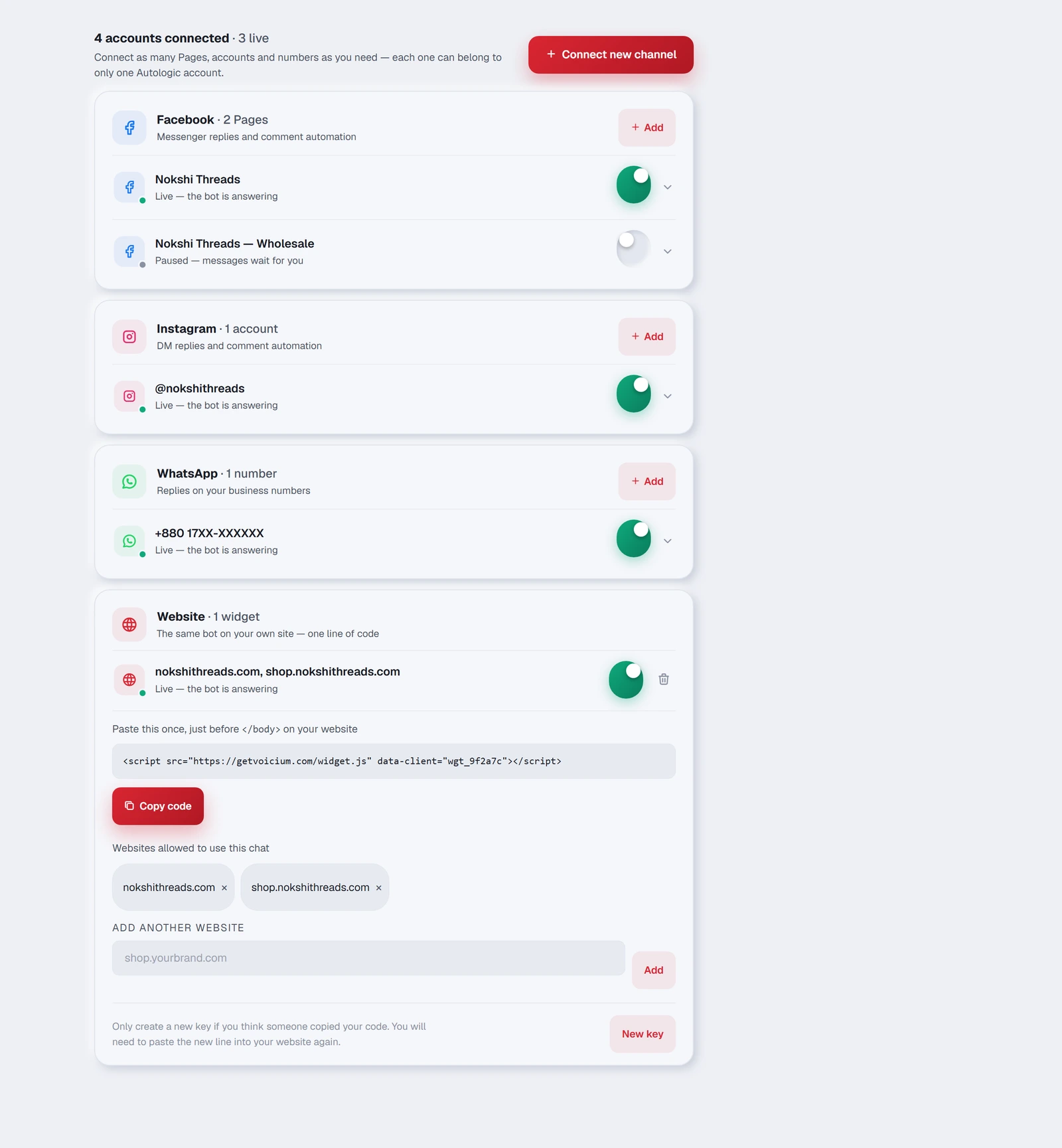
Connected channels are grouped by platform, with a count beside each name. Each row also says how many customers wrote to that Page, account or number today, so a paused Page with chats waiting is visible as exactly that.
At the bottom, Add another offers a card for each platform — the quickest way to connect a second Page or your first WhatsApp number.
In the Android app, Facebook, Instagram, WhatsApp and Google ask you to log in on a secure browser page that slides up over the app — they do not allow their login inside another app's screen. When you finish, that page closes by itself and you are back in the app, still signed in, with the new channel in the list. If you close the page yourself, nothing is changed.
| Section | What it covers |
|---|---|
| Messenger replies and comment automation | |
| DM replies and comment automation | |
| Replies on your business numbers | |
| Website | The same TellMore AI on your own site — see the Website widget page |
Each connected account is one row. The small dot on its icon is the quickest signal in the tab:
| What you see | What it means |
|---|---|
| A green dot and “Live — TellMore AI is answering” | Working normally |
| A grey dot and “Paused — TellMore AI is silent here; messages still come to your inbox” | The switch is off: TellMore AI does not answer and uses no AI here, but every message still arrives in your Inbox and your team can reply. When you turn it back on, TellMore AI looks at the last few photos a waiting customer sent meanwhile (up to 3, from the last day) before it answers them. Disconnect is different: after it, nothing from that channel comes in at all |
| A red row saying “Disconnected” with a Reconnect button | Facebook stopped accepting our access — usually a changed password or a removed admin. TellMore AI is silent on this Page until you press Reconnect (one click). You are told on the bell, on your phone and by email the day it happens |
| The switch on the right | Turns this one channel on or off |
| The arrow at the end | Opens the row's details |
Inside a row
Tap a row to open it. Three things live there:
- 1The platform ID and the date it was connected — useful only if you ever need to tell them apart or quote one to support.
- 2Comment replies — on Facebook and Instagram rows only, one line showing whether TellMore AI answers comments and sends commenters to the inbox, with Change. The two switches themselves are on the Comments page (and in Settings).
- 3Disconnect — the red button at the bottom.
One business, several Pages
Many owners run a main Page plus a second one for a different product line, or an English Page and a Bangla one. Connect them all. Every conversation lands in the same inbox, and the Inbox tab can filter down to a single Page when you want to look at just one.
Each Page keeps its own on/off switch and its own comment settings, so TellMore AI can be busy on one and silent on another.