Inbox
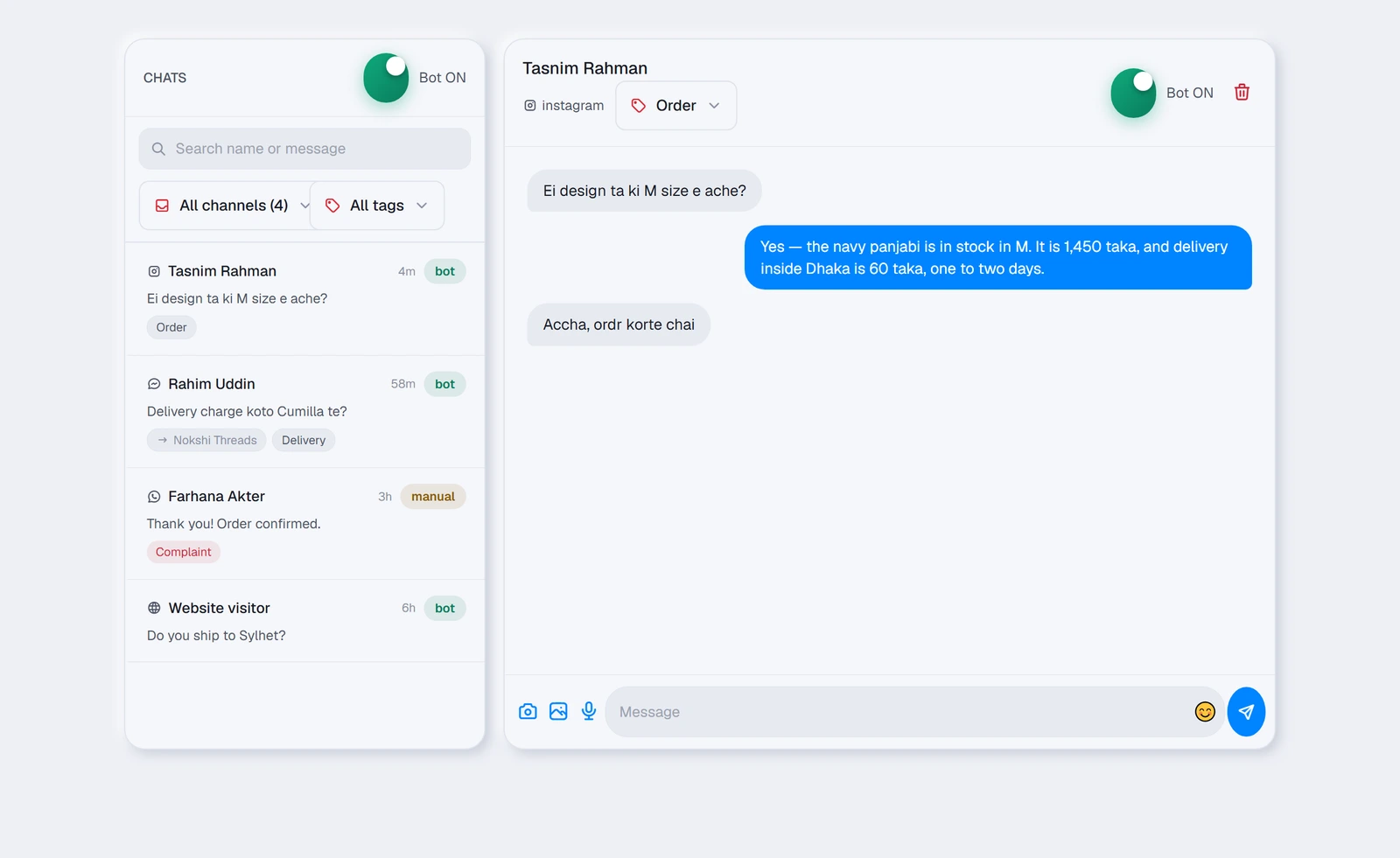
Every chat from every channel in one inbox — with a switch that lets you take over from TellMore AI whenever you want to answer someone yourself.
What this tab is for
Facebook, Instagram, WhatsApp and your website all arrive here. You watch TellMore AI work, and step in whenever you want to.
It refreshes on its own — a new message appears without you pressing anything.
The four numbers
They sit folded into one line above the chats, so the conversations get the room — Show more opens the four cards and Show less folds them again. Your choice is remembered on this phone or computer.
A chat always opens on its newest message, and stays there while older messages, photos and voice notes load above it. Scroll up to read back; the round ↓ button at the bottom right takes you straight to the newest message again.
| Card | What it shows |
|---|---|
| Conversations today | How many different people wrote to you today, and the change against yesterday |
| Answered by TellMore AI | The share of the last 7 days' conversations TellMore AI finished on its own — the same figure the Insights page shows |
| Orders value (shops) · Bookings (agencies) | The last 7 days, against the week before |
| Avg. first reply | How long a customer typically waited for TellMore AI's first reply this week, measured from their message to TellMore AI's bubble. Lower is better, so a fall shows green |
The two TellMore AI switches
This is the most important thing on the tab, and there are two of them. They do different jobs:
| Switch | Where | What it does |
|---|---|---|
| TellMore AI ON / TellMore AI OFF | Top of the chat list | The whole account. Off, TellMore AI stops replying on every channel and every conversation |
| TellMore AI replying · Take over | Top of an open chat | This one person only. Press Take over and you answer; Hand back to TellMore AI and it resumes. Everyone else is untouched |
Both switches show Loading… for a moment after the tab opens. That is deliberate — showing a guess and then correcting it would look like your setting had changed by itself. On a computer they take no room at all: press the 📊 button next to Conversations to see them, and again (or Escape) to close them.
Finding a conversation
| Tool | Use it to |
|---|---|
| Search | Looks in names and in the words of every message — not just the last one, and not just the last two weeks. The words that matched are marked in each result; it searches Open, Later and Done together, and chats older than the list appear under Older chats. Photos are searched by the words sent with them |
| Filters (the button beside the search box) | Opens the filters: Open / Later / Done, the team member, the channel, the tag and the lead — *Interested, not bought* (the chats worth a follow-up), *Bought* or *Said no*. While one is set the button shows how many, and each shows as a small chip above the list — press its × to take it off, or Clear filters to take them all off |
| Channel dropdown | Show only one platform — and if you have several Pages, only one Page |
| Tag dropdown | Show only conversations carrying a tag, with a count beside each |
| All · Needs you · Manual | The three buttons under the search box. Needs you shows the chats waiting on a person: someone asked for one, asked something TellMore AI has not been taught, a complaint was tagged, or the customer wrote and you have not opened it since; Manual shows only the chats you have taken over from TellMore AI. The small number on each is how many there are |
When a filter matches nothing you get Clear filters, so you never have to remember which one you left on.
The customer panel
On a wide screen — a laptop or a desktop monitor — a third column opens on the right of the chat. It shows who you are talking to without leaving the conversation: their name and channel, whether TellMore AI or you is answering, when they first wrote, and how many messages they have sent.
For an online shop it also shows their orders: how many, how much they have spent (cancelled and returned orders are not counted), and their last order with its status. For an agency it shows their bookings, and the next meeting with its Google Meet link if one is coming up.
On a smaller screen or on a phone there is no room for the column, so the chat header has a Customer info button (an ID card) that opens the same panel from the side — the ad that brought them, the same customer on other channels, their orders or bookings and tags. The phone's back button or ✕ closes it. Nothing in it is guessed — it is read from the orders and bookings already in your dashboard.
Reading the list
| What you see | What it means |
|---|---|
| The coloured dot on the avatar | Which channel this chat came in on — blue Messenger, pink Instagram, green WhatsApp, grey website |
| Bold name, bold preview, a red dot | Unread — a customer wrote and you have not looked yet, the way Messenger shows it. Open the chat and it goes back to normal; the next message makes it bold again. TellMore AI reply does not clear it — you have not seen it |
| “2m”, “3h”, “5d” | How long since the last message |
| An amber Manual chip | You have taken over this chat; everything else is TellMore AI's |
| A grey pill with a name | Which of your Pages this landed on (only shown when you have several) |
| A red tag | Your complaint tag — worth opening first |
Answering someone yourself
- 1Open the chat.
- 2Press Take over so TellMore AI does not talk over you.
- 3Type in the box at the bottom and press Enter, or the send button. For a new line inside the message, press Shift+Enter — the box grows as you write. On a phone, the camera, photo and voice buttons step aside while you type, so the words get the width.
- 4When you are finished, press Hand back to TellMore AI and it resumes.
The same customer on another channel
One person often writes on Messenger and WhatsApp, and each is its own chat. When this customer's mobile number (a WhatsApp chat is their number; on Messenger or Instagram it is the one on their order or booking) or a booking's email matches another chat of yours, the customer panel on the right shows Same customer on other channels — the channel, their name, *same mobile number* and when they last wrote. Tap one to open that chat.
It is only for you and your team: TellMore AI never joins chats this way, because a number typed in a chat may be someone else's. A team member who sees only their own chats does not see this list, and one kept from customers' numbers sees no number in it.
The AI helper beside each chat
Press ✨ in the reply box (beside the emoji on a computer) for four jobs. They help you, the person answering — the customer never sees them, and nothing is sent by itself.
Summary sums up this customer in a few lines, in your dashboard's language: what they want now and whether they are waiting, what was already offered or agreed, their orders or bookings, and anything to be careful about. Copy copies it; ✕ closes it. A team member who may read a chat but not answer it gets ✨ too, with Summary and Ask; drafting and details need the right to answer the chat.
Draft a reply writes the next message into the reply box, in the customer's own language — Bangla, Banglish or English — using what TellMore AI knows: your business details, the products or documents that match what the customer asked, and their orders. Where it lacks a fact it leaves a gap in [brackets] for you to fill instead of guessing. Read it, change anything, and send it yourself; Undo brings back what was in the box.
Type a few words first — *bolo friday te pabe* — and Draft a reply turns them into the full message.
Ask about this customer takes any question — *what did they buy before?*, *did we promise a discount?* — and answers it from the chat and their orders or bookings, in the language you asked in. If the chat does not show it, it says so rather than guess.
Customer details pulls the customer's name, phone, what they want, the details (size, area, time…) and the next step out of the chat. Check them, then Add to note puts them under the customer's private note; on a package with a sales team it can also mark them Interested or Lost. A team member who may not see customers' numbers sees the phone masked.
It runs on your package's AI (or your own AI key), like TellMore AI. A package without the AI does not show it.
Your messages and TellMore AI's sit on the right, the customer's on the left in grey. Anything you sent by hand is marked You underneath; under TellMore AI's reply you see how fast it came — answered in 3 s. The day and time sit above the first message of each day.
When TellMore AI shows a product, the picture appears as a card with the product's name, stock and price, read from your catalogue at that moment.
Photos work the way they do in Messenger. Several sent together — by the customer or by you — appear as one group of small squares rather than a long column, with +N on the last square when there are more than nine. Tap any picture and it opens full screen: arrows, the arrow keys or a swipe move through the group, the counter says which one you are on, the square-with-arrow button opens the original, and Escape, the ✕, a tap outside or your phone's back button closes it.
Photos, voice notes and videos a customer sends
Every photo a customer sends — on Messenger, Instagram or WhatsApp — is shown in the chat, and stays there: we keep our own copy, so it does not disappear a few weeks later the way a link from Facebook does.
Every video a customer sends is kept the same way and plays right in the chat. TellMore AI never watches a video: the chat goes to Needs you and your team is told, and you answer it yourself. Nothing is sent to the customer in the meantime.
Whatever else a customer sends shows as its own line, so you always know something came: a document (its name, and on Messenger a link to open it), a location (with a map link), a contact card (names and numbers), a sticker, or a message WhatsApp could not pass on (a number that also runs in the WhatsApp Business app sometimes gets one of these; the message is in the app on your phone). A location, a contact card and a shared link are read by TellMore AI as well; a document and a message WhatsApp could not pass on go to you to handle.
Every voice note has a small player under it. Press play to hear exactly what the customer said. When the AI listened to it, the words it heard are shown above the player (🎤 and the text); otherwise you see 🎤 Voice message and the player, and you listen yourself.
The AI reads a photo or listens to a voice note only when TellMore AI is going to answer that chat. In a chat you have taken over, on a channel with TellMore AI switched off, or when the package has ended, the photo and the recording are still kept and shown, but nothing is read — so a chat you answer by hand never spends AI on them.
Not every photo is a product. When a customer sends a screenshot, an error message, a document or form, or a payment confirmation (bKash, Nagad, Rocket, bank), TellMore AI reads the writing on it and answers about what it shows. A shop's product photos are still matched to your products as before. From a payment screenshot TellMore AI can note the amount and the TrxID on the order or booking, but it never tells the customer the payment is received — you check it, as always.
A voice message you record with the microphone can be played back the same way, so anyone on your team can hear what was sent. A photo you send from the dashboard stays too. A photo you send from the Messenger app itself is shown through Facebook's own link, and stops showing after about a month.
Nothing is downloaded until you press play, so a long chat with many recordings opens as fast as any other.
If you have a team
TellMore AI still answers every customer first. When it hands a chat to a person — a complaint, a refund, a customer who asks for a person, or a question it cannot answer — the chat goes to the next team member in turn (when you share chats in turn on the People page; otherwise you give it to someone yourself), and that member is notified.
When a team member replies in a chat, TellMore AI stops in that chat and it shows as Manual, so the customer never hears two voices. Hand back to TellMore AI turns TellMore AI on again. A team member can also press Take over before they start typing. Your own replies do not switch TellMore AI off — press Take over yourself, as before.
Once you have added team members (the People tab), every chat can belong to one of them. In the open chat, the small Handled by button under the customer's name gives it to someone, moves it to someone else, or takes it back. To move many chats at once, use People → Chats. The list shows the member's name on each chat, and the Whole team filter narrows the list to one member's chats or to the ones nobody has yet.
A team member reads every chat but can reply, take over and tag only in the chats that are theirs; anywhere else the reply box is replaced by a line saying whose chat it is. You can always reply anywhere.
Under each reply typed by hand you see who wrote it: You, or the team member's name. A reply typed in the Messenger or WhatsApp app itself has no name we can know, so it shows as yours.
Recording a sale you closed by hand
Not every sale is taken by TellMore AI. When you or a team member close one in the chat yourselves, press Record a sale under the customer's name.
- 1Pick what they bought. A shop searches its own products by name or code; an agency picks from the Services you sell list in Services & info. Anything that is on neither can be typed in with Add an item that is not on the list.
- 2Set the quantity, and correct Price charged to what the customer actually paid — the box starts at your listed price.
- 3Check the customer's name and phone (and, for a shop, the delivery address and charge). They are filled in from the customer's last order when there is one.
- 4Press Record sale.
For a shop it becomes an ordinary order: Pending in the Orders tab, marked By hand with the name of whoever recorded it, and counted in your revenue like any other order.
For an agency it is saved as a confirmed sale under that customer. You see it in the customer panel beside the chat and under Sales recorded by hand on the People page, where a sale recorded by mistake can be cancelled.
Where a customer stands
Beside the sale button is a picker for where this customer stands as a lead: New lead, Interested (worth following up), Sold or Lost. Recording a sale sets Sold by itself. Anything other than New lead is shown on the chat in the list, so you can see at a glance who is worth another message.
TellMore AI sets it too, by itself — and the chat then shows a small *set by TellMore AI* beside the status. When a customer asks a price, a size, about stock or delivery, or says they will take it, the chat becomes Interested; when TellMore AI takes an order or a booking in the chat, Sold; when an interested customer says a clear no ("lagbe na", "not interested"), Lost. A greeting, a complaint, a question about an order already made, or someone selling to you leaves it as it is. It costs nothing extra — no extra AI is used for it. Your choice always wins: once you or a team member set a customer's status (or record a sale), TellMore AI never changes it again; only a real order may still turn Interested into Sold. Each change it makes is in the People page's Activity as "TellMore AI marked … as …". On a package without the AI (Shop Inbox, Service Inbox) only your team sets it, and recording a sale sets Sold.
This is separate from Tags. A tag says what the conversation is about (an order, a delivery question, a complaint); the lead status says how close the customer is to buying.
Replying from Messenger, Business Suite, WhatsApp or Instagram
You do not have to answer from this dashboard. A reply you type in the Messenger app, in Meta Business Suite, in the WhatsApp Business app on your own phone, or in Instagram lands in the chat here within seconds, marked You — exactly as if you had typed it in the box below.
That matters for two reasons. The customer's messages are then counted as answered, so switching TellMore AI back on does not make it answer them a second time. And TellMore AI remembers what you said: a price you quoted by hand is a price it will not contradict later.
Sending more than text
The reply bar works like WhatsApp: one long box with the smiley, your message, 📎 and 📷, and next to it one big round button — the microphone while the box is empty, Send as soon as you type (📷 steps aside while you type). Each message shows its time inside the bubble, with ✓ on what was sent from here; a voice message shows ▶, its sound as bars you can tap to jump, and its length once played.
| Button | What it sends |
|---|---|
| 📷 (in the box) | Opens the camera inside TellMore AI, like WhatsApp: tap the round button for a photo, press and hold it to record a video (let go to stop), or switch to Video. In the app your newest photos sit in a strip above the button. It shows what you took before it goes. In the TellMore AI app on a phone, the phone's own camera takes the photo. A computer without a camera shows no camera button; if the browser has blocked the camera, it says so and offers Try again. A computer with several cameras starts on a real one (not a program such as Iriun or OBS that pretends to be a camera), shows the camera's name at the top, and the switch button goes through them all |
| 📎 (paperclip) | Opens the Send sheet, like WhatsApp. In the TellMore AI app on a phone (installed after 16 October) it shows your phone's newest photos and videos first: tick them and press Next to see them before they go. Then: Gallery (photos and videos from your phone or computer), Camera — the camera opens inside TellMore AI, like WhatsApp: tap the round button for a photo, or switch to Video and tap to record (a red timer runs, up to 1 minute); switch between the front and back camera and use the flash where the phone has one; then see it, add a caption and press send. Videos recorded here are kept small (about 8 MB a minute), so a whole minute still goes on WhatsApp. If a phone cannot open the camera inside the app, the button Open the phone's camera uses the phone's own camera instead. One Camera does both — tap for a photo, press and hold for a video; where it cannot open inside the app it asks Photo or Video. Then Products (a shop only), Video library, Location (your address from Profile with a Google Maps link), Invoice (a shop's owner: pick this customer's order and its invoice link goes in) and Meeting times (a service: the free times in your Google Calendar — tick the ones to offer). Location, Invoice and Meeting times only write the message into the reply box: read it, change it if you like, and press send. Under them, Recent shows your newest product photos and library videos: tick a few and press Send. Every choice opens the screen below on the right tab |
| Photo screen | Send photos has these tabs. Products: your own products' photos, searchable — pick up to 10, and switch Send the name and price too on to follow them with one line per product ("Blue Jeans — ৳1,200"), or off to send the photos alone. Gallery: several pictures from your phone or computer at once. Camera: take one now. Your team members can use it in the chats given to them. A fourth tab, Videos, sends one video: from your video library, from your phone's gallery or your computer, or — on a phone — Record a video with the camera, like WhatsApp. A video from your phone or computer goes to that chat only and is not added to your library. Up to 25 MB (WhatsApp 16 MB). A bigger video gets Make it smaller on Android and in Chrome: it plays through once and comes out small enough (a minute is about 8 MB). Not in the website chat |
| Microphone (the big round button) | Records a voice message. While it records, the bar shows a red dot, the time and your voice level. The bin throws it away; the send button stops and sends it |
| The smiley | A small set of common emoji |
The chat's tools on a phone
On a phone and on a computer, the tools under a customer's name — Add note, Done, Later, the tag, Handled by, where the customer stands, Record a sale and Delete chat — fold away behind the ⋮ button beside their name, so the conversation keeps the screen. Tap ⋮ to open them and the arrow to fold them again. A small dot on ⋮ means this customer has a saved note. On a computer the inbox also fills the whole window (without the guide link above it), so the conversation runs to the bottom of the screen, as in WhatsApp Web (on a computer Delete chat stays beside the name).
Done and Later — keeping the list short
Under the customer's name in an open chat are Done and Later.
Done means handled: the chat leaves the open list. The moment the customer writes again, it is back on the open list by itself — nothing is ever lost.
Later puts a chat away until you want it: In 1 hour, In 3 hours, Tomorrow morning (10 am) or Next week. At that time it comes back to the top with a Back from Later mark — or sooner, as soon as the customer writes.
The first menu above the list switches between Open, Later and Done, each with how many chats it holds; the numbers on All, Needs you and Manual count the list you are looking at. Open a chat in Later or Done and press Reopen to bring it back at once. Marking a chat Done or Later also takes it out of Needs you. Your team sees the same list, and a team member can do this in the chats that are theirs.
A private note on a customer
Press Add note under the customer's name to write anything your team should know about them — *prefers WhatsApp after 8pm*, *asked for a discount last time*, *pays cash only*. Press Save note. The button then reads Note, and the chat shows a small Note mark in the list, so you see at a glance who has one.
Only you and your team see a note — never the customer, and never TellMore AI. Each note says who saved it last and when. A team member can write a note in the chats that are theirs, and read it wherever they can read the chat. Clear the text and save to remove it.
Deleting a chat
The red bin in the chat header removes the conversation from your dashboard, together with the photos, voice notes and videos that customer sent. It does not delete anything from Facebook, Instagram or WhatsApp — the customer still has the thread on their side, and if they write again a fresh conversation appears.
When your plan has ended
TellMore AI stops answering the moment a plan lapses, and the Inbox locks with it: the chats cannot be listed or opened, and you cannot send a reply from the dashboard. The page says so, with a Renew or upgrade button and how many customers have written since.
Every AI tool pauses too — testing TellMore AI, the AI Assistant, adding products from photos, the inbox AI helper, filling your profile by voice, the AI team reports. Each says "Your package has ended" instead of running. Adding or editing a product by hand still saves. Renewing or upgrading switches every AI tool back on at once.
Renew within 3 days and nothing is missing. For 3 days after a plan ends, every message a customer sends is still saved; renew in that time and all of them are there, and TellMore AI picks up again.
After 3 days, new messages stop being saved — neither your customers' messages nor replies you send from the Messenger app. The conversations you already have are kept and come back when you renew, and saving starts again from that day. A free trial that ends works the same way.
On a phone
The list fills the screen; tap a chat to open it and the back button brings you to the list. One back press closes the chat, the next leaves the tab — so you never fall out of the dashboard by accident.