Catalog / Services & info
What TellMore AI sells from. An online shop puts products here; an agency puts documents. This one tab changes completely depending on your business type.
Which one you have
The tab is called Catalog for an online shop and Services & info for an agency, and they are genuinely different screens. Your business type in Profile decides which you see.
Both do the same job: they are the facts TellMore AI answers from.
Your video library
For a shop: at the top of this tab, switch from Products to Videos. (A service business has no video library; it can still send a video from its phone in a chat.) Keep your own videos here — a product shown on, how to use it, an offer — and send any of them to a customer from the inbox. No AI is involved, so a video costs you nothing on your AI allowance.
Press Choose a video, give it a name, then Upload. MP4 or MOV, up to 25 MB each; a library holds up to 200 MB for now. WhatsApp only accepts videos up to 16 MB, so a bigger one is marked Too big for WhatsApp and can still go on Messenger and Instagram.
Rename or delete a video from its tile. A customer who has already received a video keeps it after you delete it. Your team members do not see this page; they send your videos from the inbox.
A product's own video: open the product, go to Photos, and under Product videos link a video from your library or upload a new one. In the inbox, a product with a video shows a small camera mark in Products, and Send the product video too sends it right after the product's photos.
TellMore AI sends it too: when a customer asks to see a video of a product (“video ache?”), TellMore AI finds the product the usual way — from the customer's photo or the name or code in the chat — and, if that product has its own video, sends it. TellMore AI never watches a video, so this costs nothing extra; on WhatsApp only a video up to 16 MB goes, and the website chat gets none.
A video FROM a customer is never shown to TellMore AI (no AI cost). The customer gets one short line saying a person will look, the chat moves to Needs you and you are told — open it in your Page or WhatsApp inbox to watch it.
Adding products
Press Add products and choose a way in.
| Way | Best for |
|---|---|
| Add a single product | Typing one in by hand — name, photos, price, sizes and colours |
| Add many products from photos | A pile of product photos — each photo becomes one product |
| From a product link | The product is already on a website. We fetch the name, photo and price for you |
| From a spreadsheet | A CSV from Excel or Google Sheets — or a Shopify product export. Hundreds at a time |
| From WooCommerce | Your whole WooCommerce shop, with a read-only key pair |
| From Shopify | Your whole Shopify shop, through a small read-only app (next section) |
Bringing a Shopify shop over
- 1Since January 2026 Shopify makes apps in its Dev Dashboard: open dev.shopify.com/dashboard (signed in as the shop owner) → Create app → Start from Dev Dashboard → name it TellMore → Create.
- 2Open Versions → under Scopes add only read_products → Release. That lets us read your products and nothing else.
- 3On the app's page press Install app and choose your shop → Install.
- 4Open App settings → in Credentials, copy the Client ID and the Client secret.
- 5Here: Add products → From Shopify. Enter your
your-shop.myshopify.comaddress (Shopify Settings → Domains shows it; your own domain will not work), the Client ID and the Client secret, then Import products. Keep the page open until it finishes.
shpat_ token still works — press *Have an older shpat_ access token?* in the form. Cannot make an app at all? Use Products → Export → All products → CSV file for Excel, Numbers, or another spreadsheet program, then From a spreadsheet here. Name, price, description, SKU, stock and the first photo are matched by themselves.Filling in a product
| Field | What to put |
|---|---|
| Product name | The only required field. Write it the way a customer would say it |
| Product code / SKU | Filled in automatically if you leave it empty |
| Brand | Optional |
| Category | Supports levels, like Men › Panjabi |
| Tags | Comma separated — cotton, summer, gift. TellMore AI uses these to match loose questions |
| Regular price / Sale price | In taka. A sale price shows the old one struck through |
| Quantity | Optional. Leave it empty if you do not track stock |
| Description | Describe it the way you would to a customer — this is what TellMore AI borrows from |
| Photos | Upload, or paste an image link starting with https:// |
| Variants | Add an option such as Size, then its values. Each value can carry its own code, price and quantity |
Finding things later
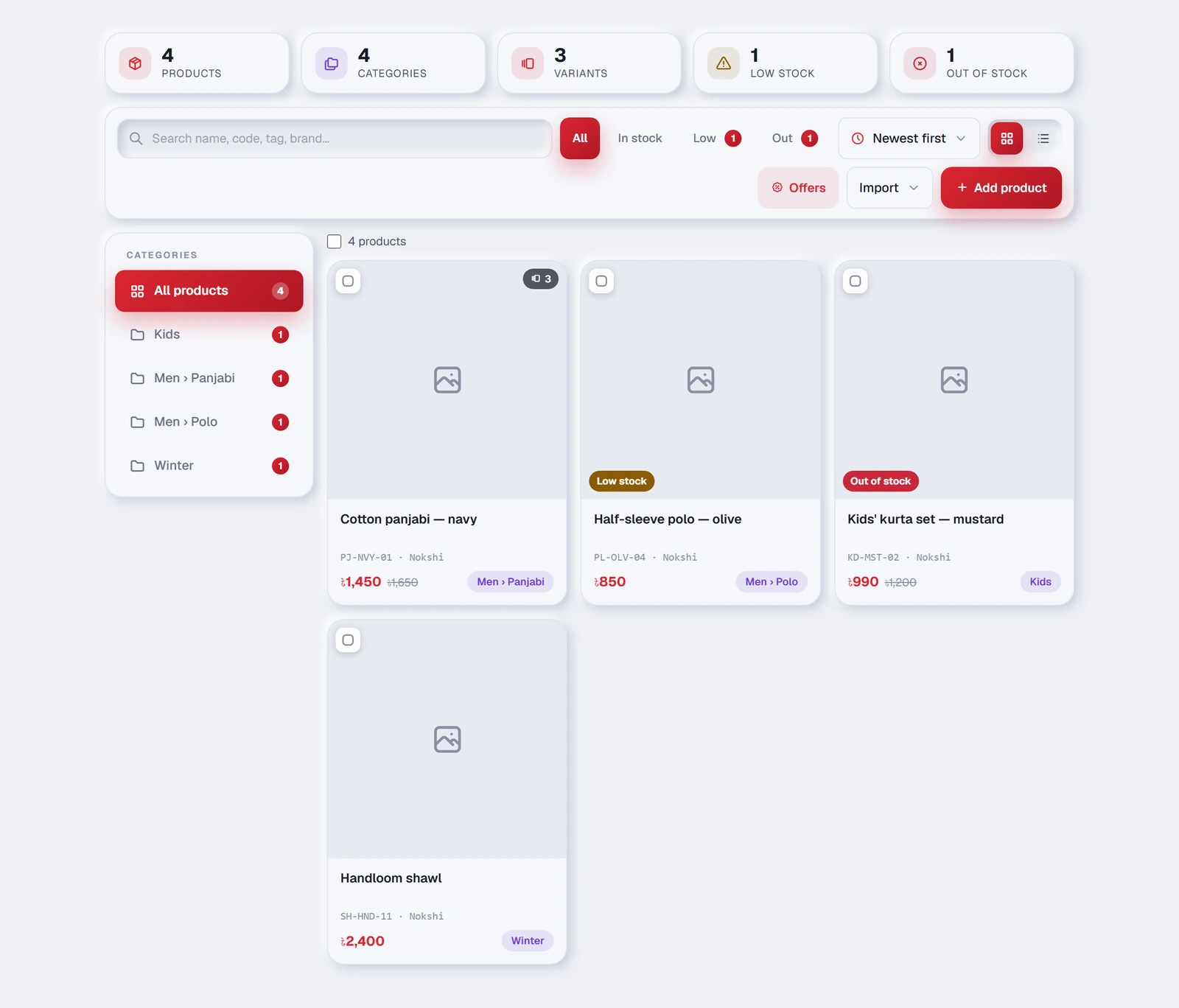
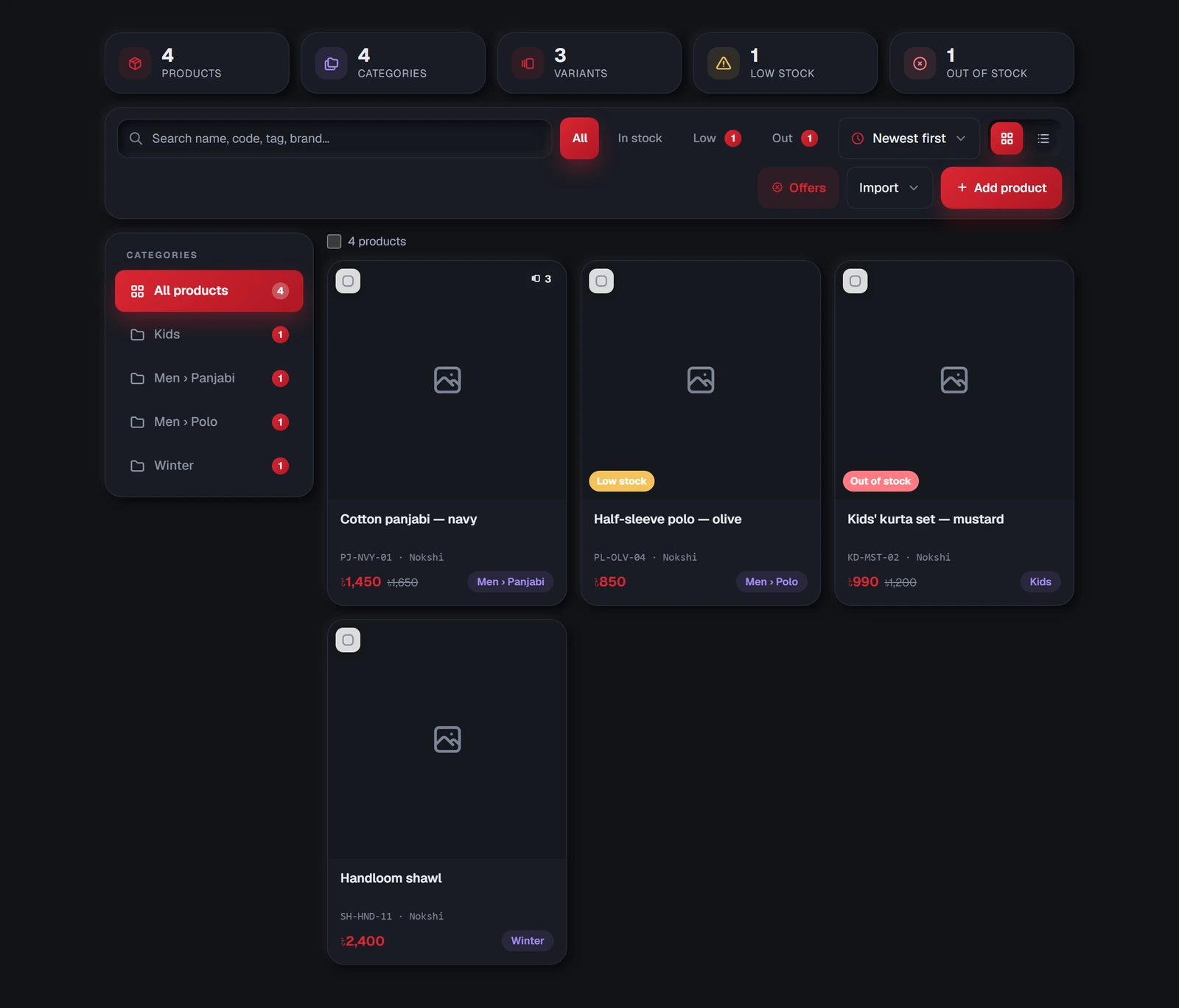
Once you have more than a handful of products, four controls do the work:
| Control | What it does |
|---|---|
| Search | Looks in name, code, tag and brand at once |
| Category filter | One category, or everything not yet filed under one |
| Sort | Newest first · Name A–Z · Price low → high · Price high → low · Stock issues first |
| Grid / table | Pictures for browsing, rows for working through a long list. Your choice is remembered |
The cards at the top — All products, In stock, Low stock and Out of stock, plus Not ready and Hidden from TellMore AI when there are any — are the quickest daily check, and each one is a filter: press it to see just those products, press it again to see them all. Under them, one line says how many categories and sizes or colours you have. Stock issues first in the sort menu puts everything that needs attention at the top of the list.
When the page finds more than one kind of problem — a product listed twice, one code on two products, products not ready to sell — they fold into one N things to fix card; Show opens each of them.
Changing several at once
Tick the boxes on several products and a bar appears at the bottom of the screen. From there you can mark them all in stock or out of stock, or delete them together — much faster than opening each one.
Hiding a product from TellMore AI
Every product has a TellMore AI sells switch — in the table view, and inside the product panel next to Availability. Switch it off and TellMore AI stops offering that product: it will not bring it up, match a customer's photo to it, or take an order for it. Nothing is deleted; the photos, prices and variants stay exactly as they were, and the Hidden filter lists them.
This is different from Out of stock. Out of stock is a fact TellMore AI tells customers who ask. Hidden means TellMore AI behaves as if the product were not there — a seasonal line you are resting, a wholesale-only item, something being photographed again.
Uploading documents
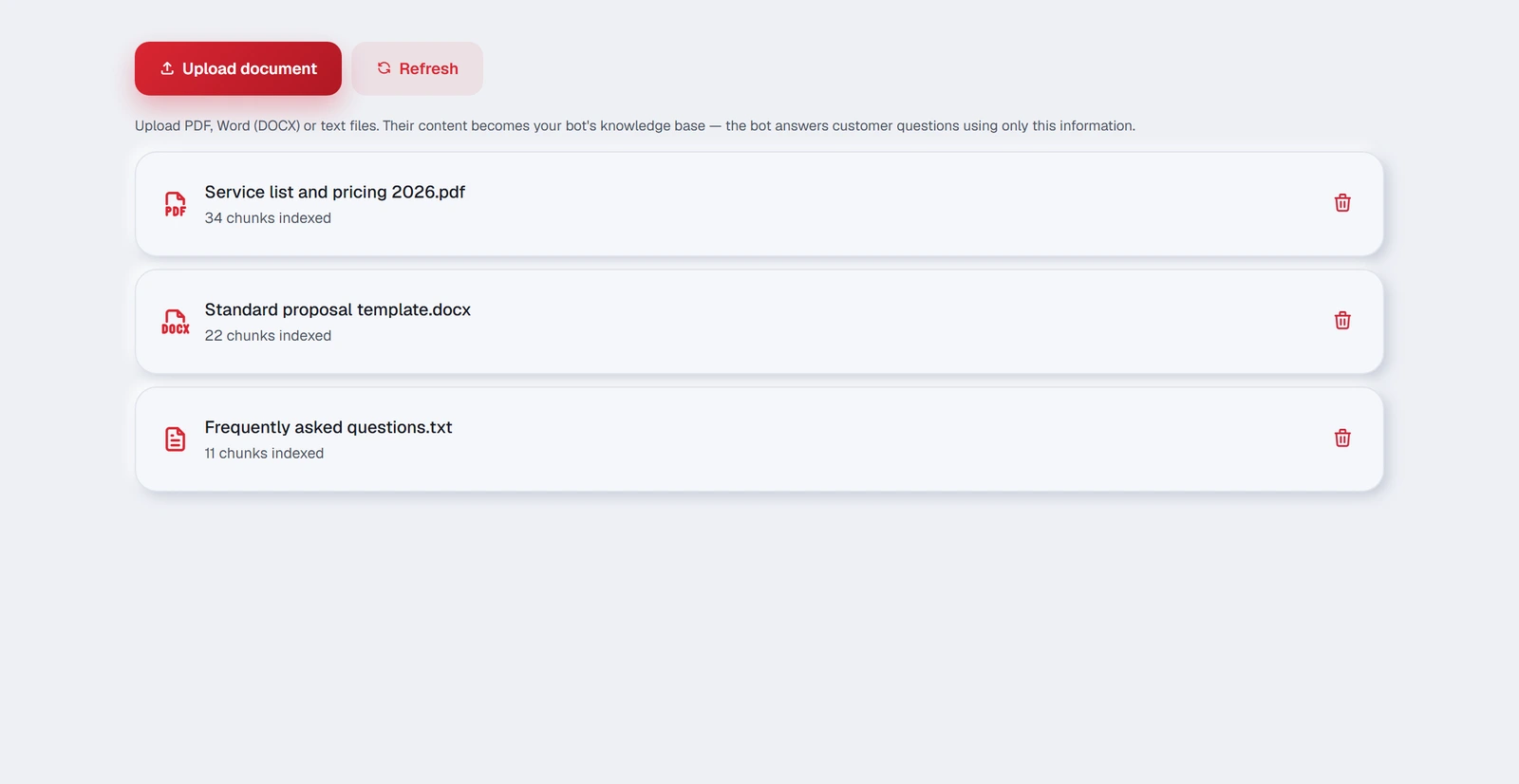
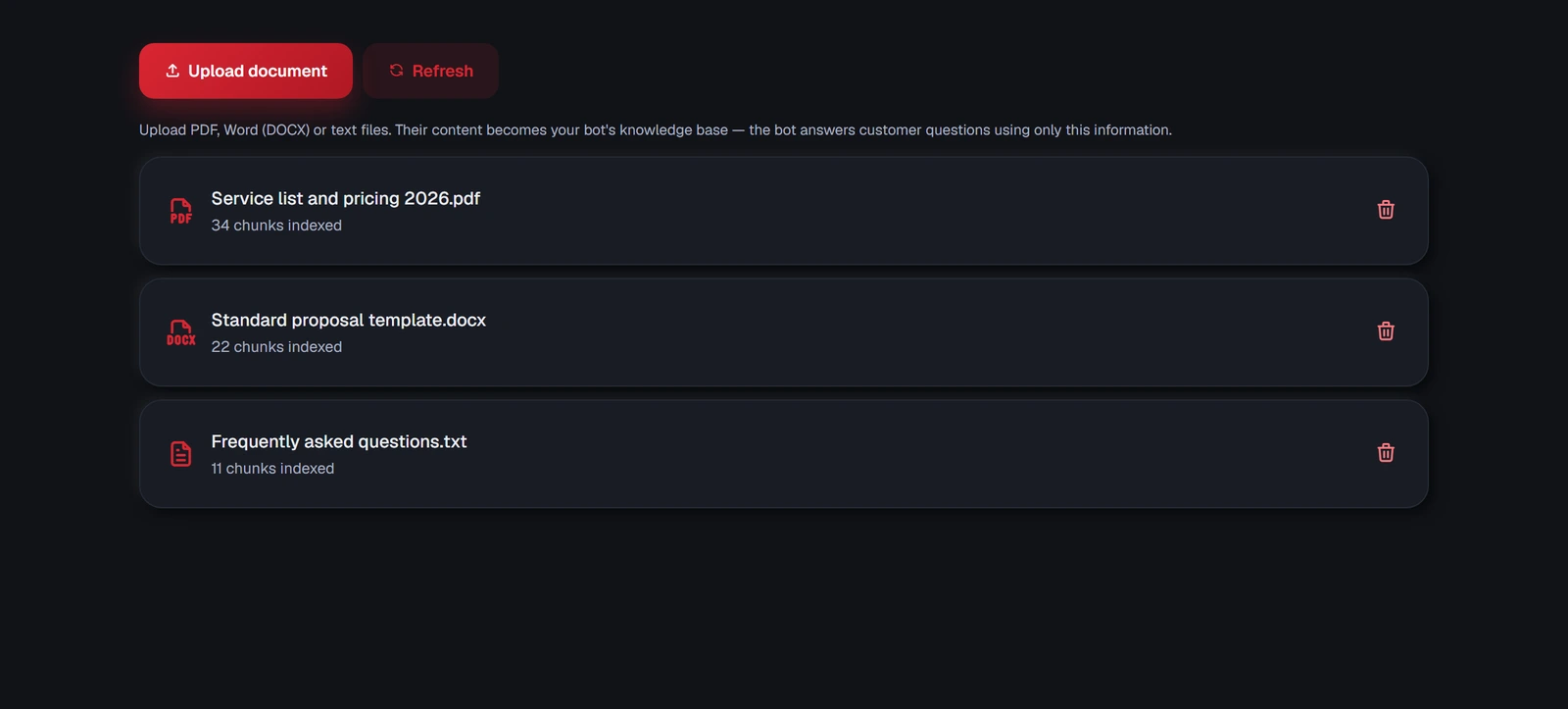
An agency's TellMore AI answers from your own documents rather than a price list. Press Upload and pick a PDF, Word (DOCX), text, Markdown or CSV file — or, on a computer, drop the files onto the dashed strip above the list. Several at once is fine; they are read one after another.
TellMore AI reads the file, breaks it into pieces and indexes them. The card then shows Ready with how many pieces were indexed — that number is only a progress signal; a bigger document simply makes more. A document that is still being read, or that could not be read, says so on its card instead.
Good documents to upload: your service list with prices, your standard proposal, your terms, a frequently-asked-questions sheet, case studies. Anything you find yourself sending clients over and over.
The bin icon removes a document and everything indexed from it, immediately. Upload a corrected version afterwards if you are replacing it rather than dropping it.