Settings
Everything you can change, in one place — and where every part of the dashboard lives.
Where everything is
The menu on the left (on a phone: More at the bottom) is in five groups. The names follow Meta Business Suite, so they feel familiar if you already use it for your Page.
| Group | What is in it |
|---|---|
| Inbox | Home, Inbox and Comments — where customers reach you, and your day at a glance. |
| Commerce | Orders and Catalog — what you sell and what was bought. A service business sees this group as Bookings, with Bookings and Services & info. |
| Insights | Insights and Marketing messages — reading the numbers and reaching customers. |
| TellMore AI | Test TellMore AI, Train TellMore AI and the AI Assistant — trying and teaching TellMore AI. |
| Business | People, Connected accounts, Settings and Billing & payments — your team, your Pages and numbers, every setting, and your package. |
Every setting in one place
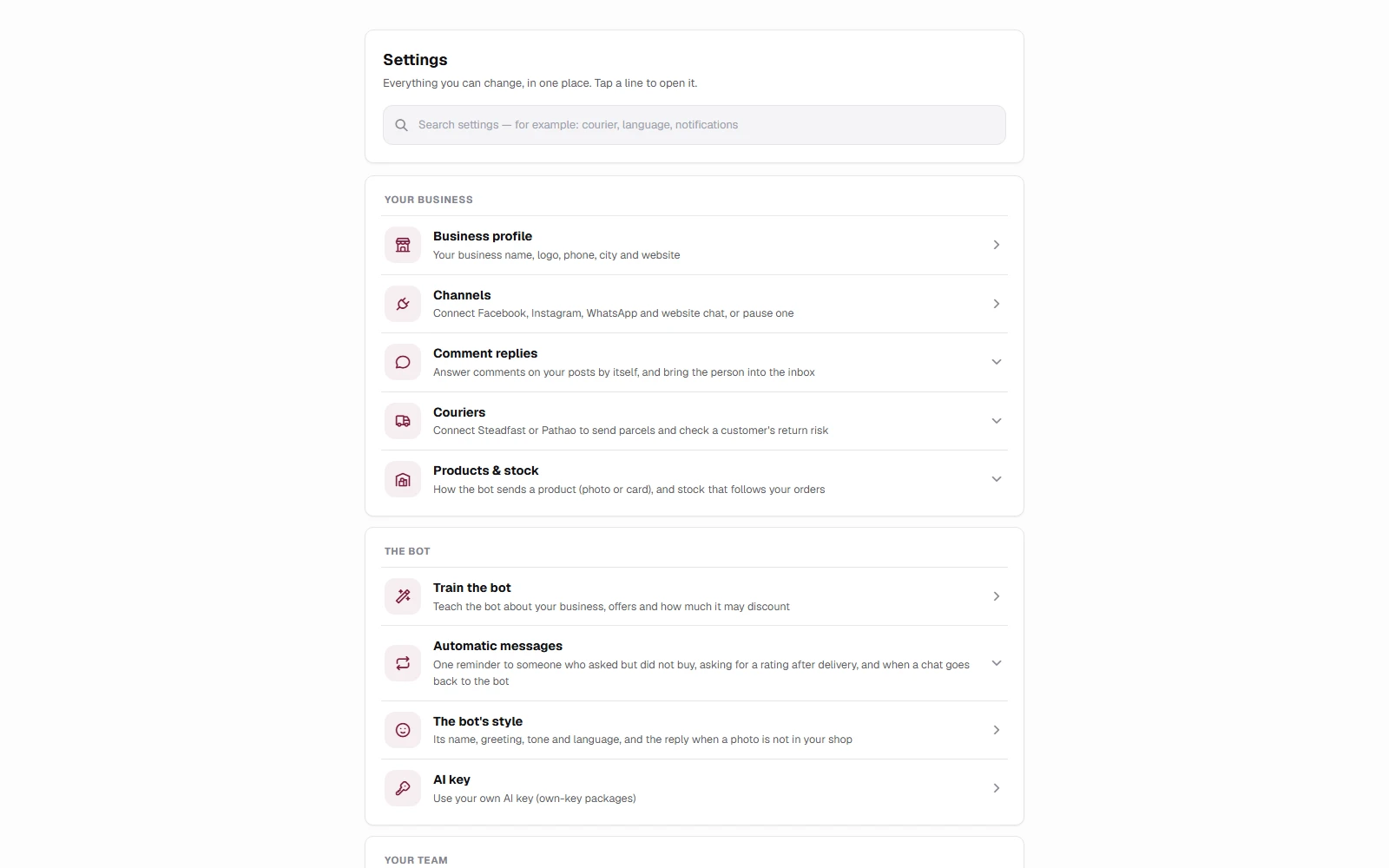
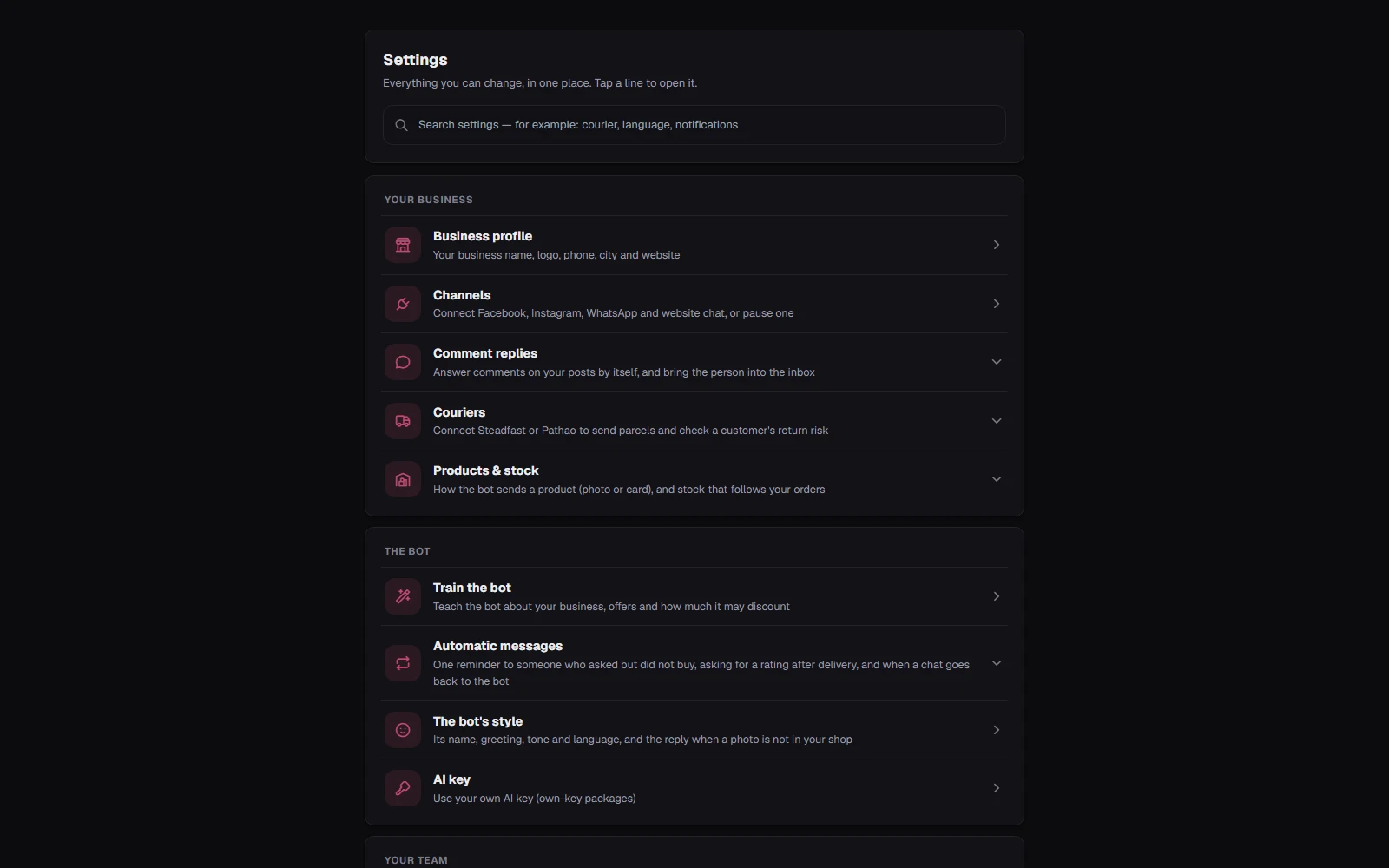
Open Settings to see every setting, grouped, each with one line saying what it does. Tap a line to open it.
Type in the search box to find one by any word, in English or Bangla — for example *courier*, *language*, *notifications* or *কুরিয়ার*.
Couriers and Google Calendar open right inside Settings — the same cards as the Couriers button in Orders and the calendar card in Bookings, so you can connect, change or disconnect from either place.
| Group | Settings |
|---|---|
| Your business | Business profile (name, logo, phone, city, website, business type) · Connected accounts (Facebook, Instagram, WhatsApp, website chat) · Comment replies · Couriers (shops) · Google Calendar (service businesses) · Products & stock (shops) · Meeting times (service businesses) |
| TellMore AI | Train TellMore AI · Automatic messages (follow-up, asking for a rating, booking reminders, when a chat goes back to TellMore AI) · TellMore AI's style (opens Train TellMore AI) · AI key |
| Your team | Settings → Team rules — how chats are shared, waiting alerts, the nightly summary, the AI coach and commission (the same as People → Rules) |
| Package & account | Billing & payments · Co-owners · Activity · Notifications for this phone or computer · Language and light/dark · Account and log out |
Co-owners: partners with their own login
If you run the business with a partner — a brother, a friend, your husband or wife — do not share your password. Give each partner a co-owner login of their own in Settings → Co-owners.
A co-owner can do everything you can: the inbox, orders, products, Train TellMore AI, channels, the team, Billing & payments. Because each person signs in with their own email, you can always tell who did what.
Only you, the main owner, add, turn off or remove a co-owner, change the main login, or delete the business.
Your package includes co-owners: 1 on a Basic package, 3 on Pro, 5 on Enterprise, and 1 on the free trial, Pay as you go and the Inbox packages.
- 1Open Settings → Co-owners and fill in Add a co-owner: their name and their email.
- 2Press Add co-owner. We email them an invite with a Set your password button: they choose their own password and are signed straight in. Their line says Invite sent until they come in; Send again sends a new link. (To give a password yourself instead, press Set a password yourself instead first.)
- 3To stop someone for a while, press Turn off. To end it for good, press Remove: their login is deleted, and their phone stops getting your notifications.
Need more? Open Billing & payments → Add more and press + on Co-owners: ৳500 a month for each one (half on an own-key package), for the days left in your package. Press − before you renew to go back to fewer.
Activity: who did what
Settings → Activity lists every change with who made it, newest first — the same list for the main owner and every co-owner: a product added, changed or deleted, a price changed (old and new price), TellMore AI's instructions published or put back, the AI key, a channel paused or disconnected, a payment started, co-owners added or removed, and the team's own work.
Each line says You, The main owner, or the co-owner's or team member's name. Team members never see this list — it shows money.
Told at once when another owner changes something important
When a co-owner (or a team member) lowers a price or deletes a product, publishes TellMore AI's instructions, changes the AI key, pauses or disconnects a channel, starts a payment, or adds or removes a co-owner, every other owner is told on their phone and in the bell 🔔 at once. The AI key, a channel disconnected and co-owner changes come by email too. You are never told about your own changes.
Automatic messages, products & stock, meeting times
These open right inside Settings. Each switch saves the moment you flip it and shows Saved; if it could not be saved it goes back and says so. They used to be in Train TellMore AI → Behavior and waited for its Publish — not any more.
| Setting | What it does |
|---|---|
| Follow-up message | Someone asked but never ordered or booked — TellMore AI sends them one reminder after the hours you choose (1 to 22). They get it once, and it stops if they reply. Change the hours or the words, then press Save message; leave the words empty for the default message. |
| Ask how it went | After an order is delivered or a meeting is done, the customer is asked once for a 1–5 rating. A 1 or 2 alerts you. |
| Booking reminders | Service businesses: the day before and one hour before a confirmed meeting, by email and in the chat. Keep both, one, or none. |
| Hand chats back to TellMore AI | When you or your team took over a chat and then went quiet, TellMore AI takes it back after the time you choose — or never. |
| How products are shown | Shops: a photo and text, or a card with Order this and More details buttons. |
| Stock follows orders | Shops: an accepted order takes its items out of your stock; a cancelled or returned one puts them back. |
| Meeting times | Service businesses: the days and hours TellMore AI offers free times from your Google Calendar. |