Orders and Bookings
What TellMore AI closed for you. An online shop gets orders taken in chat; an agency gets meetings booked straight into Google Calendar.
Which one you have
The tab is Orders for an online shop and Bookings for an agency. Your business type in Profile decides which one appears.
How an order gets here
TellMore AI takes it during the conversation. When a customer says what they want and gives a name, phone number and address, TellMore AI writes the order down and it appears here as Pending.
Nothing is shipped or charged automatically. Everything after this point is yours to do.
An order marked By hand was not taken by TellMore AI: you or a team member recorded it from the Inbox with Record a sale, and the name beside it says who. It is an order like any other — same statuses, same place in your revenue.
Moving an order along
Each order carries a status, and the buttons walk it forward one step at a time:
| Status | What it means | Button |
|---|---|---|
| Pending | TellMore AI took it, you have not checked it yet | Confirm |
| Confirmed | You have accepted it | Mark shipped |
| Shipped | It is with the courier | Mark delivered |
| Delivered | Finished, with the money in your hand | — |
| On Hold | Paused, with the reason you chose (customer not answering, waiting for the advance, waiting for stock…). Still counted in revenue | Resume — back to the step it was on |
| Cancelled · Returned | Did not complete. Left out of revenue | — |
Sending an order to your courier
Connect your courier once: press Couriers above the order list, then Connect Steadfast, and paste the API Key and Secret Key from your Steadfast panel (Settings → API). They are checked with Steadfast before they are saved, kept encrypted, and only ever shown masked.
For Pathao, press Connect Pathao and fill in the Client ID and Client Secret (Pathao merchant panel → Developer API) and your Pathao login email and password. The password is used once to sign in and is never saved; Pathao's own sign-in is kept, encrypted, and renewed by itself. Orders go from your default Pathao store, and Pathao works out the city and zone from the address. If Pathao ever stops accepting the saved sign-in, the card says Connect again.
Then open any order and press Send to Steadfast (or Send to Pathao — with both connected, pick one first) in the Courier card. It shows what the rider will collect — the total less any advance — and asks once, because this books a real parcel. The order then moves to Shipped and keeps the tracking code, with Track and Copy tracking link to send the customer.
If the order is missing something Steadfast needs — the customer's name, a valid mobile number (01XXXXXXXXX) or the full address — the card says what to add first. An order can be sent only once.
After that you do not have to check. Every 30 minutes the parcel's status is read from the courier and shown on the order. When the courier marks it delivered, the order becomes Delivered by itself (and the customer is asked how it went); when it is cancelled or returned, the parcel is coming back, so the order becomes Returned and its items go back into stock. You get a notification either way. An order you put On Hold after it was shipped is still followed, and settles the same way.
When the courier says partly delivered (the customer kept only some items), the order becomes Delivered with a note on it: the courier does not say which items came back, so check the parcel, put those items back in stock and correct the total.
If you change the customer's name, phone, address, delivery charge or discount after the parcel is booked, the courier still has the old details: the order shows a note reminding you to change it in your courier's panel too.
When a customer asks TellMore AI "where is my parcel?", it answers from their own order — which courier has it, where it is now — and gives them the tracking link. It only ever sees the orders of the person writing.
Return risk — check a customer before you send
Every order still to be sent has a Return risk card. With you counts this customer's earlier orders with your shop — the same chat or the same mobile number, however it was written — and how they ended: delivered, returned, cancelled.
With Steadfast connected, the order is also checked with Steadfast when you open it: how many Steadfast parcels went to this number from every Steadfast shop, how many were delivered and how many were cancelled. The answer is kept on the order, so it is asked only once; press Check again for a fresh one. Steadfast limits how many checks a shop can run, and says so when the limit is reached. Pathao does not offer this check.
The card then gives a return-risk score from 0 to 100 and the reasons behind it, biggest first — for example *+40 most of their Steadfast parcels were not delivered*, *+20 no valid mobile number*, *−15 paid an advance*. It counts their record with you and with Steadfast, and this order: an advance (paid in full brings it to 0), a large cash-on-delivery total, a missing or wrong mobile number, a very short address, and delivery outside Dhaka. From the score it says how careful to be: Good record, No history yet, Be careful (35 or more — call the customer to confirm first) or High return risk (60 or more — ask for an advance, at least the delivery charge, before sending). The list marks those orders Check first or Risky, so you see them before opening anything. It is advice: nothing is blocked, and the customer is never told.
To have new orders checked without opening them, tick Check each new order's customer by itself under Steadfast in Couriers. Every half hour the new orders still to be sent are checked, so the score is ready when you look. It is off until you turn it on, because each check uses one of Steadfast's daily checks for your shop.
Advance payment and what to collect
When a customer pays part of the price before delivery — on bKash, Nagad or any other way — the order records it: open the order and press Add advance in the Payment card, then enter the amount, how they paid and the transaction ID (TrxID). The order then shows To collect on delivery: the total less the advance, which is what your courier should collect. The list shows it under each total, and the CSV has Advance, TrxID and To collect columns.
If the customer sends their TrxID in the chat while ordering, TellMore AI writes it on the order for you. That is only what the customer said, so it shows Not checked yet until you find the payment in your own bKash / Nagad app and tick I found this payment in my payment app. TellMore AI never tells a customer their payment is received — you confirm it.
An invoice for an order
Open the order and press Make invoice. Then Open shows the invoice — your business name and logo, the order number and date, the customer, every item with its price, the delivery charge, the total, any advance paid and what is left to pay on delivery — with a Print / Save as PDF button; Copy link copies its address so you can send it to the customer in their chat. It opens in your phone's browser, so printing and saving a PDF work from the app too.
The link works for 180 days and shows only that one order. It never shows your private note, why an order is on hold, or anything about your business beyond its name and logo.
Stock follows your orders
When you accept an order — Confirm, or straight to Shipped or Delivered — its items are taken from the stock you keep in Catalog: the size or colour's own count when it has one, otherwise the product's count. It happens once per order, however often you move it along. Cancel the order or mark it Returned and the items go back into stock: exactly what it took, so if only 1 was left when an order of 3 was confirmed, 1 goes back. Deleting an order that took stock puts it back too. When TellMore AI changes an order that already took stock (a product added, removed, or a quantity changed), stock moves by the difference. If two people change the same order at the same moment, the first change wins and the second is asked to refresh, so stock is never taken twice. A message at the top says what moved ("2 items taken from stock") and names anything it could not count — a product you do not keep a count for, or one that is no longer in Catalog.
When a count reaches 0 the item shows out of stock, and TellMore AI stops offering it. You can switch this off in Settings → Products & stock → Stock follows orders if you count stock yourself somewhere else.
Putting an order on hold
Open the order and press Put on hold under *Update status*. Pick the reason — Customer not answering, Waiting for advance payment, Waiting for stock, Customer asked to wait, Address to confirm — or Other reason… and write your own. The reason shows on the order in the list and at the top of the order, with how long it has been waiting, and On Hold has its own filter. Resume takes it back to the step it was on; Change reason updates the reason.
Asking how it went
When you mark an order Delivered, the customer is asked — once, in the chat, in your business's voice — how it was, for a rating from 1 to 5 and a word or two. If they wrote to you in the last 24 hours the question goes straight away; otherwise (Meta only allows a business to message first within 24 hours) TellMore AI asks it in its reply the next time they write.
Their answer is saved by itself — a number, stars, or just how they felt — and shows in the order under Customer rating, and on Home with your average. A rating of 1 or 2 sends you a notification and puts the chat in Needs you, so a person can make it right. Switch it off in Settings → Automatic messages → Ask how it went.
The three quick filters
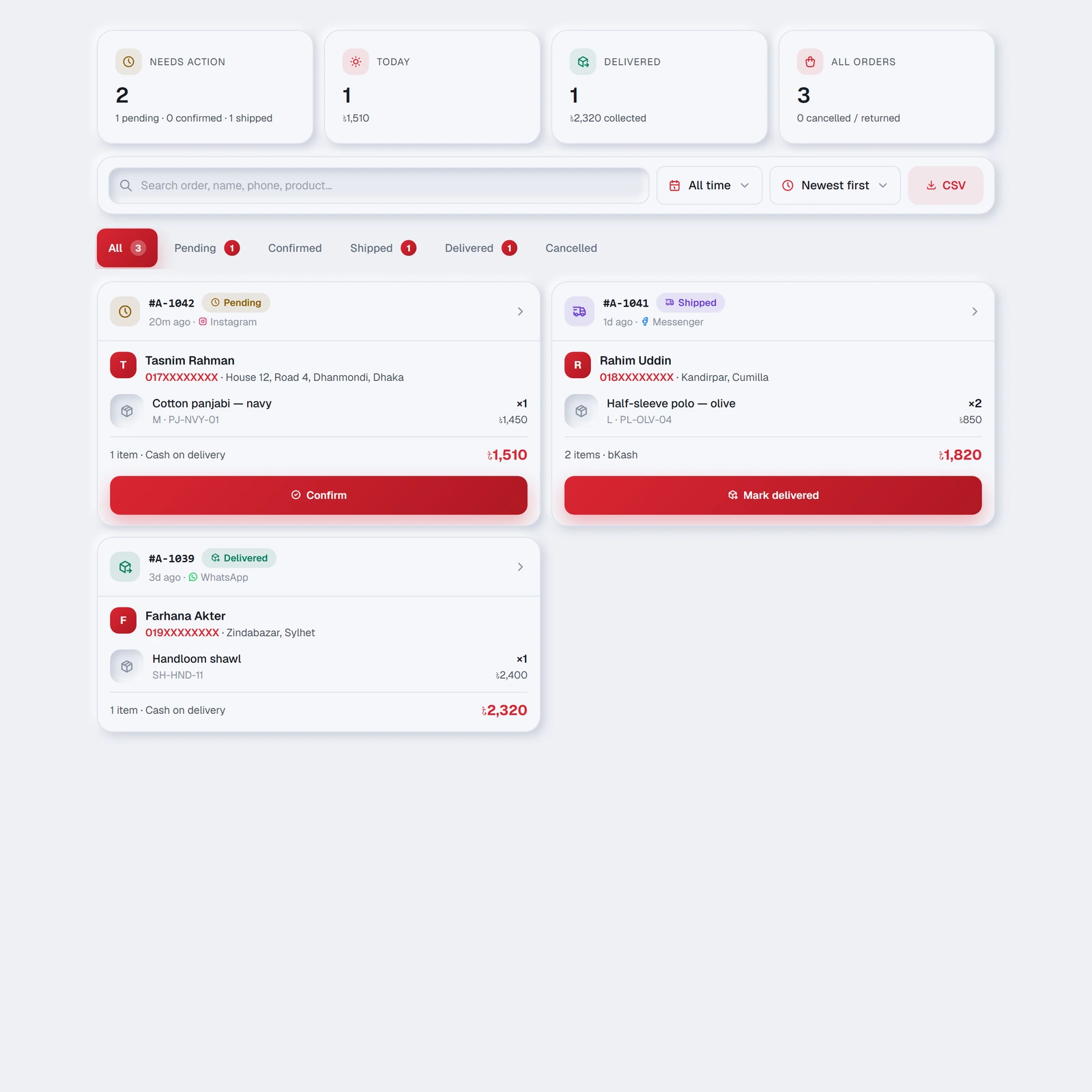
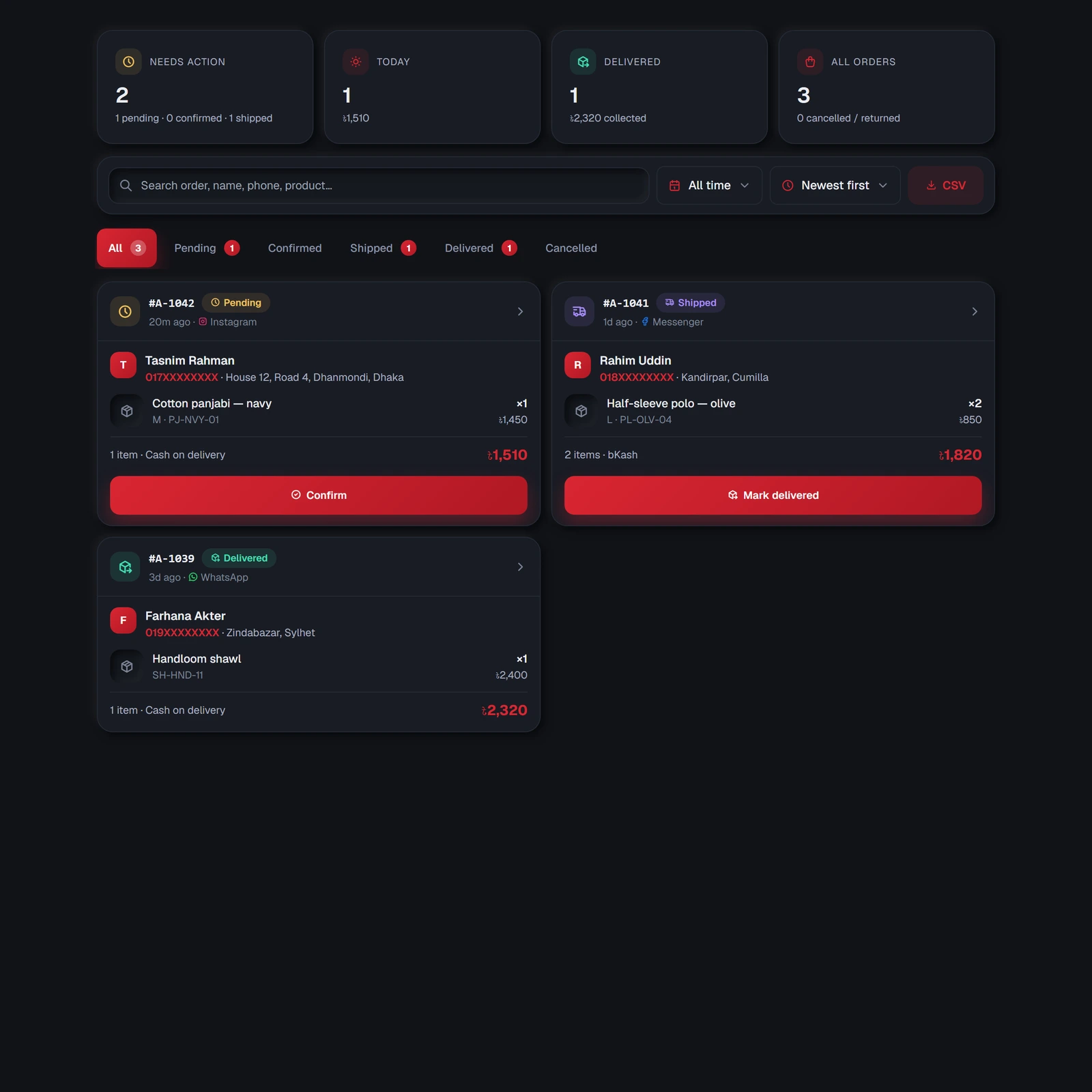
Above the list: Needs action, Today, Delivered and All orders. Needs action is the one to open every morning — it is everything waiting on you.
Then Search (order number, name, phone or product) and Couriers. More opens a date range of All time · Last 7 days · Last 30 days, a sort of Newest · Oldest · Highest amount and CSV; a small dot on More says a range or sort is on while it is closed.
Below them, one button per status — All · Pending · Confirmed · Shipped · Delivered · On Hold · Cancelled · Returned — each showing how many orders it holds. Needs action counts Pending, Confirmed, Shipped and On Hold orders.
Opening one order
On a laptop the orders are a table — one row each, with the next step's button at the end of the row. On a phone they are cards. Either way, tap an order and a panel slides in with everything about it — customer, address, items, subtotal, delivery, discount, payment method and which channel it came from.
Three buttons sit at the top of the panel: the next step (Confirm, Mark shipped, Mark delivered), Call, which dials the customer's number, and Chat, which opens their conversation in the Inbox — handy when you need to ask about a size or an address before you ship.
| What you can do | Why |
|---|---|
| Edit name, phone, delivery area, address | TellMore AI writes down what the customer typed; typos happen |
| Set delivery charge | Inside or outside the city usually differ |
| Set payment method | Defaults to cash on delivery |
| Copy name, phone, address | One tap, ready to paste into your courier's form |
| Add a note | Courier and tracking number, or a special request. Only you see it |
The download icon exports what you are currently looking at as a CSV file, filters included — useful for accounts, or for handing a day's orders to someone else.
In the Android app the file opens in the phone's browser and is saved to Downloads. That download link works for ten minutes; press the button again for a fresh one.
Connect Google Calendar first
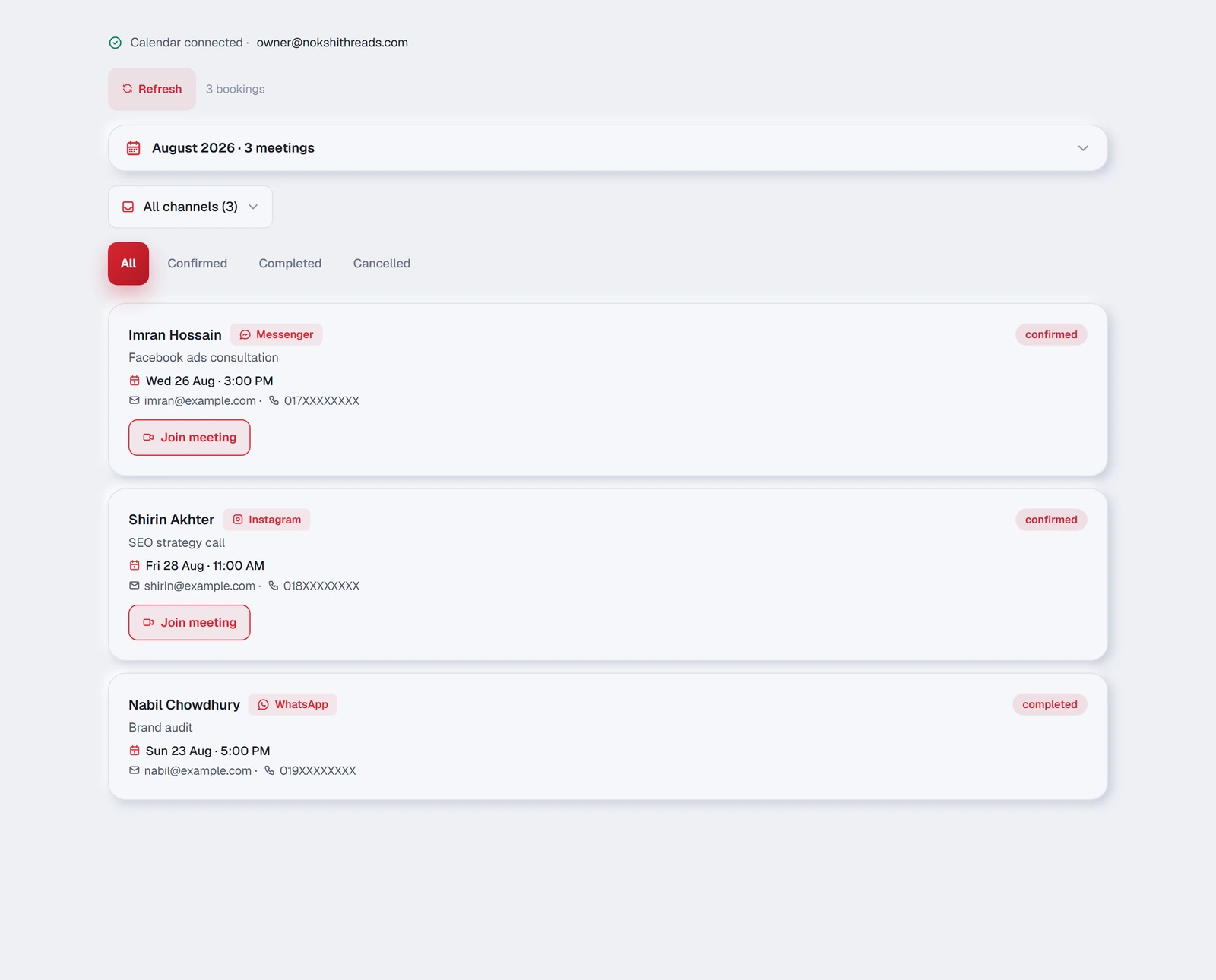
Bookings only work once your calendar is connected — and this is where you connect it. If it is not connected, the tab says so and shows you the button.
It takes about a minute, there is nothing to install, and you log in with your own Google account. TellMore AI only uses it to check when you are free and to create the meetings — nothing else in your calendar is read or touched.
Once connected, the top of the tab shows which Google account is linked, with a Disconnect button right there. Disconnecting removes our access at once; bookings already made stay listed, but TellMore AI stops taking new ones.
How a booking gets here
- 1A customer asks for a meeting during a conversation.
- 2TellMore AI checks your calendar for a free slot.
- 3It offers times, the customer picks one, and TellMore AI confirms.
- 4The event is created in your Google Calendar with a Google Meet link, and the customer is sent that link on the channel they wrote from.
The calendar
The month view marks every day that has something booked; tap a day to see just that day. Above it, Next 7 days and This month switch the range, and the arrows move between months. On a laptop the month is open from the start; on a phone a strip of the next seven days sits above it — a dot for each meeting — and the month is one tap away below.
The list underneath is grouped by when: Today, Later this week, Coming up, and Past at the bottom. Choose a day or a range and the headings give way to that day's list.
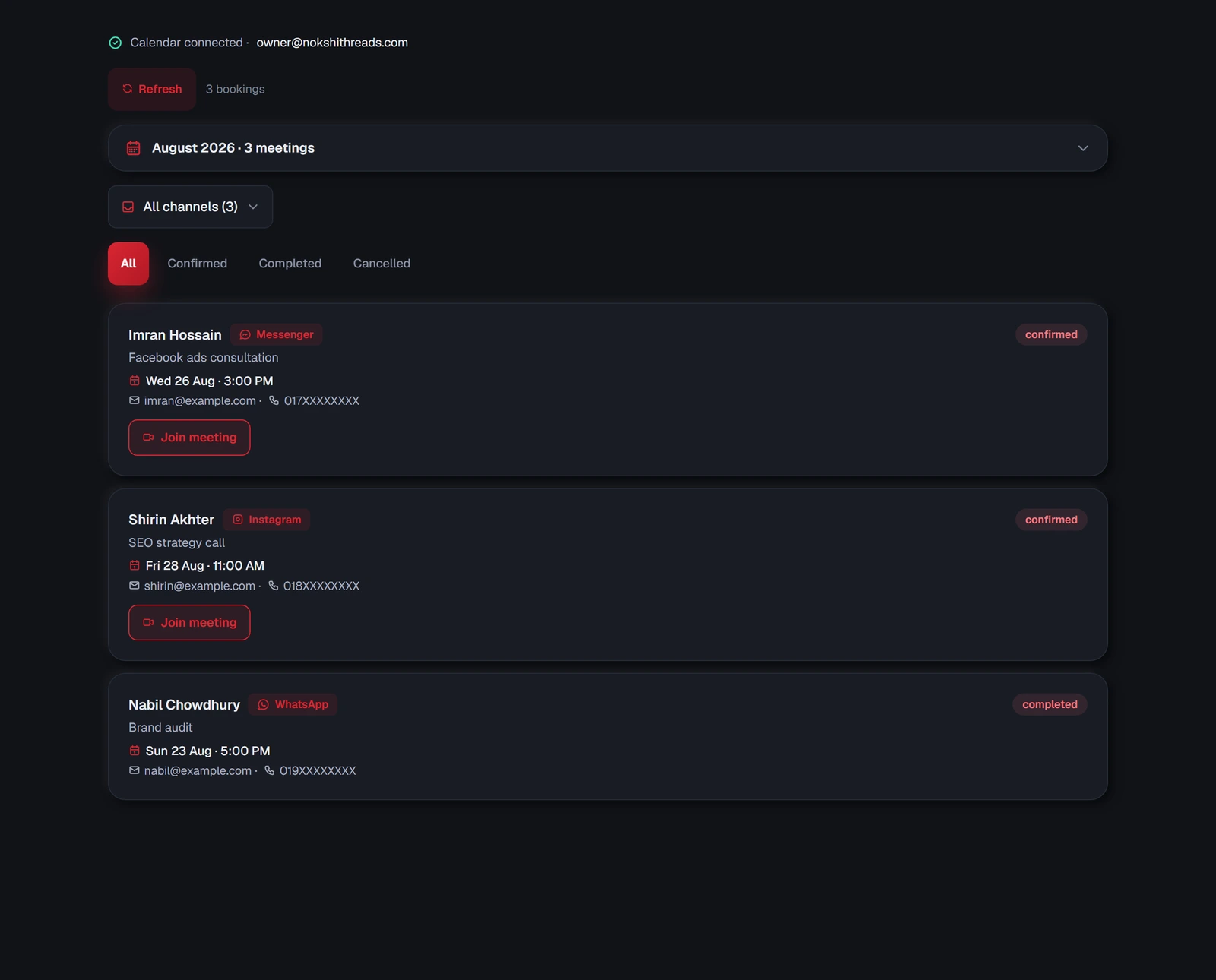
Each booking shows the person, the time, which channel they came from, and a video icon that opens the Meet link.
Open a booking and Before with you shows this customer's earlier bookings — the same chat, mobile number or email — and how many were done or cancelled. After two cancellations it says CONFIRM FIRST: worth a quick message before you keep the time free.
| Status | What it means |
|---|---|
| Confirmed | Booked and in your calendar |
| Completed | The meeting has happened |
| Cancelled | Called off. The calendar event is removed too |
Asking how the meeting went
When you mark a booking Mark done, the customer is asked — once, in the chat — how the meeting was, for a rating from 1 to 5 and a word or two: straight away if they wrote in the last 24 hours, otherwise in TellMore AI's reply the next time they write. The answer shows in the booking under Customer rating and on Home. A rating of 1 or 2 notifies you and puts the chat in Needs you. Switch it off in Settings → Automatic messages → Ask how it went.
Reminders to your customers
Every confirmed booking gets two reminders, sent in your business's name: the day before and about an hour before. Each one goes by email — to the address the customer gave when booking — and also in the chat when they wrote to you in the last 24 hours (Meta only allows a business to message in the chat then). It says when, what the meeting is about, has the Meet link as a Join the meeting button, and tells them to reply if they need to change or cancel. It is written in Bangla if the customer writes in Bangla.
A reminder is never sent twice, never for a cancelled or completed booking, and not when it makes no sense — someone who booked this morning for this afternoon does not get a "tomorrow" note. An hour before each meeting you get a notification too.
Open a booking to see its Reminders: what went, when, and how (email, chat), or when it will go. Switch reminders off, or keep only one, in Settings → Automatic messages → Booking reminders.
When a customer wants another time
When a customer writes "I want to change the time", TellMore AI moves their existing meeting itself — nobody from the team is needed. It asks for the new day and time (offering the free times as buttons), checks once — "Move your meeting from Tuesday 11 AM to Wednesday 3 PM?" — and moves it when they say yes.
The new time has to be free in your Google Calendar, at least 2 hours away, and inside the days and hours in Settings → Meeting times. The same calendar event moves, so the Meet link stays the same and Google tells the customer the new time. The reminders start again for the new time, and your phone gets a 📅 Booking moved notification.
If the time is not free, too close, or unclear, nothing changes — the customer is told the meeting stays where it was and is asked for another time. If they have two meetings, TellMore AI lists them and asks which one.
If they have no upcoming meeting at all (it was cancelled, or is over), TellMore AI books a new one for the time they asked, with the name, email and phone from their earlier booking — and asks only for what it does not have.
When a customer wants to cancel
TellMore AI cancels the customer's own meeting itself. It checks once which meeting and that they want it cancelled, then marks it Cancelled — the same as pressing Cancel in Bookings — and removes it from your Google Calendar, so Google tells the customer. Your phone gets a ❌ Booking cancelled notification.
If they have two meetings, TellMore AI asks which one; if they have none, it says so and offers a new time. Only when something breaks on our side does the chat go to your team.