Profile
Your business details, your logo, your business type, and your package at a glance.
Business information
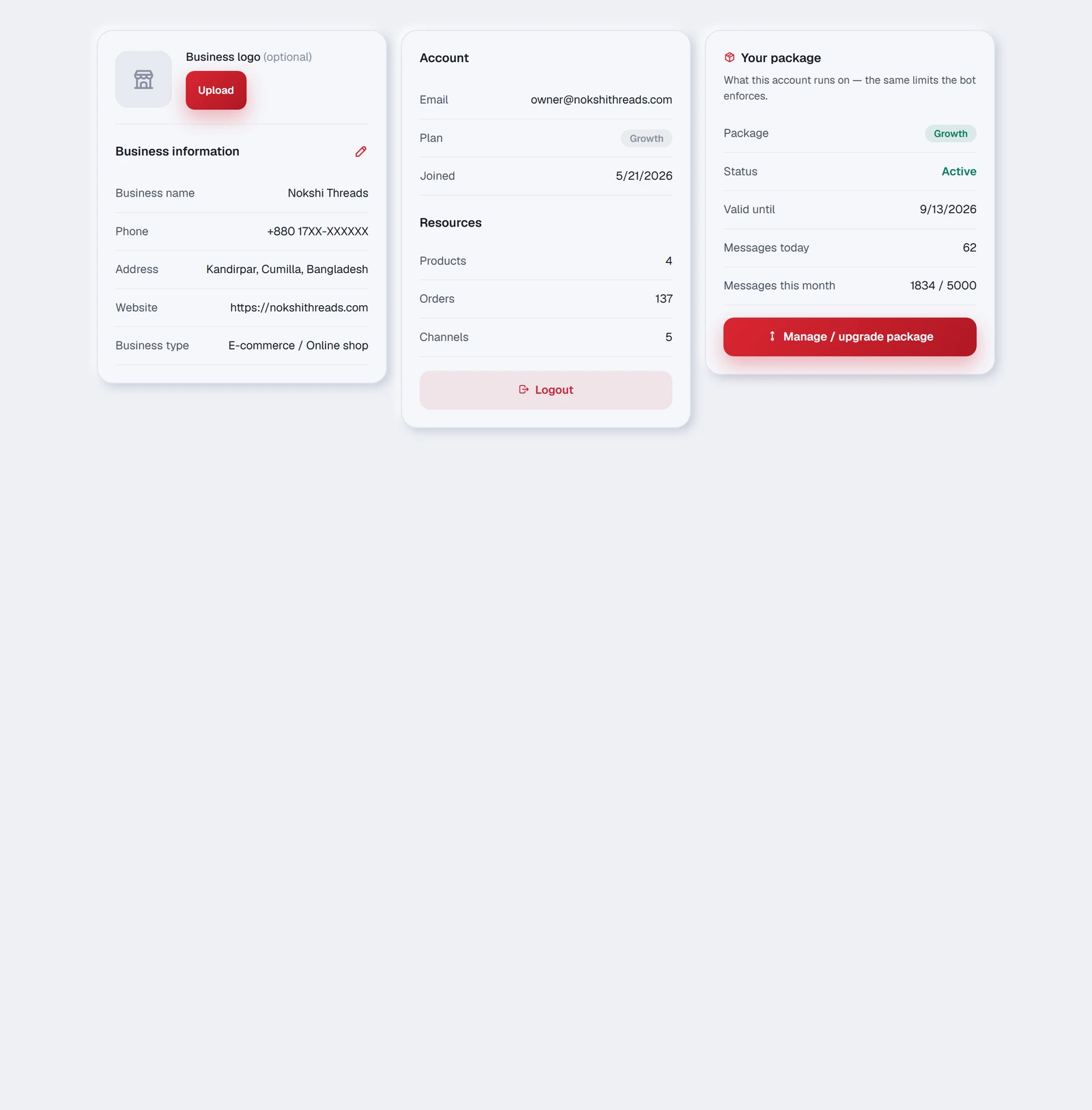
Your business name, phone, city / area and website. TellMore AI uses these when a customer asks where you are or how to reach you, so keeping them accurate saves you answering the same question by hand. The name, the phone and the city / area are required; the website is optional.
| Field | Where it shows up |
|---|---|
| Business name | How TellMore AI refers to you in every conversation |
| Phone | Given out when a customer asks how to call you |
| City / area | Given out when a customer asks where you are — the area and city are enough, e.g. Agrabad, Chattogram |
| Website | Shared when a customer wants to browse |
Business logo
Upload your logo here. It appears in the dashboard and on your website chat widget, so a visitor sees your brand rather than a generic robot.
Business type
E-commerce / Online shop or Agency / Service provider. This is not a label — it changes the dashboard.
| Online shop | Agency | |
|---|---|---|
| Two tabs become | Catalog · Orders | Services & info · Bookings |
| TellMore AI is taught with | Your product catalogue | Your documents |
| TellMore AI can | Take an order in chat | Book a meeting on your calendar |
| Its tags are | Order, Product Inquiry, Delivery, Complaint, Other | Booking, Service Inquiry, Complaint, Follow-up, Other |
Resources
A count of what TellMore AI has to work with — your products, or your knowledge files. A quick way to notice that an import did not land, or that a document you thought you uploaded is not actually there.
Your package
The same figures as the Billing & payments page, repeated here so you can see them without leaving your profile: TellMore AI replies today, TellMore AI replies this month, and what your plan includes. The button takes you to Billing & payments to change it.
Notifications
One switch. On, this device gets a notification even when the dashboard is closed — a new order, a new booking, a chat that needs you, a channel that stopped working. Off, the bell in the top bar still works; only the phone stays quiet.
The first time you turn it on, the phone or browser asks for permission. If it is blocked, the row says so and tells you where to allow it. The full picture — the bell, the phone, the emails — is on the Notifications page of this manual.