Billing & payments
Your package, how much of it you have used, and how to renew it, change it or set your own numbers — on our AI or your own key at a lower price.
My package
The Billing & payments page opens on your own package and nothing else: its name, whether it runs on our AI or your own key, what it costs you, the date it ends and how many days are left, and what you have used — TellMore AI replies this month, products or documents added, AI Assistant questions.
A “message” here is one TellMore AI reply to one customer message — one, even when the answer comes as two or three bubbles. Replies you send yourself, from anywhere, are never counted, and nothing is counted while TellMore AI is off.
Under it is everything your package includes. Every package has every feature; what changes is how much.
You can also add team members who take over from TellMore AI when a customer needs a person. A package includes none — add them in Billing & payments with the Team members step — and the free trial includes one. Without them, a chat that needs a person waits for you.
When anything reaches 90% — TellMore AI replies, products or documents, AI Assistant questions — its meter warns you, every page of the dashboard shows a bar, and an Add more button takes you straight to raising it.
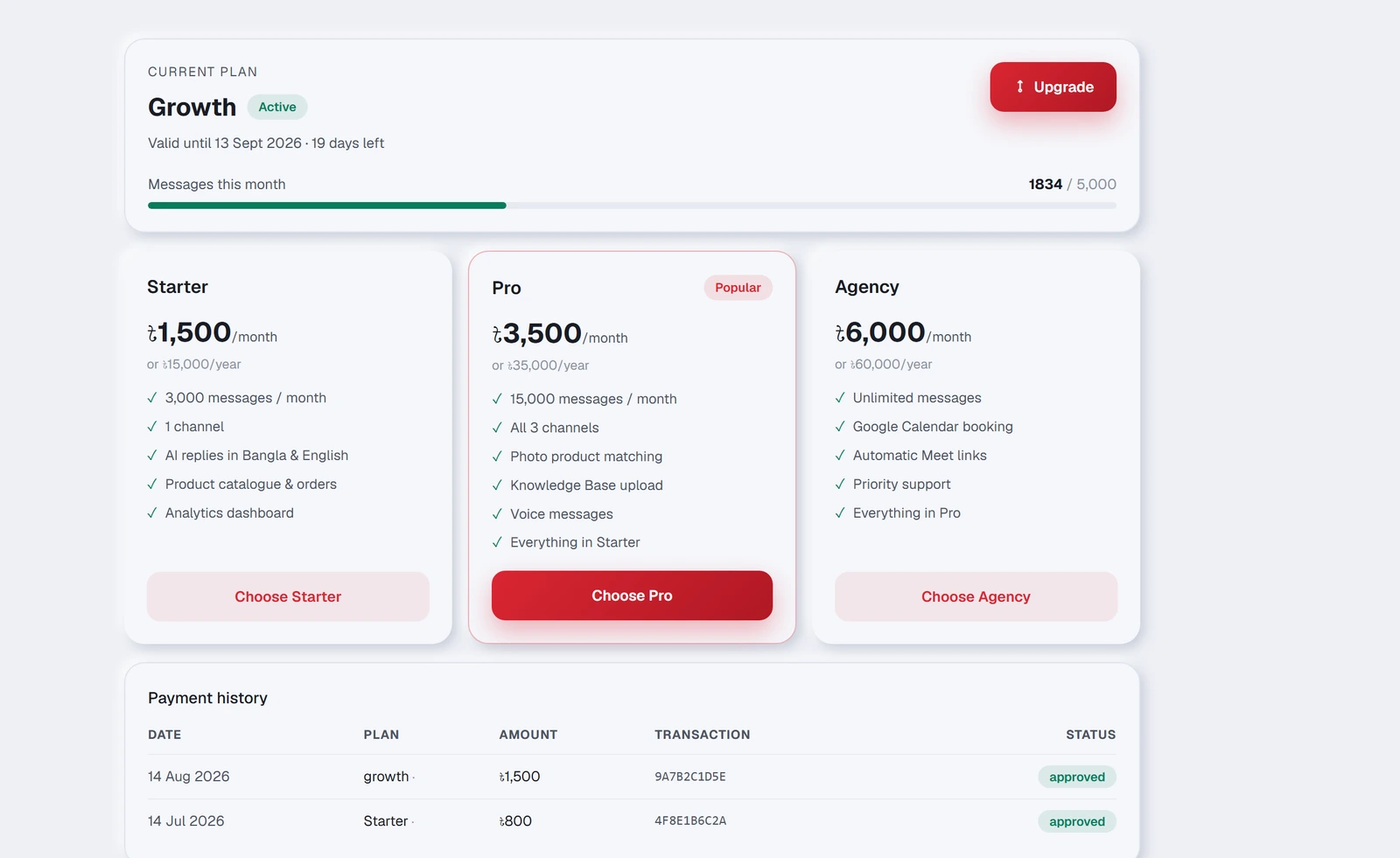
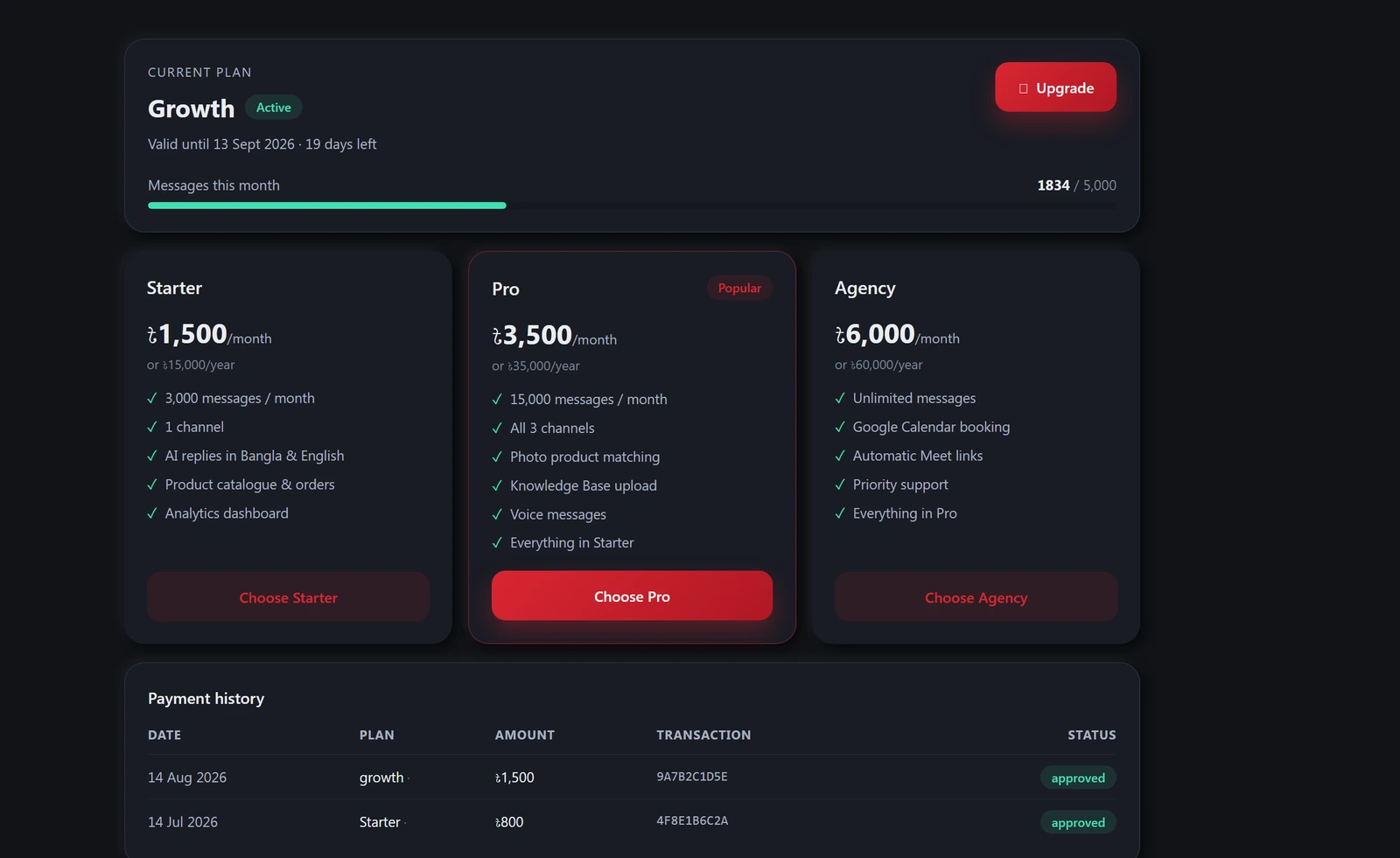
Choosing or updating a package
- 1Press Update package (or Choose a package).
- 2Pick a package. The one you are on is marked Current.
- 3Choose Standard (our AI) or Own AI key · lower price. On your own key every AI reply runs on your own Google Gemini or OpenAI key, so the package is half price — after approval the AI Engine tab opens for you to add the key.
- 4Choose Monthly or Yearly. Yearly gives you two months free.
- 5Need more? Set your numbers. TellMore AI replies a month, products (shops) or knowledge files (services), AI Assistant questions and Team members each have a slider, like a mobile pack. Each starts at the package's own number and only goes up — drag it or press + — and the price changes as you go. Reset puts them back to the package.
TellMore AI and your team, in one package
A business holds one package at a time. Every Shop and Service package runs TellMore AI and includes a sales team: TellMore AI answers every customer first, and your team members take over when a customer needs a person. Each member has a login of their own.
Each number moves in steps: 50 replies, 50 products, 5 files, 50 questions, 1 team member. A number never goes below the package's own, and goes up as far as the biggest package's number and half again. Each step adds its price.
One ladder: once your numbers cost as much as a bigger package, they ARE that package — the screen picks it by itself and says so. Raise Basic until it reaches Pro's price and you are buying Pro, with Pro's numbers wherever they are bigger; the same at Enterprise. You always pay the least any package costs for the numbers you chose.
Your numbers renew with your package until you change them.
Add more in the middle of the month
Running low before the month is over? Press Add more, raise the numbers you need, and pay. You pay only for the days left on your package — half a month left, half the price.
The higher numbers apply as soon as the payment is approved, and from your next renewal they are part of your package.
Paying
Press Pay online and pay on PayStation's secure page with bKash, Nagad, Rocket, Upay or a card. You pay exactly the price shown — the payment charge is on us. The purchase switches on as soon as the payment goes through, and you land on a page that says so.
From the Android app, the payment page opens in your phone's browser. When you have paid, simply go back to the app — the Billing & payments page updates by itself.
- 1Choose your package (or press Add more) and press Pay online.
- 2On PayStation's page, pick bKash, Nagad, Rocket, Upay or a card, and pay.
- 3You come back to a page that says whether the payment went through. Open Billing & payments shows your purchase already switched on.
Moving to a bigger or a smaller package
Bigger: the days left on your current package are worked out and taken off the new price — the screen shows the line "Unused days of …". The bigger package starts the same day.
Smaller: your current package keeps running until the end of the period you paid for, and the smaller one starts from the next period. The Billing & payments page shows the date it changes. There is no adjustment for the days left.
Cancelling your package
Press Cancel package at the bottom of the My package card and tell us why — out of budget, not needed right now, changed your mind, disappointed with the service, found a better platform, or another reason.
Your package keeps working until the end of the period you paid for and is not renewed; renewal reminders stop. Cancelling does not give money back. Changed your mind? Press Keep my package, or simply buy again.
Asking for a refund
Money comes back in two cases: the same purchase was charged twice (tell us within 7 days of the payment), or you paid and your package was not activated within 7 days (ask within 30 days of the payment). The full rules are on the [refund policy](/refund-policy) page.
In Payment history, press Ask for a refund next to the payment, choose the reason and where the money should go — bKash, Nagad, Rocket (the number) or a bank account (name, number, bank, branch). You are told the decision in Billing & payments and on your phone; an approved refund arrives within 1 to 7 days and ends the package it paid for.
After you pay
As soon as PayStation confirms the payment, your purchase switches on — usually within seconds. You are told on your phone and by email, and the page updates by itself. The email is your receipt: the amount, how you paid, the payment number, the package and the date it runs to.
If PayStation has not confirmed it yet, the Billing & payments page shows Confirming your online payment at the top. It switches on by itself the moment PayStation does. If bKash or your card showed "failed", or you cancelled, nothing was taken — you can pay again straight away.
Payment history at the bottom lists every payment with its payment number, so you always have a record. A payment that was started but never finished shows as not completed.