Train TellMore AI
Where you teach TellMore AI your business. Answer its questions and it writes its own training from your answers — then set your offers, your bargaining rule and how it sounds.
Why the tab is called this
It used to be called Settings, and owners looked straight past it. Everything on this page teaches or tunes TellMore AI, so it says what it does.
This is the single most valuable tab in the dashboard. TellMore AI trained for twenty minutes here answers better than one connected to five channels and taught nothing.
Five sections across the top: Teach, Offers, Bargaining, TellMore AI's style and Advanced. Everything here is what TellMore AI is told, and it goes live together when you press Publish. A checklist above them shows how far along you are — Identity, Business, Policies, Services, Q&A, Offers, Bargaining.
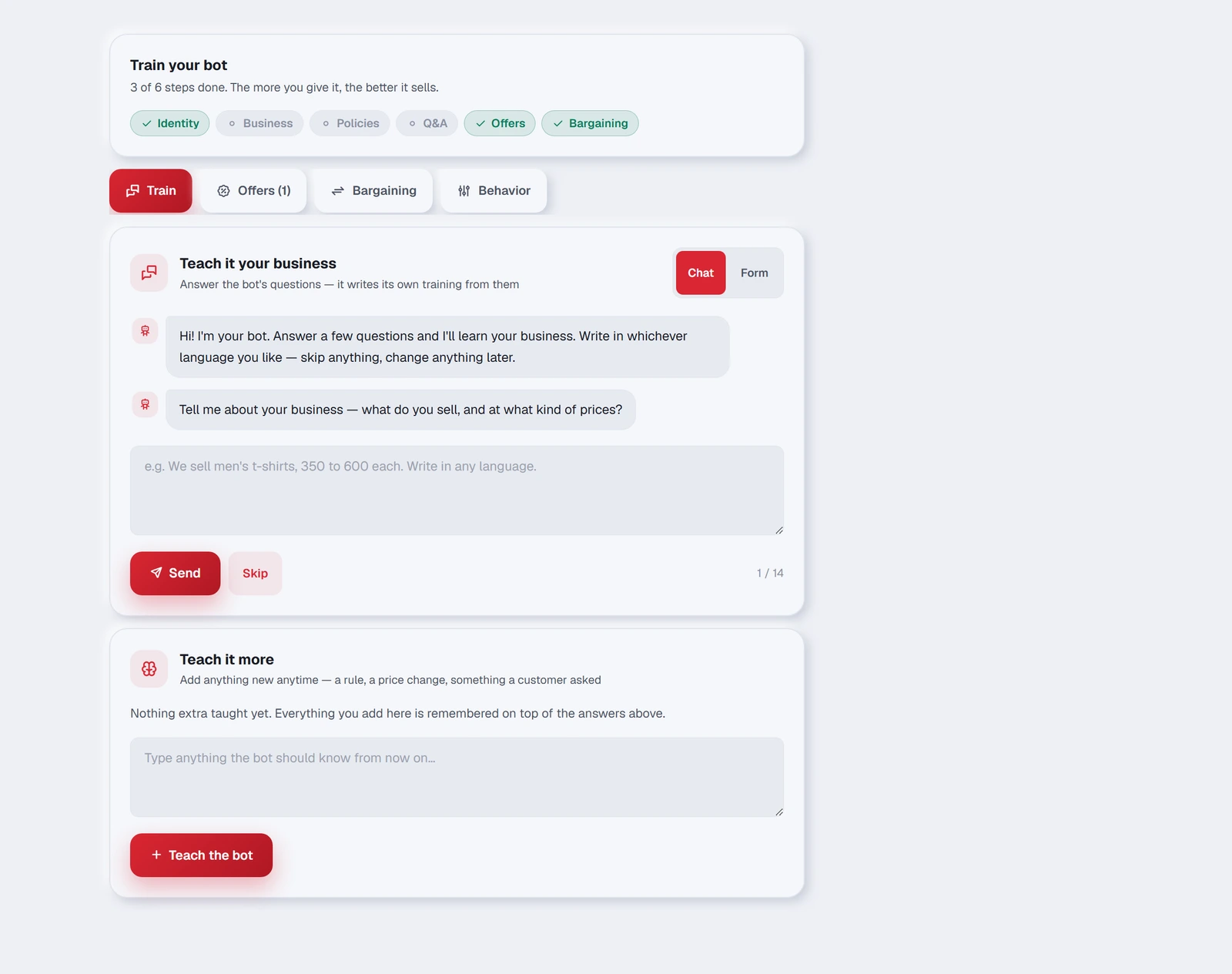
Teach — the interview
TellMore AI asks you questions about your business, one at a time, and writes its own training from your answers. You can switch between a Chat view and a Form view; the form is faster once you know the questions.
Write in whichever language you like. Bangla, English or a mix — TellMore AI understands all three, and it will still answer each customer in whatever language that customer used.
It asks about your products and best sellers, delivery time and charge, where you deliver, payment methods, advance payment, your return policy, what to say when something is out of stock, warranty, opening hours, how to handle an angry customer, and your most common questions with your answers.
It asks what you do and for whom, your services and prices, how pricing works, how you work with a client step by step, how long before results show, who you usually work with, contract and payment terms, how clients book a consultation, your availability, common objections and how you answer them, and your most common questions with your answers.
- 1Answer as many as you can. Skip anything that does not apply — nothing is required.
- 2Press Generate my TellMore AI's profile. TellMore AI turns your answers into the text it works from.
- 3Press Publish — that is when TellMore AI starts using it. Until then it is only on your screen (or in a draft).
Underneath sits Teach it more — a box for anything new, any time. A rule you forgot, a price change, something a customer asked that TellMore AI fumbled. What you add there is remembered on top of everything above, so you never have to redo the interview.
Try a change before it goes live — and take it back
Nothing you change on the Train TellMore AI page reaches your customers until you press Publish. While you have changes, the bar at the bottom offers three things:
Test TellMore AI opens a test chat. Write as a customer would; TellMore AI answers with your changes exactly as a customer would see it — products, prices, buttons. It is only a test: no order or booking is saved, no calendar event is made, nobody is messaged. When TellMore AI would have saved an order or booked a meeting, the chat says so instead (*Would save order A-1043 … Nothing was saved*), and it shows when TellMore AI would stay silent or hand the chat to your team. With no changes on the page, it tests the live TellMore AI.
In the test chat you can also tap a ready-made question made from your own products (a price, delivery, an order, a discount…; for a service business: booking, moving or cancelling a meeting), send a photo of a product, or record a voice note — TellMore AI reads them exactly as it reads a customer's. Under every answer, 👍 says it was right; 👎 asks What should TellMore AI have said? — write it the way you would tell a customer and press Teach TellMore AI: it is saved under Teach it more, and TellMore AI answers that way from the next message on.
Save draft keeps your changes without making them live — come back later and press Open draft at the top of the page, or Discard it.
Publish makes them live at once. What was live before is kept: History at the top lists the last 20 versions with what changed in each, and Put back makes any of them live again. Putting a version back changes only what TellMore AI is told — your switches (follow-ups, reminders, cards…) stay as they are, and the answers you taught from the questions below are kept.
Questions TellMore AI couldn't answer
When a customer asks something your information does not cover — *do you deliver to Sylhet?*, *is there parking?* — TellMore AI never makes an answer up, and it never says anything like *I don't have that information* — your customer must never feel they are talking to a machine. It answers whatever else they asked and says nothing about that part. Your team is told at once: the chat moves to Needs you in the inbox (and to a team member, if you have a team), you get a notification, and you or your team answer the customer yourselves. The question also goes to the top of the Teach tab, under Questions TellMore AI couldn't answer, and the Train TellMore AI menu shows how many are waiting.
If the customer's whole message was such a question, TellMore AI does not reply at all — a person does. The same question asked by several customers, in different words, appears once on the list, with how many times it was asked and the customer's own words.
- 1Open Train TellMore AI. The questions are at the top of the Teach tab.
- 2Press Teach the answer and write it the way you would tell a customer — *Yes, we deliver to Sylhet in 3 days; delivery is 150 taka.*
- 3Press Save answer. It works at once — there is no separate Save to press — and from the very next message TellMore AI answers it by itself.
Your answer is kept in Teach it more as a *Q:* and *A:* pair, where you can remove it any time. Open chat takes you to the conversation where it was asked, so you can answer that customer if nobody has yet. Not needed takes a question off the list for good — if it is asked again it will not come back.
Offers — deals TellMore AI quotes exactly
Write a running offer once and TellMore AI brings it up whenever a customer asks about the things it applies to. It quotes your wording rather than inventing its own.
- 1Press Add offer.
- 2Pick which products the offer applies to.
- 3Write the offer the way a customer should hear it, and add the conditions underneath.
- 4Set Valid until.
- 5Press Organise with AI to tidy your wording, then Publish.
- 1Press Add offer.
- 2Type the service names the offer applies to.
- 3Write the offer the way a client should hear it, and add the conditions underneath.
- 4Set Valid until.
- 5Press Organise with AI to tidy your wording, then Publish.
Bargaining — how it answers “can you do it cheaper?”
Customers will ask. This section decides what happens when they do, and it is one of three choices:
| Choice | What TellMore AI does |
|---|---|
| Never discount | Politely holds your listed price, and talks about value or a running offer instead |
| Discount up to a limit | Negotiates in small steps and never goes below the percentage you set |
| My own rule | Follows a rule you write in your own words, in any language |
My own rule is worth using once your rules have exceptions — *no discount under 500; above that, at most 50 off; three or more, free delivery may be offered*. Write it the way you would explain it to a shop assistant.
TellMore AI's style — how it sounds
| Setting | What it controls |
|---|---|
| TellMore AI name | What it calls itself |
| Business name | What it calls you |
| Greeting | The first thing a new customer sees |
| Reply when a photo is not in your shop | Online shops: when a customer sends a photo and TellMore AI checks it is not one of your products, this exact sentence is sent. Empty = TellMore AI says it in its own words |
| Tone | Friendly and helpful · Professional and formal · Casual and fun |
| Customer languages | Follow the customer's language · Bangla only · English only |
Follow-ups, ratings, reminders — now in Settings
What TellMore AI does on its own — the follow-up message, asking how it went, booking reminders, meeting times, how products are shown, stock that follows orders, and handing a chat back to TellMore AI — is in Settings now, under Automatic messages, Products & stock and Meeting times. Each one saves the moment you change it; there is nothing to publish, and Publish here never changes them. The TellMore AI's style tab has an Open Settings button that takes you there.
Guardrails
On the Advanced tab. A set of platform rules that are always on and cannot be changed — they keep every TellMore AI on the service safe and within Meta's policies. Press See the rules to read exactly what they are. They are added on top of your training automatically; you never have to write them yourself.
Advanced — TellMore AI's business profile
This is the exact text TellMore AI works from, on the Advanced tab. The Teach tab writes it for you, and most owners never need to open it.
You can edit it freely if you want to — the guardrails are still added on top. But if you are not sure why you are changing something, use the Teach tab and Teach it more instead: they cannot break anything.