The complete manual
Everything TellMore AI does, and how to use it
- Getting started
- AI Assistant
- Connected accounts
- Website widget
- Home
- Inbox
- Comments
- People
- Notifications
- Insights
- Marketing messages
- Catalog / Services & info
- Orders and Bookings
- Train TellMore AI
- AI Engine
- Settings
- Billing & payments
- Packages
- Profile
- Common questions
Getting started
From signing up to TellMore AI answering its first real customer. About fifteen minutes, and you never need to find an ID or paste a token.
What TellMore AI actually does
TellMore AI is one AI assistant that answers your customers on Facebook Messenger, Instagram, WhatsApp and your own website — in the language the customer wrote in.
It learns your business from what you tell it, then replies on its own. You watch every conversation from one dashboard, and you can take over from TellMore AI at any moment.
The steps, in order
- 1Create your account. Your business name, email and a password. We email you a link — open it to confirm your address. Made the account in the app? The link brings you back into the app, signed in. Made it in a browser? It opens the dashboard there; sign in. If the email already has a login (a team member's email, say), the form says so and asks you to sign in instead — a team member's email cannot open a business of its own. If you chose a package on our home page, it is named above the form.
- 2Choose your package. First say what you do — I sell products (an online shop) or I offer services (an agency, clinic, coaching centre…) — then the free trial (TellMore AI with one team member, once per account and per Page or phone number, no card) or Basic, Pro or Enterprise. Every package comes with team members who take over from TellMore AI when a customer needs a person. A package you chose on our home page is already chosen.
- 3Start the trial, or pay. The free trial starts at once. A paid package goes to payment online; as soon as it is approved you go on.
- 4Set up your business — about five minutes. The same for the trial and a paid package, with a bar at the top showing where you are: your business (name, phone and city / area — all three required), teach TellMore AI (describe your business in your own words; a shop adds delivery and payment, a service its services and prices — TellMore AI writes its own training from it and you check it), your products (a shop: add one, many from photos, a spreadsheet or a product link) or your price list or brochure (a service, optional), connect a channel (one click with your own Facebook, Instagram or WhatsApp) and, for a service, Google Calendar. Every step has Later, and Skip the rest opens the dashboard at once — what you skip waits for you there. On Shop Inbox / Service Inbox (no AI) there is nothing to teach, a service has no documents step, and setup ends on Your inbox is ready.
- 5Test TellMore AI, then go live (next section).
Choosing your business type
| Online shop | Agency | |
|---|---|---|
| You sell | Products with prices and stock | Services, time, or expertise |
| TellMore AI is taught with | Your product catalogue | Your documents and Q&A |
| Two tabs become | Catalog · Orders | Services & info · Bookings |
| TellMore AI can | Take an order in chat | Book a meeting on your Google Calendar |
After TellMore AI is trained: test, then go live
A new TellMore AI starts in Testing: your pages can be connected and every customer's message arrives in Inbox (and you are told), but TellMore AI answers nobody yet — so no customer meets TellMore AI that is not ready. Setup ends on TellMore AI is ready to try, and while you are testing Home shows the same list, Before going live: a channel connected, products added (a shop), TellMore AI knowing your business, delivery and payment (a shop) or your services and prices (a service), TellMore AI tried once in Test TellMore AI, and — recommended — common questions answered. Each line not done has Do it. Four things on your first day, in this order:
- 1Make sure at least one channel is connected — if you skipped it in setup, open Connected accounts (Facebook, Instagram, WhatsApp or your website).
- 2Press Test TellMore AI — on Home, at the top of every page (the flask button), or first under TellMore AI in the menu — and ask it what your customers ask: a price, delivery, an order, a meeting. It answers from your real products and training, and nothing there is saved or sent to anyone.
- 3If an answer was not quite right, open Train TellMore AI and correct it, then test again.
- 4Press Go live. Anything not done yet (no products, a training step missing, TellMore AI never tried) is listed first, as a warning — you can still go live. From then on TellMore AI answers every customer on your connected pages and numbers.
Test on your own phone
Test TellMore AI on Home is a preview inside the dashboard. To try the real thing — your own Page, Instagram or WhatsApp, on your phone — open Test on your phone in the Testing card (or on the last setup screen). It shows your business's test code (like TEST-4F7K2Q) and buttons that open a chat with your own Page or number; on WhatsApp the code is already typed in.
- 1Send the code from your phone. TellMore AI replies that you are now a tester.
- 2Ask what your customers ask. While you are testing, TellMore AI answers you — and still no customer.
- 3Testers are listed under the code (at most 10 — family or staff can test too) and can be removed. They stay when you go live, so going back to testing later works the same way.
AI Assistant
The one place you talk to your dashboard. Teach TellMore AI, add products and set up offers by answering questions — and nothing is saved until you press the button.
What this tab is for
Every other tab is a form you fill in. This one asks you questions instead, and fills the forms in for you.
It can do three jobs, and it can reach the rest of the dashboard: ask it about your catalogue, tell it to change a price, or say show me the orders and it takes you there.
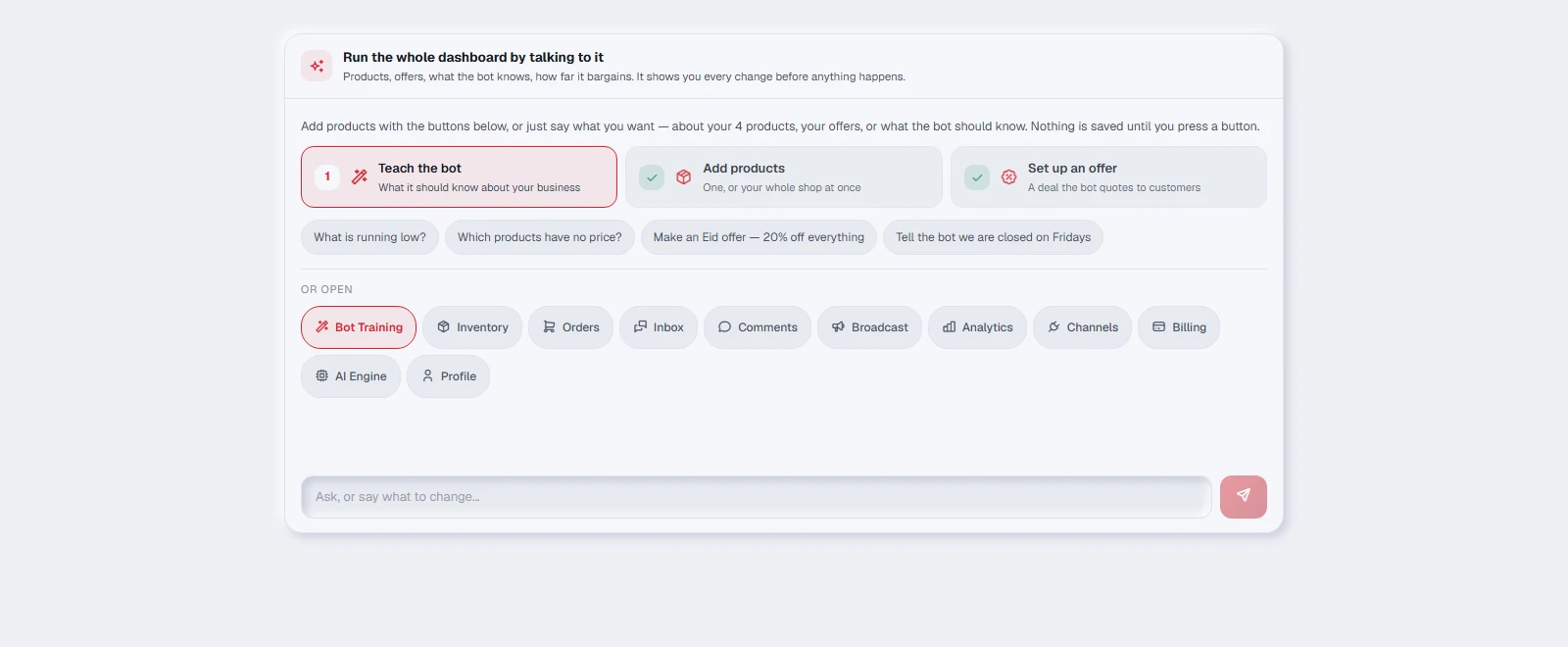
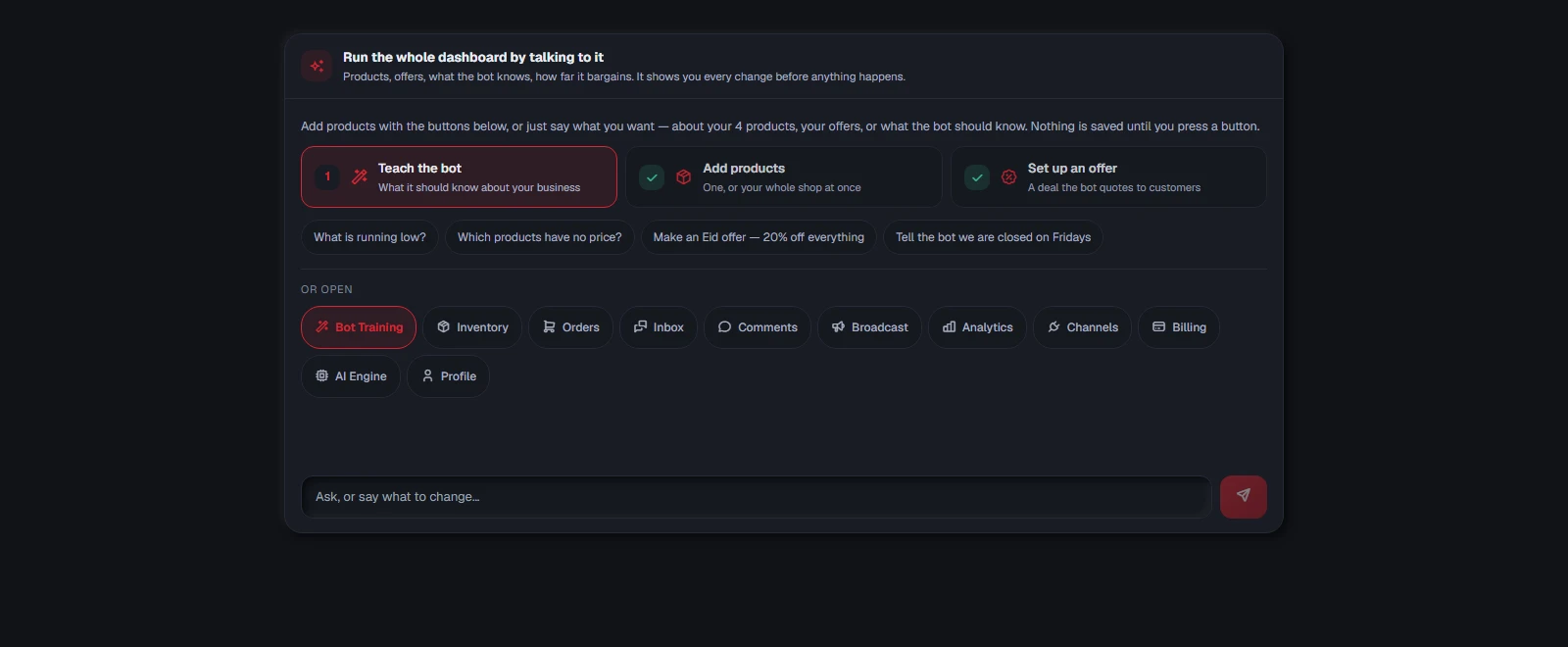
The three jobs, in order
The numbers are not decoration. TellMore AI that has not been told what your business is answers badly about products it does have, and an offer needs a catalogue behind it. A tick appears on each one as you finish it.
| What it does | |
|---|---|
| 1 · Teach TellMore AI | It asks what your business is, how you deliver, how people pay, your returns policy, your hours — one question at a time. Skip anything, and stop whenever you like |
| 2 · Add products | One product, or your whole shop at once. See below |
| 3 · Set up an offer | Three questions: what the offer is called, what the customer gets, when it ends |
Adding one product
It starts with the picture, because that is the thing you certainly have when you are standing over the product with your phone.
- 1Press Add products, then Just one, then Take a photo of it.
- 2Attach the photos with the camera button beside the message box — front, back, close-ups, all at once. The first one is what customers see.
- 3The AI reads them and proposes a name, a category and a description, so the questions that follow are corrections rather than blank boxes.
- 4It then asks for the name, the category, the price, the details and any sizes or colours. Every question shows you what an answer looks like.
- 5Press Save at the end.
Adding many at once
Press Add products, then Several at once, and pick where they are coming from.
| Where from | What happens |
|---|---|
| All the photos at once | Three questions about what they share, then you attach every photo. Front, back and close-ups of the same thing are gathered into one product automatically, and each is named by what makes it different |
| A spreadsheet | A CSV saved from Excel or Google Sheets. Hundreds at a time |
| WooCommerce | Your site address and a read-only key pair from WooCommerce › Settings › Advanced › REST API |
| Shopify | Your myshopify.com address and the Client ID and secret of an app with read_products (or an older shpat_ token) |
Getting back to the start
When a job finishes, the three choices come back on their own — so *I have added the shirt, now let me set the offer* is one tap, not a page reload.
There is also a Main menu button at the top of the tab, and on a phone the back button lands there too.
Just talking to it
You do not have to use the buttons. Say what you want in your own words and it proposes the change:
| You say | It proposes |
|---|---|
| *the winter jackets are 1200 now* | A price change on the matching products |
| *we are out of the black polo* | That product marked out of stock |
| *make an Eid offer, 20% off everything* | A new offer, worded the way a customer reads it |
| *tell TellMore AI we are closed on Fridays* | That fact added to what TellMore AI knows |
| *show me the orders* | It opens the Orders tab |
What it deliberately cannot do
Two things are kept out of its hands on purpose.
| Not this | Why, and where instead |
|---|---|
| Choose which products an offer covers | That means picking real rows out of your catalogue, and a machine naming them from memory would attach the offer to the wrong shirt. Pick them on Train TellMore AI › Offers, where the real list is |
| Send anything to a customer | Broadcasts and replies go to real people. Marketing messages and Inbox do that, where you can see exactly who receives it |
The language it speaks
Everything here — the questions, the examples, the buttons and the confirmation cards — follows the EN / বাং switch at the top of the dashboard. Change it mid-conversation and what is already on screen changes with it.
Connected accounts
Where TellMore AI answers. Connect as many Facebook Pages, Instagram accounts and WhatsApp numbers as you need — each one takes a single click and its own on/off switch.
What a channel is
A channel is one place customers can write to you: a Facebook Page, an Instagram Business account, a WhatsApp Business number, or your own website.
You can connect as many as you like. Each Page, account or number can belong to only one TellMore AI account — so if a Page is already connected somewhere else, disconnect it there first.
The same goes for a WhatsApp number and other apps or platforms: Meta lets a number work with one partner at a time. Before you connect, check that the number is not already linked to another app — in the WhatsApp Business app under Settings → Business tools, and in your Meta business portfolio under WhatsApp accounts → Partners. If it is, release it there first (remove that partner, or ask that provider to release the number), then connect it here. A number that is still held elsewhere shows as not eligible in Meta's window.
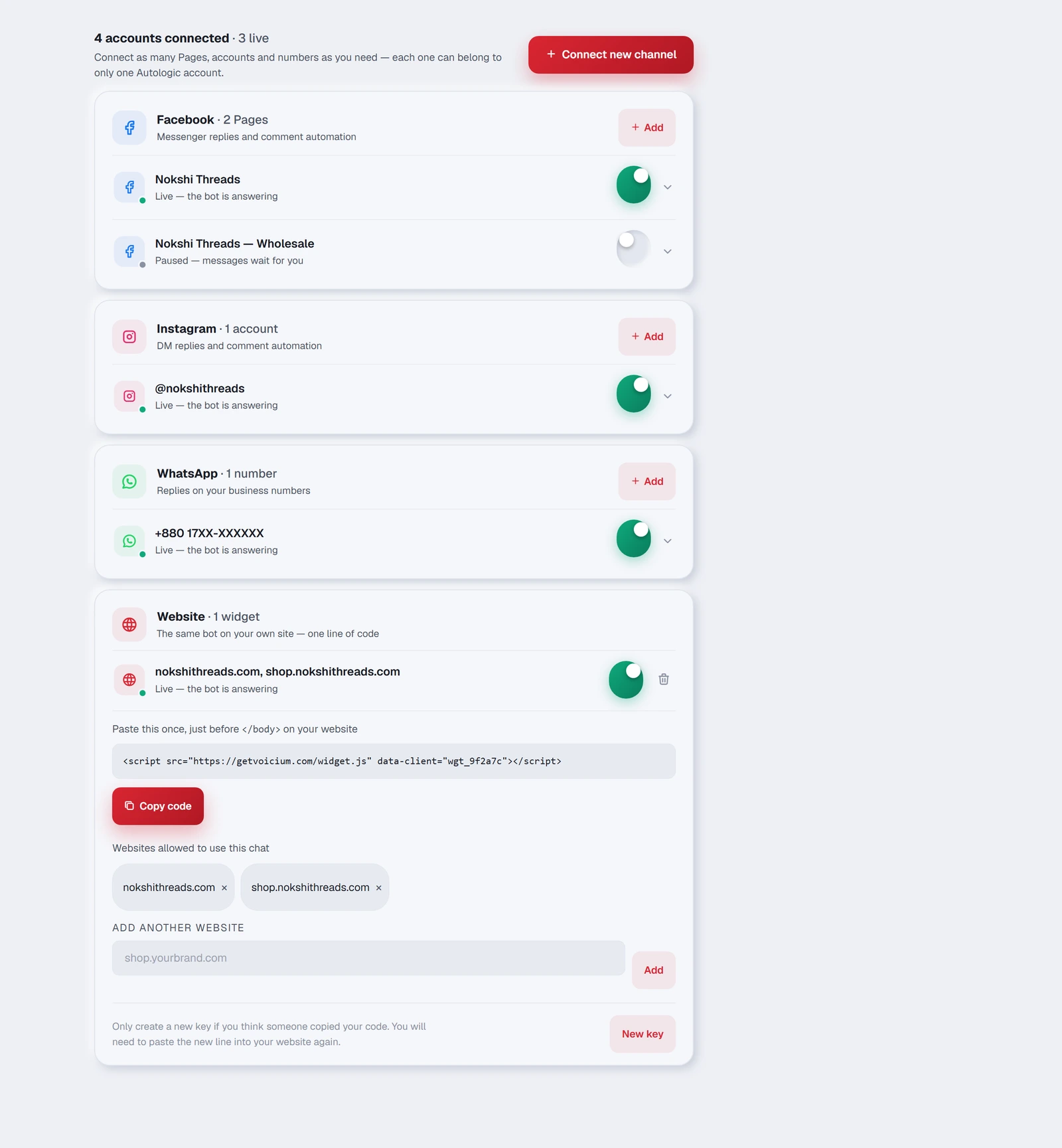
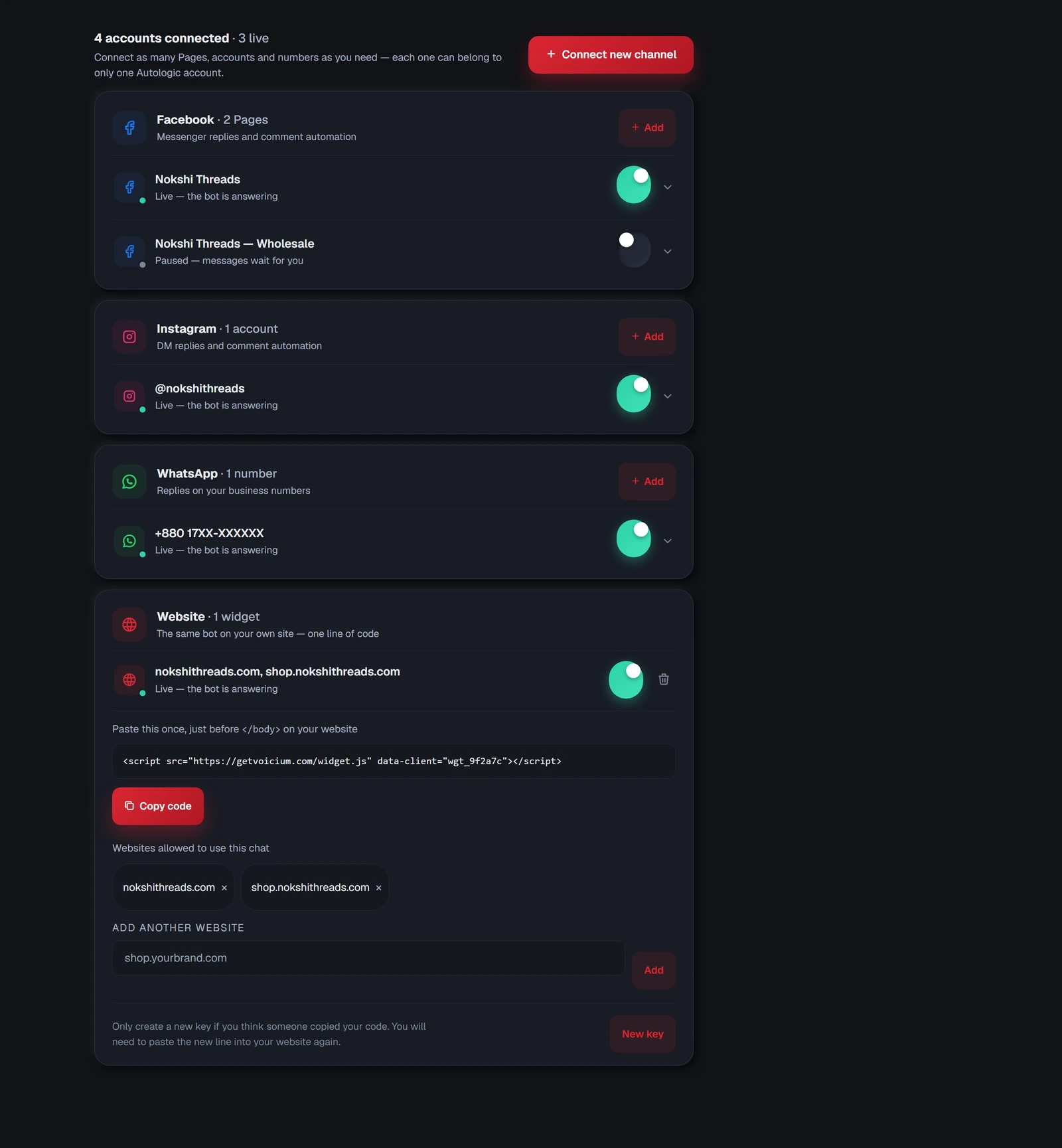
Connecting one
- 1Press Connect new channel.
- 2Pick Facebook, Instagram or WhatsApp.
- 3A window opens and you log in with your own account — the same one you use every day.
- 4Choose which Page or account to connect, and approve.
- 5The window closes and a green card confirms it. TellMore AI is answering from that moment.
Reading the list
Connected channels are grouped by platform, with a count beside each name. Each row also says how many customers wrote to that Page, account or number today, so a paused Page with chats waiting is visible as exactly that.
At the bottom, Add another offers a card for each platform — the quickest way to connect a second Page or your first WhatsApp number.
In the Android app, Facebook, Instagram, WhatsApp and Google ask you to log in on a secure browser page that slides up over the app — they do not allow their login inside another app's screen. When you finish, that page closes by itself and you are back in the app, still signed in, with the new channel in the list. If you close the page yourself, nothing is changed.
| Section | What it covers |
|---|---|
| Messenger replies and comment automation | |
| DM replies and comment automation | |
| Replies on your business numbers | |
| Website | The same TellMore AI on your own site — see the Website widget page |
Each connected account is one row. The small dot on its icon is the quickest signal in the tab:
| What you see | What it means |
|---|---|
| A green dot and “Live — TellMore AI is answering” | Working normally |
| A grey dot and “Paused — TellMore AI is silent here; messages still come to your inbox” | The switch is off: TellMore AI does not answer and uses no AI here, but every message still arrives in your Inbox and your team can reply. When you turn it back on, TellMore AI looks at the last few photos a waiting customer sent meanwhile (up to 3, from the last day) before it answers them. Disconnect is different: after it, nothing from that channel comes in at all |
| A red row saying “Disconnected” with a Reconnect button | Facebook stopped accepting our access — usually a changed password or a removed admin. TellMore AI is silent on this Page until you press Reconnect (one click). You are told on the bell, on your phone and by email the day it happens |
| The switch on the right | Turns this one channel on or off |
| The arrow at the end | Opens the row's details |
Inside a row
Tap a row to open it. Three things live there:
- 1The platform ID and the date it was connected — useful only if you ever need to tell them apart or quote one to support.
- 2Comment replies — on Facebook and Instagram rows only, one line showing whether TellMore AI answers comments and sends commenters to the inbox, with Change. The two switches themselves are on the Comments page (and in Settings).
- 3Disconnect — the red button at the bottom.
One business, several Pages
Many owners run a main Page plus a second one for a different product line, or an English Page and a Bangla one. Connect them all. Every conversation lands in the same inbox, and the Inbox tab can filter down to a single Page when you want to look at just one.
Each Page keeps its own on/off switch and its own comment settings, so TellMore AI can be busy on one and silent on another.
If something goes wrong
Website widget
The same TellMore AI, in a chat bubble on your own website. One line of code, and you decide which addresses are allowed to use it.
What it is
A small chat button that sits in the corner of your website. A visitor clicks it and talks to the same TellMore AI that answers your Messenger, Instagram and WhatsApp — it already knows your products, prices and policies, so there is nothing extra to teach it.
Those chats appear in Inbox alongside everything else, and you can take over from TellMore AI exactly the same way.
You can answer a visitor by hand from the Inbox too, with text or a photo. Your reply appears in the chat on their screen within a few seconds while they are still on your website, and a dot on the chat button tells them if the chat was closed. A voice note cannot be sent to a website visitor, so the microphone is hidden in these chats.
Setting it up
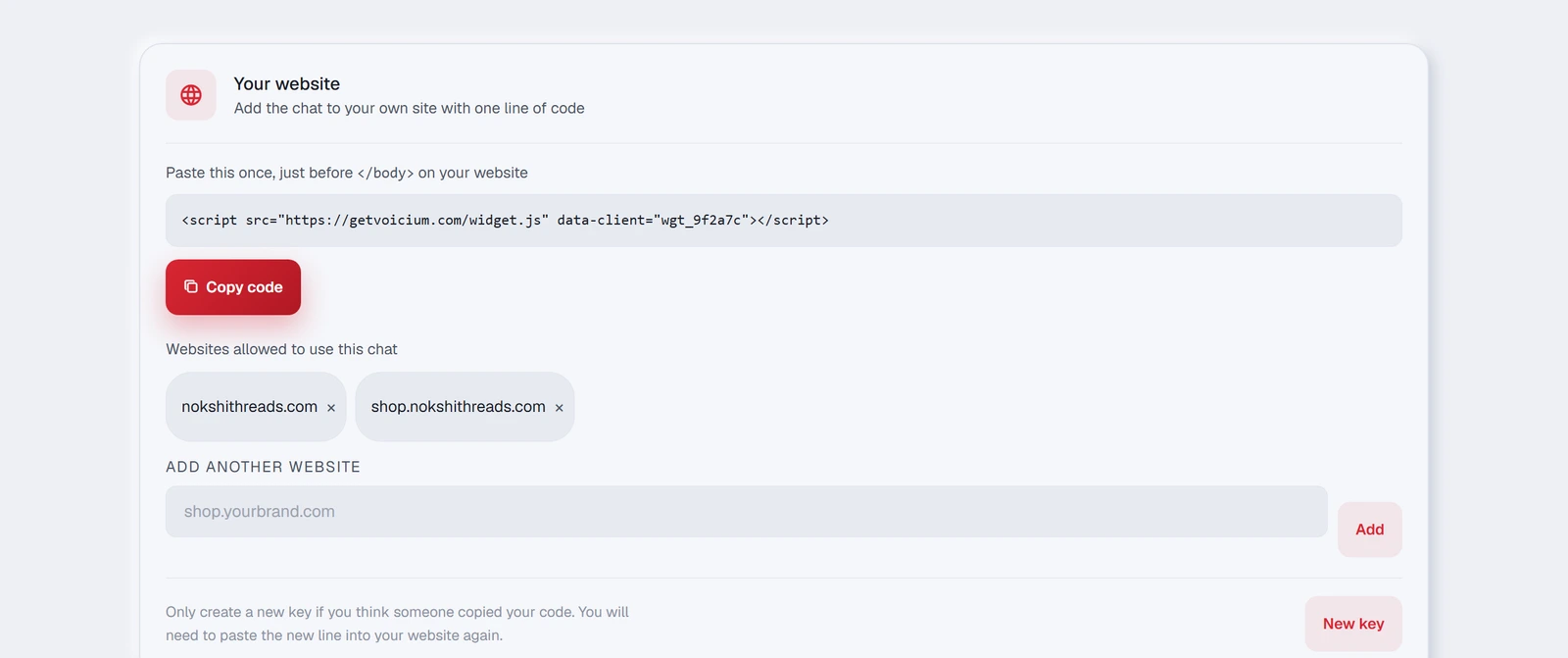
The widget lives at the bottom of the Connected accounts tab, in the Website section.
- 1Type your website address — for example
yourshop.com— and press Create widget. - 2Press Copy code. You now have one line on your clipboard.
- 3Paste it into your website, just before the `</body>` tag, on every page where the chat should appear.
- 4Save and reload your site. The chat button appears in the corner.
Which websites are allowed
The chat only loads on addresses you have listed. This is what stops someone copying your code onto their own site and using TellMore AI at your expense.
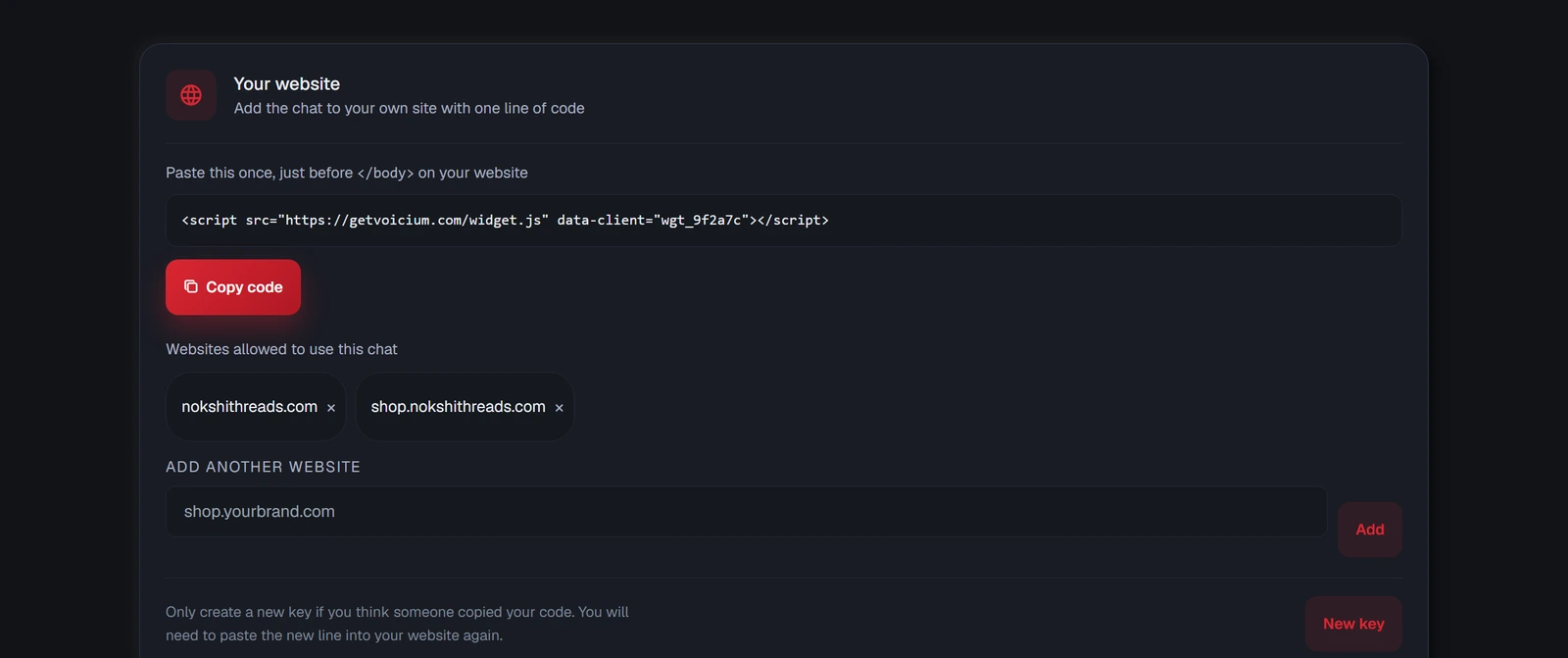
Under Websites allowed to use this chat you can add more addresses — a second domain, or a subdomain like shop.yourbrand.com — and remove any you no longer use.
Turning it off
The widget row in the Connected accounts tab has the same switch as every other channel. Off, it is paused: TellMore AI stops answering on your website, but visitors can still write, and their messages wait in your Inbox for you to answer by hand — nothing is lost. To take the chat button off your site completely, remove the line of code from your website.
If something goes wrong
Home
The tab the dashboard opens on: the last seven days at a glance, who is waiting for you right now, your newest orders or next meetings, and whether every channel is live.
What this tab is for
One look in the morning. It answers four questions without opening anything else: how busy was the week, is anyone waiting for me, what came in, and is TellMore AI actually on everywhere.
Every number is real and current. The week's figures are the same ones Insights shows for 7 days; the lists are the same chats, orders and channels you find in their own tabs.
Around every tab
Every page opens the same way: the date, a greeting with your business name, a search box, the bell and one button, Train TellMore AI, which opens the Train TellMore AI page. On a phone the tab's name takes the greeting's place and the search sits behind the magnifier.
The search looks through your customers, orders and products at once, as you type. Pick a customer and their chat opens; an order opens in Orders; a product opens Catalog with that search already filled in. Arrow keys and Enter work too.
The menu on the left is in five groups — Inbox, Commerce (Bookings for a service business), Insights, TellMore AI and Business. Inbox carries the number of unread chats and Orders the number still waiting to be confirmed. At the bottom, your package and how much of this month's TellMore AI replies it has used so far — tap it to see the full picture on Billing & payments. Language, refresh and the light/dark switch sit just under it.
On a phone, and in the app, the five you use most run along the bottom of the screen: Home, Inbox, Orders (Bookings for an agency), Insights and More, which opens the full menu. The bar steps aside while a chat is open so the message box has the bottom.
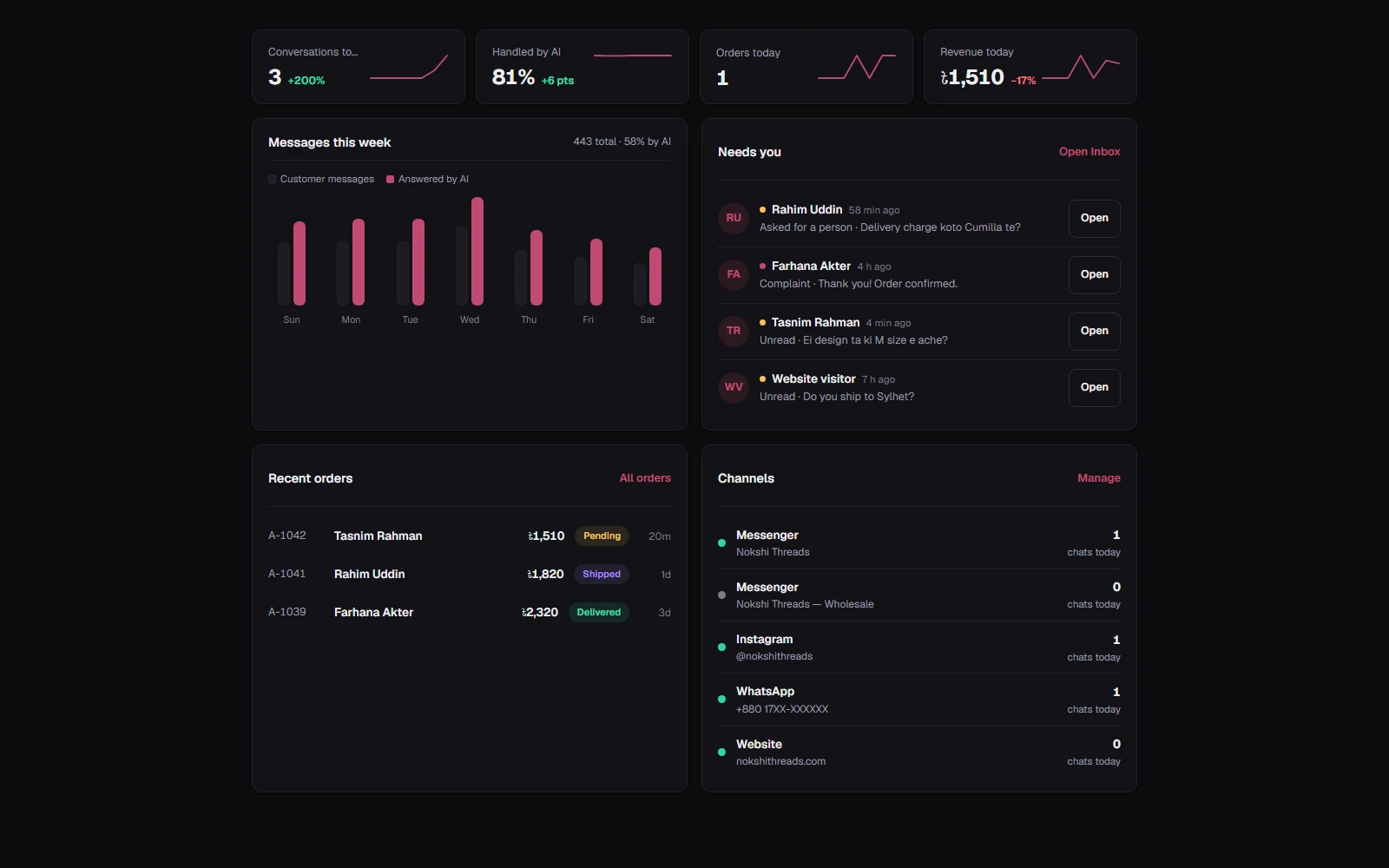
Light and dark. The dashboard and the app follow your device: if your phone or computer is in dark mode, so is TellMore AI, and when the phone switches by itself in the evening the app switches with it — while it is open, without reloading. The moon / sun button changes it for now; the next time your device changes mode, TellMore AI goes back to following it.
The four cards
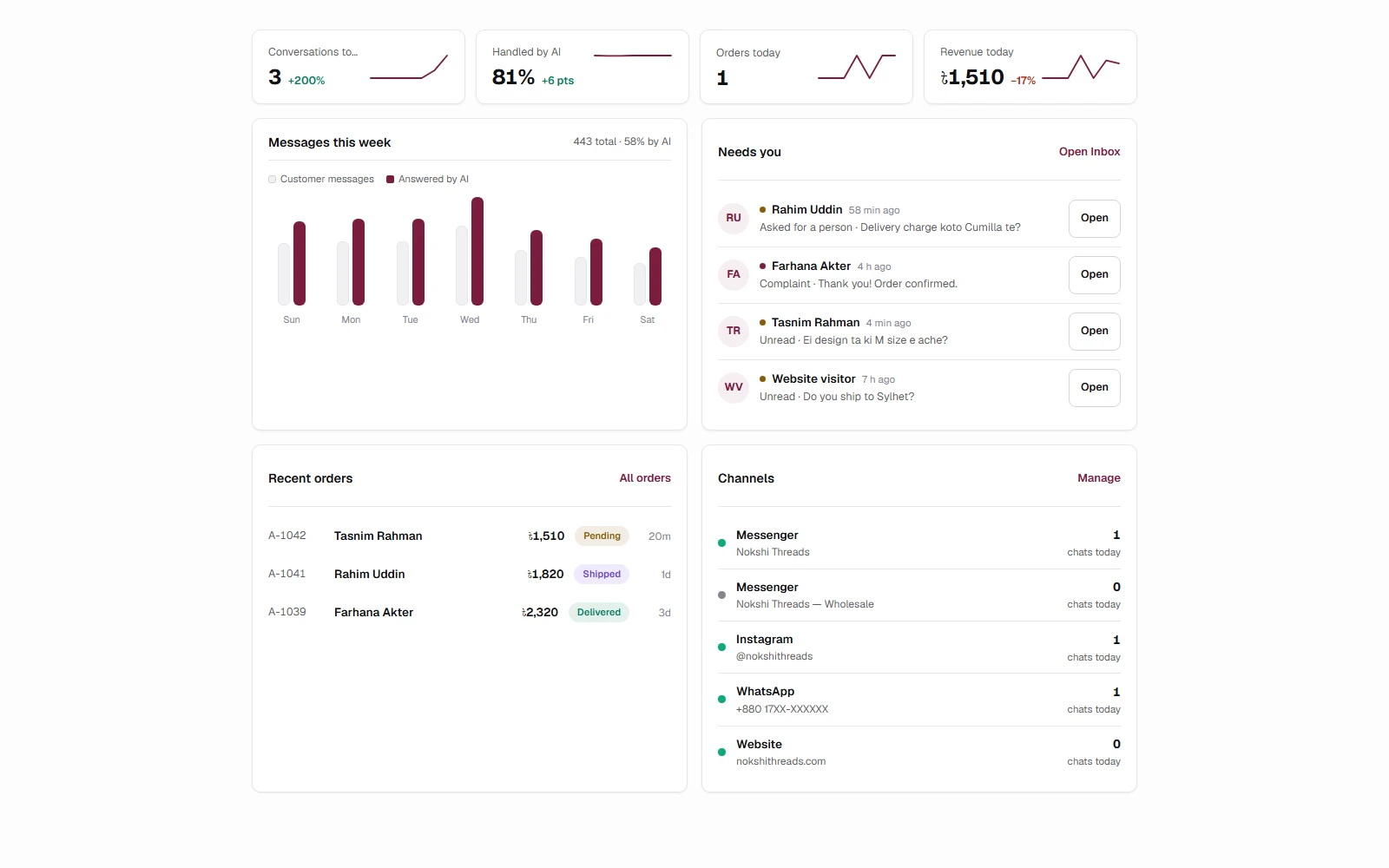
| Card | What it shows |
|---|---|
| Conversations today | How many different people wrote to you today, against yesterday |
| Handled by AI | The share of the last 7 days' conversations TellMore AI finished on its own, and how that moved against the week before |
| Orders today | Orders placed today, and how many more or fewer than yesterday |
| Revenue today | Money from today's orders (cancelled and returned ones left out), against yesterday |
| Card | What it shows |
|---|---|
| Conversations today | How many different people wrote to you today, against yesterday |
| Handled by AI | The share of the last 7 days' conversations TellMore AI finished on its own |
| Bookings today | Meetings booked today, against yesterday |
| Meetings this week | Meetings in the next seven days that are not cancelled |
A green number beside a card is a rise, a red one a fall. On a laptop each card also draws the last seven days as a small line. Messages this week shows two bars per day — what customers wrote, and what TellMore AI answered — with the week's total and TellMore AI's share above them. The Insights tab has the longer view and the reasons behind it.
Needs you lists the chats waiting on a person — someone asked for one, a complaint was tagged, or a customer wrote and you have not opened it — each with why, and an Open button that lands in that chat. Recent orders is the newest five with their status; Channels says how many people wrote to each Page, account or number today.
Finish setting up TellMore AI
Until TellMore AI has been taught the basics, Home shows the same six steps as the top of Train TellMore AI — identity, business, how you sell (or your services), common questions, offers and bargaining — with a button that opens Train TellMore AI on the next step not done. It disappears once all six are done; Hide keeps it away on this phone or computer, and the steps stay in Train TellMore AI.
Your package
Under the four cards, Your package shows the meters that matter, each as *used / limit* with how many are left: TellMore AI replies this month, products added (a shop) or documents added (a service business), AI Assistant questions, and team members. A bar turns amber at 70% and red at 90%.
When something is nearly used up, a line says so with Add more, which opens Billing & payments on the extra you can buy. All usage opens Billing & payments with every meter. The numbers are the same ones TellMore AI works to, so what you see here is exactly what is left.
Messages this week
One bar per day. The full bar is every message that day; the filled part is how many TellMore AI answered. A bar that is mostly filled means TellMore AI is carrying the load; a bar that is mostly empty means people were writing while TellMore AI was paused, or you were answering by hand.
Needs you
Chats that want a person, in the order that matters: someone who asked for a person (or got upset), a chat tagged as a complaint, then anything you have not read yet. Tap a row to open that chat in the Inbox. When the list is empty, TellMore AI has everything covered.
Recent orders
The five newest orders with their status and total. Tap one to open it in Orders.
Next meetings
Your upcoming bookings in time order, with a Join button when a Meet link exists. The Bookings tab has the full calendar.
Channels
One line per connected Page, account or number: Live (green dot) means TellMore AI is answering there, Paused means TellMore AI is silent there while messages still arrive in your Inbox, Expired means the platform dropped the connection and you need to reconnect. The pill at the top of the page says the same thing in one line, and a red bar appears when any connection has expired.
Inbox
Every chat from every channel in one inbox — with a switch that lets you take over from TellMore AI whenever you want to answer someone yourself.
What this tab is for
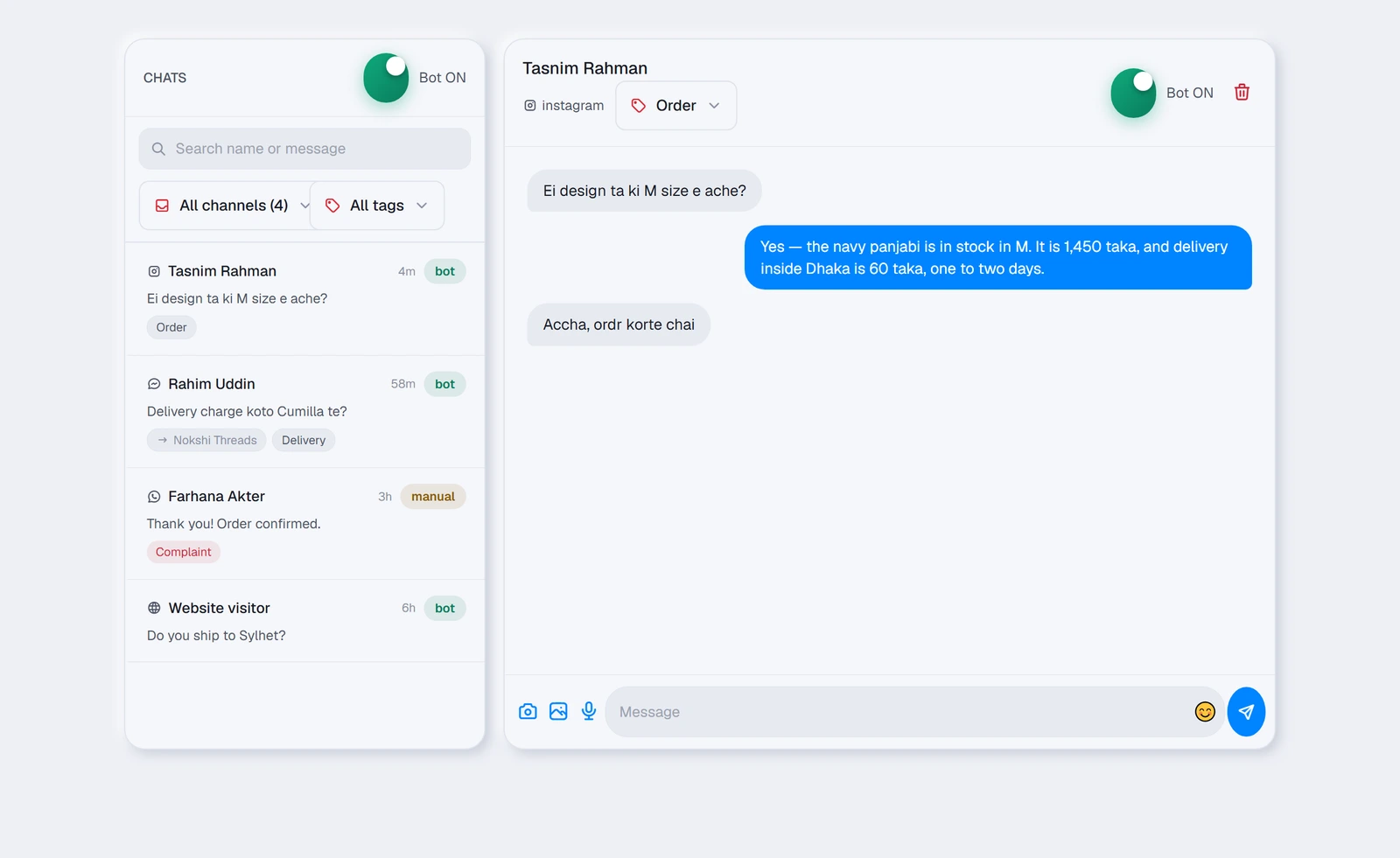
Facebook, Instagram, WhatsApp and your website all arrive here. You watch TellMore AI work, and step in whenever you want to.
It refreshes on its own — a new message appears without you pressing anything.
The four numbers
They sit folded into one line above the chats, so the conversations get the room — Show more opens the four cards and Show less folds them again. Your choice is remembered on this phone or computer.
A chat always opens on its newest message, and stays there while older messages, photos and voice notes load above it. Scroll up to read back; the round ↓ button at the bottom right takes you straight to the newest message again.
| Card | What it shows |
|---|---|
| Conversations today | How many different people wrote to you today, and the change against yesterday |
| Answered by TellMore AI | The share of the last 7 days' conversations TellMore AI finished on its own — the same figure the Insights page shows |
| Orders value (shops) · Bookings (agencies) | The last 7 days, against the week before |
| Avg. first reply | How long a customer typically waited for TellMore AI's first reply this week, measured from their message to TellMore AI's bubble. Lower is better, so a fall shows green |
The two TellMore AI switches
This is the most important thing on the tab, and there are two of them. They do different jobs:
| Switch | Where | What it does |
|---|---|---|
| TellMore AI ON / TellMore AI OFF | Top of the chat list | The whole account. Off, TellMore AI stops replying on every channel and every conversation |
| TellMore AI replying · Take over | Top of an open chat | This one person only. Press Take over and you answer; Hand back to TellMore AI and it resumes. Everyone else is untouched |
Both switches show Loading… for a moment after the tab opens. That is deliberate — showing a guess and then correcting it would look like your setting had changed by itself. On a computer they take no room at all: press the 📊 button next to Conversations to see them, and again (or Escape) to close them.
Finding a conversation
| Tool | Use it to |
|---|---|
| Search | Looks in names and in the words of every message — not just the last one, and not just the last two weeks. The words that matched are marked in each result; it searches Open, Later and Done together, and chats older than the list appear under Older chats. Photos are searched by the words sent with them |
| Filters (the button beside the search box) | Opens the filters: Open / Later / Done, the team member, the channel, the tag and the lead — *Interested, not bought* (the chats worth a follow-up), *Bought* or *Said no*. While one is set the button shows how many, and each shows as a small chip above the list — press its × to take it off, or Clear filters to take them all off |
| Channel dropdown | Show only one platform — and if you have several Pages, only one Page |
| Tag dropdown | Show only conversations carrying a tag, with a count beside each |
| All · Needs you · Manual | The three buttons under the search box. Needs you shows the chats waiting on a person: someone asked for one, asked something TellMore AI has not been taught, a complaint was tagged, or the customer wrote and you have not opened it since; Manual shows only the chats you have taken over from TellMore AI. The small number on each is how many there are |
When a filter matches nothing you get Clear filters, so you never have to remember which one you left on.
The customer panel
On a wide screen — a laptop or a desktop monitor — a third column opens on the right of the chat. It shows who you are talking to without leaving the conversation: their name and channel, whether TellMore AI or you is answering, when they first wrote, and how many messages they have sent.
For an online shop it also shows their orders: how many, how much they have spent (cancelled and returned orders are not counted), and their last order with its status. For an agency it shows their bookings, and the next meeting with its Google Meet link if one is coming up.
On a smaller screen or on a phone there is no room for the column, so the chat header has a Customer info button (an ID card) that opens the same panel from the side — the ad that brought them, the same customer on other channels, their orders or bookings and tags. The phone's back button or ✕ closes it. Nothing in it is guessed — it is read from the orders and bookings already in your dashboard.
Reading the list
| What you see | What it means |
|---|---|
| The coloured dot on the avatar | Which channel this chat came in on — blue Messenger, pink Instagram, green WhatsApp, grey website |
| Bold name, bold preview, a red dot | Unread — a customer wrote and you have not looked yet, the way Messenger shows it. Open the chat and it goes back to normal; the next message makes it bold again. TellMore AI reply does not clear it — you have not seen it |
| “2m”, “3h”, “5d” | How long since the last message |
| An amber Manual chip | You have taken over this chat; everything else is TellMore AI's |
| A grey pill with a name | Which of your Pages this landed on (only shown when you have several) |
| A red tag | Your complaint tag — worth opening first |
Answering someone yourself
- 1Open the chat.
- 2Press Take over so TellMore AI does not talk over you.
- 3Type in the box at the bottom and press Enter, or the send button. For a new line inside the message, press Shift+Enter — the box grows as you write. On a phone, the camera, photo and voice buttons step aside while you type, so the words get the width.
- 4When you are finished, press Hand back to TellMore AI and it resumes.
The same customer on another channel
One person often writes on Messenger and WhatsApp, and each is its own chat. When this customer's mobile number (a WhatsApp chat is their number; on Messenger or Instagram it is the one on their order or booking) or a booking's email matches another chat of yours, the customer panel on the right shows Same customer on other channels — the channel, their name, *same mobile number* and when they last wrote. Tap one to open that chat.
It is only for you and your team: TellMore AI never joins chats this way, because a number typed in a chat may be someone else's. A team member who sees only their own chats does not see this list, and one kept from customers' numbers sees no number in it.
The AI helper beside each chat
Press ✨ in the reply box (beside the emoji on a computer) for four jobs. They help you, the person answering — the customer never sees them, and nothing is sent by itself.
Summary sums up this customer in a few lines, in your dashboard's language: what they want now and whether they are waiting, what was already offered or agreed, their orders or bookings, and anything to be careful about. Copy copies it; ✕ closes it. A team member who may read a chat but not answer it gets ✨ too, with Summary and Ask; drafting and details need the right to answer the chat.
Draft a reply writes the next message into the reply box, in the customer's own language — Bangla, Banglish or English — using what TellMore AI knows: your business details, the products or documents that match what the customer asked, and their orders. Where it lacks a fact it leaves a gap in [brackets] for you to fill instead of guessing. Read it, change anything, and send it yourself; Undo brings back what was in the box.
Type a few words first — *bolo friday te pabe* — and Draft a reply turns them into the full message.
Ask about this customer takes any question — *what did they buy before?*, *did we promise a discount?* — and answers it from the chat and their orders or bookings, in the language you asked in. If the chat does not show it, it says so rather than guess.
Customer details pulls the customer's name, phone, what they want, the details (size, area, time…) and the next step out of the chat. Check them, then Add to note puts them under the customer's private note; on a package with a sales team it can also mark them Interested or Lost. A team member who may not see customers' numbers sees the phone masked.
It runs on your package's AI (or your own AI key), like TellMore AI. A package without the AI does not show it.
Your messages and TellMore AI's sit on the right, the customer's on the left in grey. Anything you sent by hand is marked You underneath; under TellMore AI's reply you see how fast it came — answered in 3 s. The day and time sit above the first message of each day.
When TellMore AI shows a product, the picture appears as a card with the product's name, stock and price, read from your catalogue at that moment.
Photos work the way they do in Messenger. Several sent together — by the customer or by you — appear as one group of small squares rather than a long column, with +N on the last square when there are more than nine. Tap any picture and it opens full screen: arrows, the arrow keys or a swipe move through the group, the counter says which one you are on, the square-with-arrow button opens the original, and Escape, the ✕, a tap outside or your phone's back button closes it.
Photos, voice notes and videos a customer sends
Every photo a customer sends — on Messenger, Instagram or WhatsApp — is shown in the chat, and stays there: we keep our own copy, so it does not disappear a few weeks later the way a link from Facebook does.
Every video a customer sends is kept the same way and plays right in the chat. TellMore AI never watches a video: the chat goes to Needs you and your team is told, and you answer it yourself. Nothing is sent to the customer in the meantime.
Whatever else a customer sends shows as its own line, so you always know something came: a document (its name, and on Messenger a link to open it), a location (with a map link), a contact card (names and numbers), a sticker, or a message WhatsApp could not pass on (a number that also runs in the WhatsApp Business app sometimes gets one of these; the message is in the app on your phone). A location, a contact card and a shared link are read by TellMore AI as well; a document and a message WhatsApp could not pass on go to you to handle.
Every voice note has a small player under it. Press play to hear exactly what the customer said. When the AI listened to it, the words it heard are shown above the player (🎤 and the text); otherwise you see 🎤 Voice message and the player, and you listen yourself.
The AI reads a photo or listens to a voice note only when TellMore AI is going to answer that chat. In a chat you have taken over, on a channel with TellMore AI switched off, or when the package has ended, the photo and the recording are still kept and shown, but nothing is read — so a chat you answer by hand never spends AI on them.
Not every photo is a product. When a customer sends a screenshot, an error message, a document or form, or a payment confirmation (bKash, Nagad, Rocket, bank), TellMore AI reads the writing on it and answers about what it shows. A shop's product photos are still matched to your products as before. From a payment screenshot TellMore AI can note the amount and the TrxID on the order or booking, but it never tells the customer the payment is received — you check it, as always.
A voice message you record with the microphone can be played back the same way, so anyone on your team can hear what was sent. A photo you send from the dashboard stays too. A photo you send from the Messenger app itself is shown through Facebook's own link, and stops showing after about a month.
Nothing is downloaded until you press play, so a long chat with many recordings opens as fast as any other.
If you have a team
TellMore AI still answers every customer first. When it hands a chat to a person — a complaint, a refund, a customer who asks for a person, or a question it cannot answer — the chat goes to the next team member in turn (when you share chats in turn on the People page; otherwise you give it to someone yourself), and that member is notified.
When a team member replies in a chat, TellMore AI stops in that chat and it shows as Manual, so the customer never hears two voices. Hand back to TellMore AI turns TellMore AI on again. A team member can also press Take over before they start typing. Your own replies do not switch TellMore AI off — press Take over yourself, as before.
Once you have added team members (the People tab), every chat can belong to one of them. In the open chat, the small Handled by button under the customer's name gives it to someone, moves it to someone else, or takes it back. To move many chats at once, use People → Chats. The list shows the member's name on each chat, and the Whole team filter narrows the list to one member's chats or to the ones nobody has yet.
A team member reads every chat but can reply, take over and tag only in the chats that are theirs; anywhere else the reply box is replaced by a line saying whose chat it is. You can always reply anywhere.
Under each reply typed by hand you see who wrote it: You, or the team member's name. A reply typed in the Messenger or WhatsApp app itself has no name we can know, so it shows as yours.
Recording a sale you closed by hand
Not every sale is taken by TellMore AI. When you or a team member close one in the chat yourselves, press Record a sale under the customer's name.
- 1Pick what they bought. A shop searches its own products by name or code; an agency picks from the Services you sell list in Services & info. Anything that is on neither can be typed in with Add an item that is not on the list.
- 2Set the quantity, and correct Price charged to what the customer actually paid — the box starts at your listed price.
- 3Check the customer's name and phone (and, for a shop, the delivery address and charge). They are filled in from the customer's last order when there is one.
- 4Press Record sale.
For a shop it becomes an ordinary order: Pending in the Orders tab, marked By hand with the name of whoever recorded it, and counted in your revenue like any other order.
For an agency it is saved as a confirmed sale under that customer. You see it in the customer panel beside the chat and under Sales recorded by hand on the People page, where a sale recorded by mistake can be cancelled.
Where a customer stands
Beside the sale button is a picker for where this customer stands as a lead: New lead, Interested (worth following up), Sold or Lost. Recording a sale sets Sold by itself. Anything other than New lead is shown on the chat in the list, so you can see at a glance who is worth another message.
TellMore AI sets it too, by itself — and the chat then shows a small *set by TellMore AI* beside the status. When a customer asks a price, a size, about stock or delivery, or says they will take it, the chat becomes Interested; when TellMore AI takes an order or a booking in the chat, Sold; when an interested customer says a clear no ("lagbe na", "not interested"), Lost. A greeting, a complaint, a question about an order already made, or someone selling to you leaves it as it is. It costs nothing extra — no extra AI is used for it. Your choice always wins: once you or a team member set a customer's status (or record a sale), TellMore AI never changes it again; only a real order may still turn Interested into Sold. Each change it makes is in the People page's Activity as "TellMore AI marked … as …". On a package without the AI (Shop Inbox, Service Inbox) only your team sets it, and recording a sale sets Sold.
This is separate from Tags. A tag says what the conversation is about (an order, a delivery question, a complaint); the lead status says how close the customer is to buying.
Replying from Messenger, Business Suite, WhatsApp or Instagram
You do not have to answer from this dashboard. A reply you type in the Messenger app, in Meta Business Suite, in the WhatsApp Business app on your own phone, or in Instagram lands in the chat here within seconds, marked You — exactly as if you had typed it in the box below.
That matters for two reasons. The customer's messages are then counted as answered, so switching TellMore AI back on does not make it answer them a second time. And TellMore AI remembers what you said: a price you quoted by hand is a price it will not contradict later.
Sending more than text
The reply bar works like WhatsApp: one long box with the smiley, your message, 📎 and 📷, and next to it one big round button — the microphone while the box is empty, Send as soon as you type (📷 steps aside while you type). Each message shows its time inside the bubble, with ✓ on what was sent from here; a voice message shows ▶, its sound as bars you can tap to jump, and its length once played.
| Button | What it sends |
|---|---|
| 📷 (in the box) | Opens the camera inside TellMore AI, like WhatsApp: tap the round button for a photo, press and hold it to record a video (let go to stop), or switch to Video. In the app your newest photos sit in a strip above the button. It shows what you took before it goes. In the TellMore AI app on a phone, the phone's own camera takes the photo. A computer without a camera shows no camera button; if the browser has blocked the camera, it says so and offers Try again. A computer with several cameras starts on a real one (not a program such as Iriun or OBS that pretends to be a camera), shows the camera's name at the top, and the switch button goes through them all |
| 📎 (paperclip) | Opens the Send sheet, like WhatsApp. In the TellMore AI app on a phone (installed after 16 October) it shows your phone's newest photos and videos first: tick them and press Next to see them before they go. Then: Gallery (photos and videos from your phone or computer), Camera — the camera opens inside TellMore AI, like WhatsApp: tap the round button for a photo, or switch to Video and tap to record (a red timer runs, up to 1 minute); switch between the front and back camera and use the flash where the phone has one; then see it, add a caption and press send. Videos recorded here are kept small (about 8 MB a minute), so a whole minute still goes on WhatsApp. If a phone cannot open the camera inside the app, the button Open the phone's camera uses the phone's own camera instead. One Camera does both — tap for a photo, press and hold for a video; where it cannot open inside the app it asks Photo or Video. Then Products (a shop only), Video library, Location (your address from Profile with a Google Maps link), Invoice (a shop's owner: pick this customer's order and its invoice link goes in) and Meeting times (a service: the free times in your Google Calendar — tick the ones to offer). Location, Invoice and Meeting times only write the message into the reply box: read it, change it if you like, and press send. Under them, Recent shows your newest product photos and library videos: tick a few and press Send. Every choice opens the screen below on the right tab |
| Photo screen | Send photos has these tabs. Products: your own products' photos, searchable — pick up to 10, and switch Send the name and price too on to follow them with one line per product ("Blue Jeans — ৳1,200"), or off to send the photos alone. Gallery: several pictures from your phone or computer at once. Camera: take one now. Your team members can use it in the chats given to them. A fourth tab, Videos, sends one video: from your video library, from your phone's gallery or your computer, or — on a phone — Record a video with the camera, like WhatsApp. A video from your phone or computer goes to that chat only and is not added to your library. Up to 25 MB (WhatsApp 16 MB). A bigger video gets Make it smaller on Android and in Chrome: it plays through once and comes out small enough (a minute is about 8 MB). Not in the website chat |
| Microphone (the big round button) | Records a voice message. While it records, the bar shows a red dot, the time and your voice level. The bin throws it away; the send button stops and sends it |
| The smiley | A small set of common emoji |
The chat's tools on a phone
On a phone and on a computer, the tools under a customer's name — Add note, Done, Later, the tag, Handled by, where the customer stands, Record a sale and Delete chat — fold away behind the ⋮ button beside their name, so the conversation keeps the screen. Tap ⋮ to open them and the arrow to fold them again. A small dot on ⋮ means this customer has a saved note. On a computer the inbox also fills the whole window (without the guide link above it), so the conversation runs to the bottom of the screen, as in WhatsApp Web (on a computer Delete chat stays beside the name).
Done and Later — keeping the list short
Under the customer's name in an open chat are Done and Later.
Done means handled: the chat leaves the open list. The moment the customer writes again, it is back on the open list by itself — nothing is ever lost.
Later puts a chat away until you want it: In 1 hour, In 3 hours, Tomorrow morning (10 am) or Next week. At that time it comes back to the top with a Back from Later mark — or sooner, as soon as the customer writes.
The first menu above the list switches between Open, Later and Done, each with how many chats it holds; the numbers on All, Needs you and Manual count the list you are looking at. Open a chat in Later or Done and press Reopen to bring it back at once. Marking a chat Done or Later also takes it out of Needs you. Your team sees the same list, and a team member can do this in the chats that are theirs.
A private note on a customer
Press Add note under the customer's name to write anything your team should know about them — *prefers WhatsApp after 8pm*, *asked for a discount last time*, *pays cash only*. Press Save note. The button then reads Note, and the chat shows a small Note mark in the list, so you see at a glance who has one.
Only you and your team see a note — never the customer, and never TellMore AI. Each note says who saved it last and when. A team member can write a note in the chats that are theirs, and read it wherever they can read the chat. Clear the text and save to remove it.
Deleting a chat
The red bin in the chat header removes the conversation from your dashboard, together with the photos, voice notes and videos that customer sent. It does not delete anything from Facebook, Instagram or WhatsApp — the customer still has the thread on their side, and if they write again a fresh conversation appears.
When your plan has ended
TellMore AI stops answering the moment a plan lapses, and the Inbox locks with it: the chats cannot be listed or opened, and you cannot send a reply from the dashboard. The page says so, with a Renew or upgrade button and how many customers have written since.
Every AI tool pauses too — testing TellMore AI, the AI Assistant, adding products from photos, the inbox AI helper, filling your profile by voice, the AI team reports. Each says "Your package has ended" instead of running. Adding or editing a product by hand still saves. Renewing or upgrading switches every AI tool back on at once.
Renew within 3 days and nothing is missing. For 3 days after a plan ends, every message a customer sends is still saved; renew in that time and all of them are there, and TellMore AI picks up again.
After 3 days, new messages stop being saved — neither your customers' messages nor replies you send from the Messenger app. The conversations you already have are kept and come back when you renew, and saving starts again from that day. A free trial that ends works the same way.
On a phone
The list fills the screen; tap a chat to open it and the back button brings you to the list. One back press closes the chat, the next leaves the tab — so you never fall out of the dashboard by accident.
If something goes wrong
People
Add the people who answer your customers when TellMore AI hands them a chat. Each one gets a login of their own, and sees only the inbox. Add them to any Shop or Service package in **Billing & payments** with the **Team members** step; the free trial includes one.
TellMore AI and your team work together
Every package can have team members, and a business holds one package at a time:
| Who answers your customers | Team members | |
|---|---|---|
| Shop and Service packages | TellMore AI first; your team when a customer needs a person | None included — add them in Billing & payments |
| The free trial | TellMore AI first; your team member when a customer needs a person | 1 |
TellMore AI answers every customer first. When it hands a chat to a person — a complaint, a refund, a customer who asks for a person, or a question it cannot answer — the chat goes to the next team member in turn (when you share chats in turn; otherwise you give it to someone yourself with Handled by), and that member is notified. You are told too.
When a team member replies in a chat, TellMore AI stops in that chat — it shows as Manual — so the customer never hears two voices. Hand back to TellMore AI turns TellMore AI on again for that customer. A team member can also press Take over before they start typing. Your own replies do not switch TellMore AI off; press Take over yourself, as before.
The People list
People opens on one list of everyone who can open your dashboard, the way Meta Business Suite lists the people of a Page. You (the main owner) and your co-owners have Full control; each team member has Partial access, shown with their role (Sales agent, Manager, Orders & delivery and so on).
Search by name, email or code (M-001), or show only Full control or Partial access. Press a person to see what they can do. For a team member, the controls open beside the list: Details, rename, target, commission, Permissions, new password, turn off or remove. For a co-owner, Manage co-owners opens Settings → Co-owners. On a phone the list and the person take turns; ← People goes back.
The other tabs — Overview, Chats, Report, AI coach, Activity and Rules — are beside People, as before.
What a team member is
A team member — a moderator, a salesperson — is someone who answers your customers for you. They sign in with their own email and password, on the same sign-in screen you use, on the website or in the app.
Every member gets a short code of their own (M-001, M-002 …). The code never changes and is never given to a second person, so a record that says M-002 always means the same person.
What a team member can open
| You (the owner) | A team member | |
|---|---|---|
| Inbox — read every chat | Yes | Yes |
| Reply, take over and tag | In every chat | Only in chats given to them |
| Record a sale, set where a customer stands | In every chat | Only in chats given to them |
| Give a chat to someone | Yes | No |
| Their own People page | Yes | Yes |
| Turn TellMore AI on or off for the whole account | Yes | No |
| Delete a chat | Yes | No |
| Billing & payments, your package, your AI key | Yes | No |
| Train TellMore AI, Connected accounts, Marketing messages, Insights | Yes | No |
| Catalog, the full order or booking list | Yes | No |
Roles: what each member is there to do
Each member has one role. Choose it in People → the member → Permissions; a new member is a Sales agent until you choose another. The table above is what a Sales agent can open.
| Role | What they do | What they cannot do |
|---|---|---|
| Sales agent | Answer customers' chats, record sales | Change orders, products, money |
| Orders & delivery (shops) | See every order, move it on (confirm, ship, hold, cancel), fix the customer's name, phone, address and area, send the parcel to the courier, open the invoice | Chats, prices, delivery charge, discount, payment and advance, your private note, deleting an order, the CSV file, courier settings |
| Accounts (view only) | See every order and every member's report | Change anything |
| Front desk (services) | Answer any chat, keep the diary: book by hand, move bookings on, give each booking to a specialist | Members, the team's rules, money |
| Specialist (services) | See only the bookings given to them, mark them done or cancel them; they are told on their phone when one is given to them | Chats, other people's bookings, booking by hand |
| Catalogue editor (shops) | Add a product by hand, edit prices, stock, details and photos, hide or show a product, import a CSV, WooCommerce or Shopify file | The AI tools (AI Assistant, products from photos, a product link), deleting a product, chats, orders |
| Manager | Answer any chat, hand chats to agents (in the chat or several at once in People → Chats), work the orders as Orders & delivery does, see who is online, every member's report and the activity log | Add or remove members, change their switches or roles, the team's rules, money |
Only a Sales agent is ever given a chat. If you move an agent to another role, the chats given to them go back to be picked up by an agent. The switches under the role still apply: a member whose customers' numbers are hidden sees them hidden in Orders too, cannot change a phone number, and cannot open an invoice (it prints the number in full). Every role takes one team-member place in your package.
Add a team member
- 1Open People and press Add team member.
- 2Type their name and email, and choose their role (Sales agent unless you pick another; you can change it later).
- 3Press Add to team. We email them an invite with a Set your password button: they choose their own password and are signed straight in. You never need to know it. Their card says Invite sent until they come in.
- 4The link works for a short time. If it runs out, or they cannot find the email, press Send again on their card (once a minute at most).
- 5Prefer to give a password yourself (someone whose email does not arrive)? Press Set a password yourself instead before adding, type it, and send it to them; then press Copy sign-in details.
What a team member sees and hears
In their Inbox, Mine lists their chats, and each of those has the reply box, Take over and the tag picker. Every other chat can be read, with a line saying whose it is.
On their People page there is a Notifications switch for that phone or browser. On, they get a notification when a customer writes in one of their chats, when a chat is given to them, and when one of their customers needs a person. They never receive your alerts — orders, payments, other people's chats.
You still receive everything as before. Their replies are marked with their name, in the chat and in your records.
The report
Once you have a team, the People page carries a Report: one line per person, for Today, the last 7 days or the last 30 days. Days are Bangladesh days, midnight to midnight.
| Column | What it counts |
|---|---|
| Online | How long their dashboard was on screen and in use. See the note below for exactly what counts. |
| Chats given | How many different customers were given to them in the period — by you, or by sharing in turn. |
| Chats answered | How many different customers they replied to by hand. |
| First reply | The average time from a customer's message to their reply. Only counted when they were the first to answer; if TellMore AI answered first, that message is not theirs to be timed on. Replies that came more than 24 hours later are left out. |
| Sales, Amount | Sales they recorded by hand and what those came to. A sale you later cancel or mark returned stops counting. |
| Sold to | Of the customers given to them, the share they sold to. |
| Commission | Shown once you set a rate: the amount they sold × their rate, in whole taka. A figure to pay by — no money moves. |
A whole month, and commission
Beside Today · 7 days · 30 days there is a Month list with the last twelve months. Pick one and the report shows that calendar month, with the whole team's figures on top — chats answered, sales, amount, first reply and commission — each compared with the month before (green when better; for first reply, faster is better).
The month you are in is compared with the same days of last month (1–8 October against 1–8 September), so a month that has only just started does not look like a fall.
To set commission, press Set commission under the report's title and type a percentage, like 2 or 2.5. Each person's commission is their sales amount that period × the rate. The same rate is in People → Rules and Settings → Team rules. To give one person a different rate, press Edit on their card, then Commission; leave it empty to use the business's rate. Your own sales never earn a commission.
A team member sees their own month and their own commission, never a colleague's.
Press Download for Excel under the report to save the period you are looking at as a file Excel (or Google Sheets) opens: every person's figures, their commission, the whole team's line and, for a month, the comparison with the month before — ready for salaries and commission. In the Android app the file opens in the phone's browser and is saved to Downloads. The download link works for ten minutes; press the button again for a fresh one.
The People page at a glance
Once you have a team, the page is in seven tabs: Overview (who is online and waiting right now, and this month's targets and ranking), Chats (who has which chat, and moving chats), Members (each person's card: Details opens their whole record, Edit shows every change — rename, target, commission, permissions, new password, turn off, remove), Report (any period or month, commission, Excel, sales recorded by hand), AI coach (the weekly coaching report), Activity (who did what) and Rules (every team rule: sharing chats by hand or in turn, the most chats one person holds, the waiting alerts, the nightly summary, the weekly AI coach and the commission rate).
Rules is also in Settings → Team rules — the same switches, saved the same way, so you can change them from either place.
The AI coach
Every Saturday morning the AI reads last week (the 7 whole days up to Friday night) and writes you one report on your team. For each person it shows the counted numbers — chats given, answered, never answered, first reply, sales and the share of their customers who bought, with the change from the week before — and then, from a few of their chats, what they do well, what to do better, and one tip they can use tomorrow.
Why sales were lost goes through the chats marked Lost that the coach read, gives each one a reason (price, slow reply, a question not answered, out of stock, delivery, trust, the customer went quiet) and one line on what happened. Tap the customer's name to open the chat.
The numbers are counted by TellMore, exactly as in the Report; only the sentences are the AI's. Read them as a starting point for a talk with your team, not a verdict. The AI never sees your customers' phone numbers or emails, and never your private notes.
Only you see the coach — a team member never does. To see it before Saturday, press Make this week's report (up to 3 times a day). The report is written in your dashboard's language; one in the other language offers Make it in this language. The last 12 reports are kept under Earlier reports. Switch the Saturday report off with Every Saturday at the top of the tab; your phone gets a notification when a new one is ready.
Targets, the ranking, breaks and the nightly summary
Press Edit on a member's card, then Target, and type what they should sell in a month, in taka. Overview → This month then ranks everybody by what they sold, with a bar against their target: green on track when they have sold at least the share of the month that has gone, amber behind when not.
A team member opens their own People page to My day: customers waiting for them, what they sold and answered today, this month against their target, and their place in the team (for example 2 of 5) — never a colleague's money.
Take a break on My day stops new chats coming to them — they go to the others, unless everyone is on a break — and stops their time online. I'm back starts both again. Breaks are in the activity log.
At 10 pm your phone gets the day in one line: customers answered, sales and amount, the best seller, and anyone still waiting. Switch it off in People → Rules (or Settings → Team rules) → Nightly summary.
Right now
The Right now card at the top of the People page shows who is online, how many customers are waiting for each person and for how long — the longest wait first, in red once it passes your hand-on time — and any chats that are nobody's (Share them opens the Chats tab). It updates every 30 seconds while it is on screen. Tap a name to open their whole record.
Who has which chat
People → Chats lists every chat from the last 7 days with whose it is. Customers who are waiting for a reply come first, the longest wait on top, in amber. The buttons along the top filter the list: With nobody (it opens there when there are any), one per member with how many chats they hold and how many are waiting, and All.
Tick the chats to move — or Select all shown — choose a member under Give to and press Move. The member gets one notification for the lot. Choose Nobody (take back) to take chats back. Open beside a chat opens it in Inbox.
Sharing rules at the top takes you to People → Rules: by hand or in turn, the most open chats one person may hold, and what happens when a customer waits too long. To give one chat while you are reading it, use Handled by at the top of the chat in Inbox.
What each person may do
Press Edit on a team member's card, then Permissions. Everything is allowed until you switch it off, and every switch is enforced by our server, not only hidden on their screen:
| Switch | When it is off |
|---|---|
| See every chat | They see only the chats given to them — the list, the chat itself, the customer's orders and bookings. |
| Record sales | The Record a sale button is gone and the server refuses a sale from them. |
| See customers' phone numbers | Numbers are hidden on their screen (+880 •••• 184), in orders too. A sale they record still gets the customer's number, added by the server. |
| Channels they get new chats from | When chats are shared in turn, they are only given customers who wrote on the Pages, accounts or numbers you tick. |
One person's whole record, and the activity log
Press a team member's name in the report, or Details on their card, to open their whole record. Pick the period at the top (or a month); you see their figures against the month before, the customers given to them and where each stands (tap one to open the chat), the sales they recorded, how long they were online each day, and their activity. The phone's back button, or Back, returns to the People page.
The Activity card on the People page lists who did what, newest first: a sale recorded, a sale's status changed, edited or deleted, a customer's lead status changed (by a person, or by TellMore AI by itself), a chat given to someone (by you or in turn) or taken back, and every change you made to the team — a person added, renamed, given a new password, switched off or on, or given a commission rate. Nothing in it can be edited or removed, so when a commission is questioned the record answers. It also shows, under the person's name, every change a team member made to an order (its status, the delivery details, sending it to the courier) or to a booking (its status), and every booking given to a specialist. You see it, and so does a manager.
The line You (owner) collects replies and sales that have no team member on them: your own, and replies typed directly in the Messenger or WhatsApp app. It appears only when there is something in it.
A team member sees the same figures for themselves only, on their own People page.
When chats are shared in turn, the next chat goes to someone who is online if anybody is, so a customer is not handed to an empty chair. If nobody is online, the turn goes round everyone and that member's phone is notified.
A customer who writes again stays with the person they were given to.
You can set the most waiting chats per person on the chat-sharing card (a chat is waiting when the customer wrote last). When someone has that many, the next new customer goes to somebody else; if everyone is full, to whoever has the fewest — no customer is left with nobody. Leave it empty for no limit.
When a customer waits. On the same card you set two times, counted from the customer's last message while nobody has answered. After the first (5 minutes to start with) the team member whose chat it is gets a reminder on their phone. After the second (10 minutes) the chat goes to whoever is next in turn — never back to the same person — and they are told. You are told only when it cannot be handed on: nobody else is free, or the chat is nobody's. Every hand-on is in the activity log. Leave a box empty to switch that part off.
Sales your team records
When a team member closes a sale in one of their chats, they press Record a sale there (the Inbox page of this manual has the steps). The sale is saved with their name, you get a notification, and it appears under Sales recorded by hand at the foot of this page with who recorded it.
Each one is an ordinary order: confirm, ship and deliver it from the Orders tab.
Services you sell
An agency has no product catalogue, so it keeps a short list in Services & info, under your documents (before you add anyone, it is on the People page too): each service and its usual price. Your team picks from it when recording a sale and types the price that was really agreed. Add, change or remove a line and press Save.
On Service Inbox (the package without the AI) there is no Services & info page: the list is on the People page's Rules tab, and in Settings → Team rules.
A sale recorded by mistake can be cancelled from Sales recorded by hand; a cancelled sale no longer counts.
Rename, new password, turn off
All of these are under Edit on the member's card.
Rename changes the name shown on the team list. The code stays the same.
New password sets a new one for them. Their old password stops working as soon as you save, so tell them the new one.
Turn off asks first who gets their chats — nobody (you answer them), shared in turn now, or one other team member — then closes that login immediately: the next thing their screen asks for is refused, their chats go where you chose, and their phone stops being notified. Nobody is deleted — what they did stays on record — and Turn on brings the same person back.
Remove is for someone who has left for good. It asks who gets their chats, then deletes their login and takes them off the team, freeing their seat. It cannot be undone. What they sold and answered stays in your reports and activity log under their name, and their email can be used for a new member later.
How many team members you can have
Your package sets how many team members can be switched on at the same time; the People page shows it as "2 of 5 in use", and Billing & payments shows the same count. A member who is switched off does not take a place. A Shop or Service package includes none, and the free trial 1. To have more, add them in Billing & payments with the Team members step, or turn someone off.
If you change package
To a smaller package than the members you have switched on: the members who joined first keep working, up to the number the package allows. The others are told the package has no place for them until you turn someone off, add members in Billing & payments, or move up. Nobody is deleted: their names, replies and sales stay on record.
If something goes wrong
Notifications
The bell at the top of the dashboard, the notifications on your phone, and the emails — what each one tells you, and how to keep them quiet until something needs you.
The bell
The bell at the top of every page collects everything worth your attention, in three groups — the way Facebook arranges its own.
| Group | What lands there |
|---|---|
| Needs you | A customer who asked for a person, a comment TellMore AI could not answer, a question TellMore AI could not answer (teach it on the Train TellMore AI page), and alerts: your plan or message limit, your AI key, a channel that needs reconnecting, a payment decision |
| Customers | Messages waiting for a reply, and new public comments on your posts |
| Business | New orders and bookings, and quieter news such as a payment confirmed |
Tap a notification and the dashboard opens the exact thing it is about — that customer's chat, that order — not just the tab. The number on the bell is how many are unread; a red badge means one of them is urgent.
Marking as read
Opening the bell does not clear anything — only tapping a notification, or Mark all as read, does. After Mark all, the bell shows nothing until something new arrives, and it also clears the bold rows and the Inbox number in the sidebar. Read state is kept per device.
When a customer needs a person
TellMore is an AI assistant, so TellMore AI handles the conversation itself and calls you only when a person is really needed. When a customer first asks for a person, TellMore AI offers to help right there and says it will bring you in if they still prefer. You get a needs you notification — on the bell, on your phone, and by email — when they ask again, insist ("right now") or turn TellMore AI down ("not a bot"), when they complain or ask for a refund, or when they need something only you can decide: cancelling an order, changing an order that has already been shipped or handed to a courier, a special price. Adding a product to an order the customer already placed, removing one, changing a size or quantity, or correcting the address is done by TellMore AI itself while the order has not left the shop: it shows the customer the new order and total, saves the change once they agree (prices and stock checked again), and you get an Order changed by TellMore AI notification saying what changed. Questions TellMore AI can answer — including "do I have a booking?" or "did my order go through?" — never call you. Answer from the chat, or from the Messenger / WhatsApp app on your phone, and it clears; TellMore AI's own replies never clear it. If you have team members, the team member whose chat it is — or, when you share chats in turn, the next member — gets the same notification.
If TellMore AI cannot answer at all — your AI key has run out, the AI service is down, or the answer comes back unreadable — the customer is sent nothing. They simply see no reply yet, the way they would if you were busy, rather than a message saying the robot is broken. You get a needs you alert that says TellMore AI could not answer, and their message sits in the inbox waiting for you. Reply to it yourself; if it keeps happening, check your AI key and the replies left in your plan.
On your phone
In Settings → Notifications (and in Profile) there is one Notifications switch. On, this device gets a notification even when the dashboard is closed — every message a customer sends, a new order, a new booking, a chat that needs you, a channel that stopped working, and TellMore AI pausing because your AI key failed.
Every message, like Messenger. A customer writing to you buzzes your phone each time, on every channel — Messenger, Instagram, WhatsApp and your website. Ten messages from the same person do not stack up into ten alerts: they replace one another, so you see one line for that customer showing their latest words, and tapping it opens their chat. If it is more than you want, the one switch in Settings → Notifications turns all of it off.
In the TellMore AI Android app the switch uses the phone's own notifications; the first time the app opens it asks for permission, along with the camera, microphone and location it uses. In a browser, the browser asks instead.
Some things are also emailed to the address you signed up with, so a notification you swiped away is not lost.
| What happened | |
|---|---|
| A new order or booking | Yes — one email each |
| A customer asked for a person | Yes |
| A channel stopped working and needs reconnecting | Yes |
| A new customer message | No — that is what the bell and the phone are for |
If something goes wrong
Insights
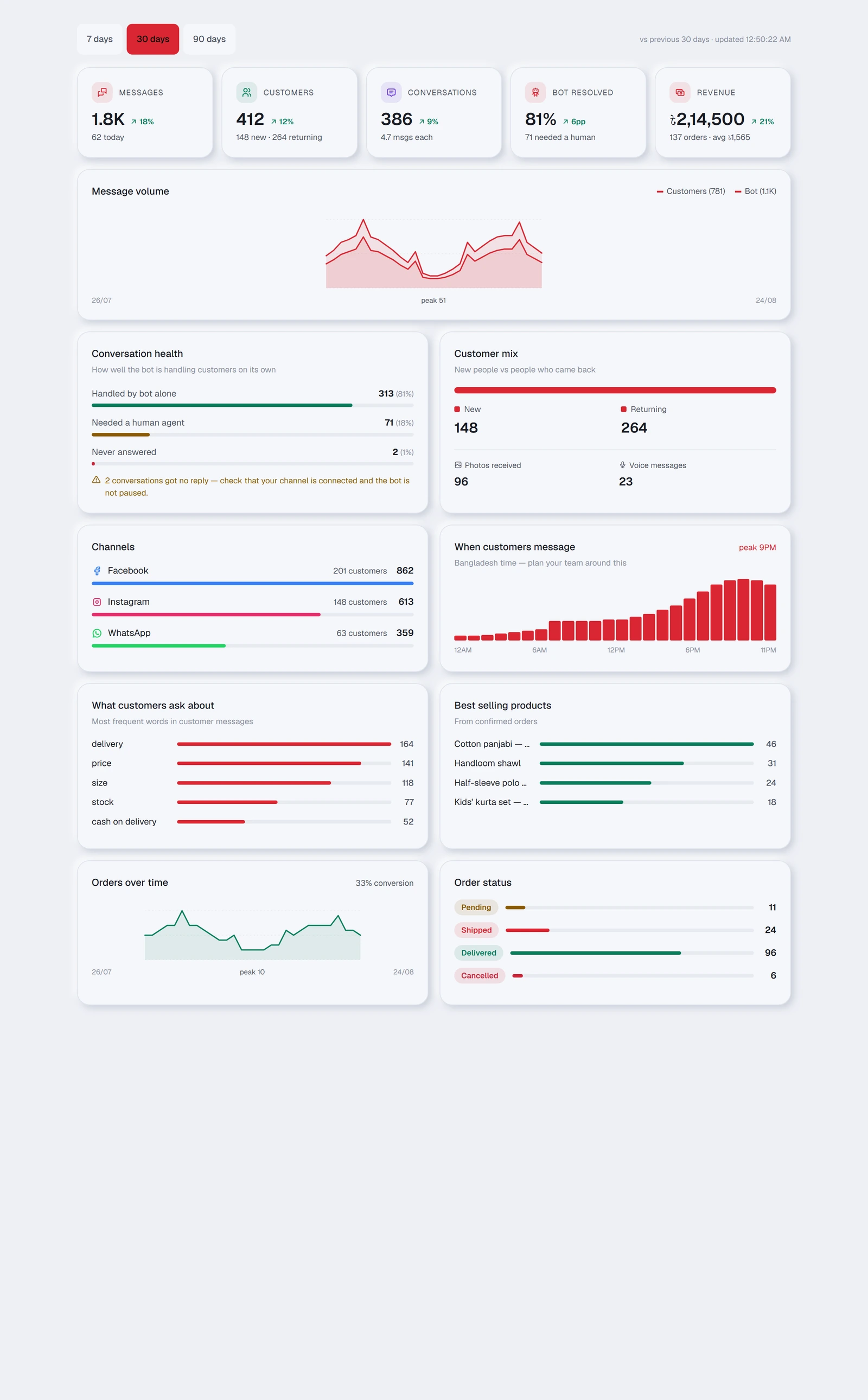
How much TellMore AI is doing, how much you still do by hand, and when your customers actually write to you.
The five cards at the top
| Card | What it counts |
|---|---|
| Messages | Every message in and out, with today's figure underneath |
| Customers | How many different people wrote to you, split into new and returning |
| Conversations | How many separate chats, and the average number of messages in each |
| TellMore AI resolved | The share of chats TellMore AI finished on its own, with how many needed you |
| Revenue | Money from every order except cancelled and returned ones, with the order count and average order value |
| Card | What it counts |
|---|---|
| Bookings | Confirmed bookings, and what share of your customers that is |
Leads
Under the message volume, the Leads card counts the period: New chats (customers who wrote for the first time), Interested, not bought, Bought and Said no — with the share of leads that bought (for a service: *Interested, not booked* and *Booked*). A lead is a customer who showed interest. TellMore AI marks them by itself from the chat (see the Inbox page, "Where a customer stands"); your team's choice always wins, and the card says how many of the changes TellMore AI made.
Open in Inbox under a number opens the Inbox on exactly those chats — the quickest way to follow up everyone who asked and did not buy.
On a package without the AI (Shop Inbox, Service Inbox) the card counts what your team marked, and a recorded sale counts as Bought.
Where customers come from
Under the Leads card, this card lists everything that brought customers to your inbox in the period, each with its picture: every Click-to-Messenger, Instagram or WhatsApp ad, every post someone commented on and TellMore AI answered in the inbox, Instagram story replies, and your tracked links. For each: the chats it started, how many of them became leads, the orders (or bookings) those customers made and, for a shop, the money, with the rate of chats that became a sale. Cancelled and returned orders do not count as sales.
View opens the ad or post on Facebook. Open these chats opens the Inbox on exactly the customers it brought.
Make a tracked link: give a name to a place you will share a link (a Facebook group, a flyer, an influencer), copy the link, and share it there. Everyone who writes to your Page through it is counted here under that name. Tracked links are for Facebook Pages.
The same is shown where you work: the customer panel in the inbox has a Came from card with the ad or post, its picture and a link to it (and where they first came from, if that was different); the inbox filter Every source shows only customers from ads, posts, stories or links; and an order says which ad or post brought it.
Posts, story replies and tracked links count from 27 October 2026.
Each ad shows its Ad ID. Paste it into the search box in Meta Ads Manager to find exactly that ad.
It counts from 10 October 2026, when the platform began keeping which ad a customer came from. For Facebook and Instagram, Meta only sends the ad when your Page is subscribed to referrals — new Pages are; for a Page connected earlier, ask us to switch it on.
Leads from lead forms
A lead form ad (Meta calls it an Instant Form) lets someone leave their name and phone inside Facebook or Instagram without writing to you, so they never reach the inbox. This card lists them: name, phone (with Call and WhatsApp buttons), email, every answer they gave, the ad that brought them with its Ad ID, and the form.
Mark each one New, Contacted, Bought (for a service: Booked) or Not interested as you follow up. You get a notification when a new lead arrives.
Meta shares lead forms only with an app it has allowed to read them (the leads_retrieval permission). Until it is allowed for your Page, a new lead shows as waiting, with its ad, and is read as soon as it is allowed. Meta keeps a lead for 90 days.
Conversation health
Three bars that answer one question: is TellMore AI actually coping?
| Bar | What it means |
|---|---|
| Handled by TellMore AI alone | TellMore AI answered and nobody needed you. This is the one to grow |
| Needed a human agent | You took over. Normal — but a rising share is worth investigating |
| Never answered | Somebody wrote and got nothing back |
Customer mix
New people against people who came back, plus a count of the photos and voice messages customers sent. If those two numbers are high, your customers prefer showing to typing — worth knowing before you write TellMore AI's training.
Channels
Which platform is actually carrying your business, by message count and by how many separate customers came through it. Useful when deciding where to spend on advertising.
When customers message
A grid of seven rows (Sunday to Saturday) by twenty-four hours, in Bangladesh time: the darker a cell, the more customers wrote then, and the busiest hour is outlined. Friday evening and Monday morning stop being averaged into one number.
Above it, Message volume is one bar per day — the whole bar is every message that day, the filled part is what TellMore AI answered.
This is the most practical chart on the page: it tells you the hours worth being personally available, and the hours you can safely leave to TellMore AI.
What customers ask about
The words that come up most often in customer messages. Read it as a to-do list for Train TellMore AI — a word appearing often that TellMore AI handles badly is the single most valuable thing you can fix.
Best selling products
Taken from confirmed orders only, so it reflects what people actually bought rather than what they asked about. Underneath, Orders over time and the conversion figure show what share of the people who wrote to you ended up ordering.
Most requested services
Taken from confirmed bookings only. Underneath, Bookings over time and the conversion figure show what share of the people who wrote to you ended up booking.
If something goes wrong
Marketing messages
One message to many customers at once — inside the 24-hour window the platforms allow, with the audience checked before anything is sent.
The one rule that governs everything here
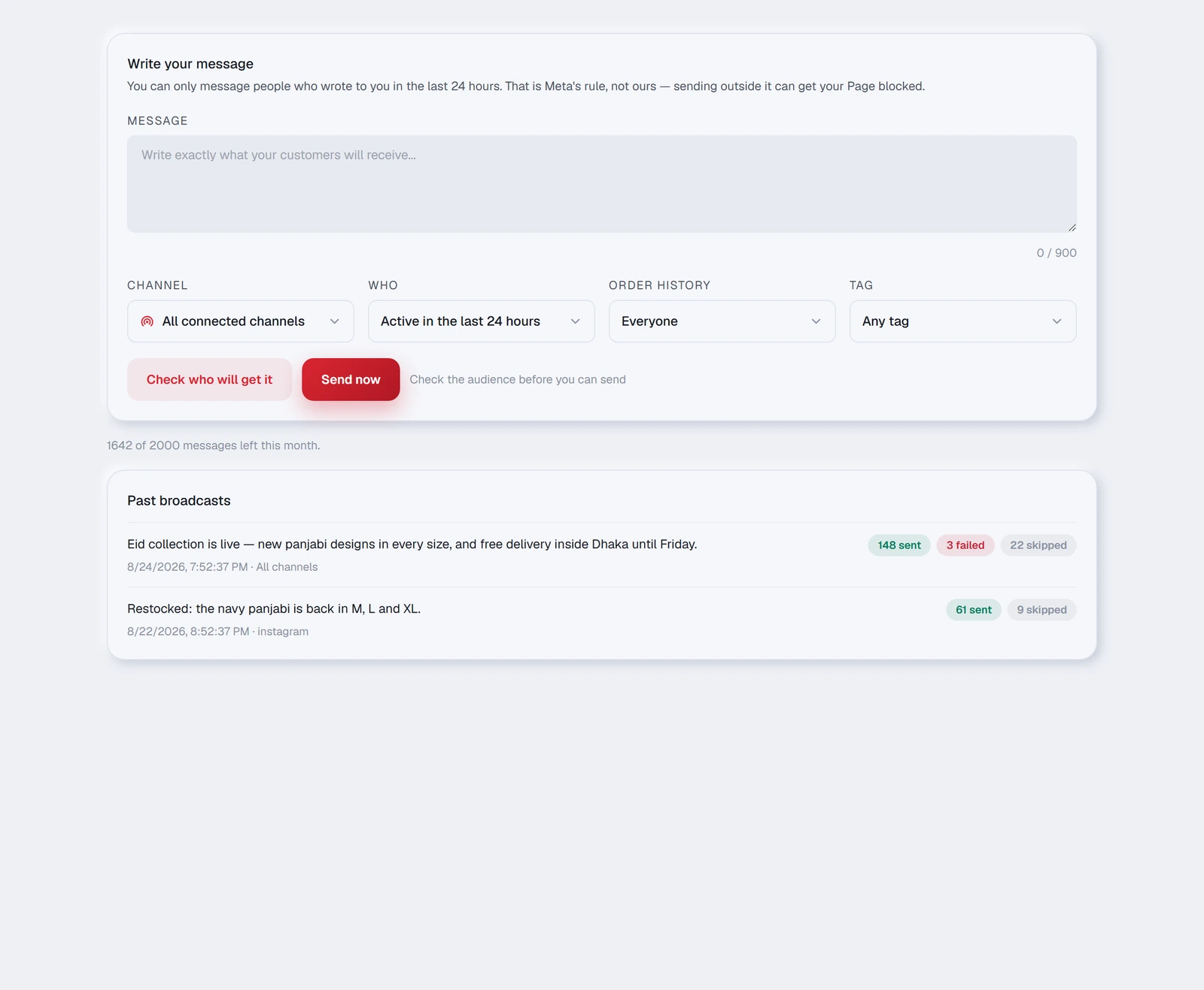
You may only message someone who wrote to you in the last 24 hours.
This is Meta's rule, not ours, and it applies to every tool that sends on Facebook, Instagram or WhatsApp. TellMore AI enforces it because sending outside the window is what gets Pages restricted and blocked.
Sending one
- 1Write your message. The counter under the box shows how much room you have left.
- 2Choose the Channel — all connected channels, or just one.
- 3Choose Who: people active in the last 6, 12 or 24 hours.
- 4Narrow it further by order history and by tag if you want to.
- 5Press Check who will get it.
- 6Read the result, then press Send now.
The filters
| Filter | What it does |
|---|---|
| Channel | All connected channels at once, or a single platform |
| Who | How recently the person wrote — 6, 12 or 24 hours |
| Order history | Everyone · Has ordered before · Never ordered |
| Tag | Only people whose conversation carries a tag you set in Inbox |
| Filter | What it does |
|---|---|
| Booking history | Everyone · Has booked before · Never booked |
Combining them is where this gets useful: *people active in the last 6 hours who have never ordered* is a very different message from *people who have ordered before*.
Reading the check
| Number | What it means |
|---|---|
| will receive it | People the message can legally and technically reach right now |
| cannot be messaged | People who match your filters but are outside the window or blocked for another reason |
| For example: … | A few real names, so you can sanity-check you are aiming at the right group |
| Why some are left out | The exact reason for each person who was skipped |
If the audience is larger than your plan allows, a red line says how many messages you have left in the current period. The remaining allowance is also printed under the card at all times.
While it sends
A counter shows Sending… X of Y and then Finished — N sent. Large audiences are sent in batches, so leave the tab open until it says finished.
If some failed, the count says so and the exact reason for each one is in the history below.
Past broadcasts
Every broadcast you have sent, newest first, with what it said, when, on which channel, and its badges: sent, replied (how many of those people wrote back afterwards), failed and skipped. Tap any of them to open the full recipient list with a status line per person.
If something goes wrong
Catalog / Services & info
What TellMore AI sells from. An online shop puts products here; an agency puts documents. This one tab changes completely depending on your business type.
Which one you have
The tab is called Catalog for an online shop and Services & info for an agency, and they are genuinely different screens. Your business type in Profile decides which you see.
Both do the same job: they are the facts TellMore AI answers from.
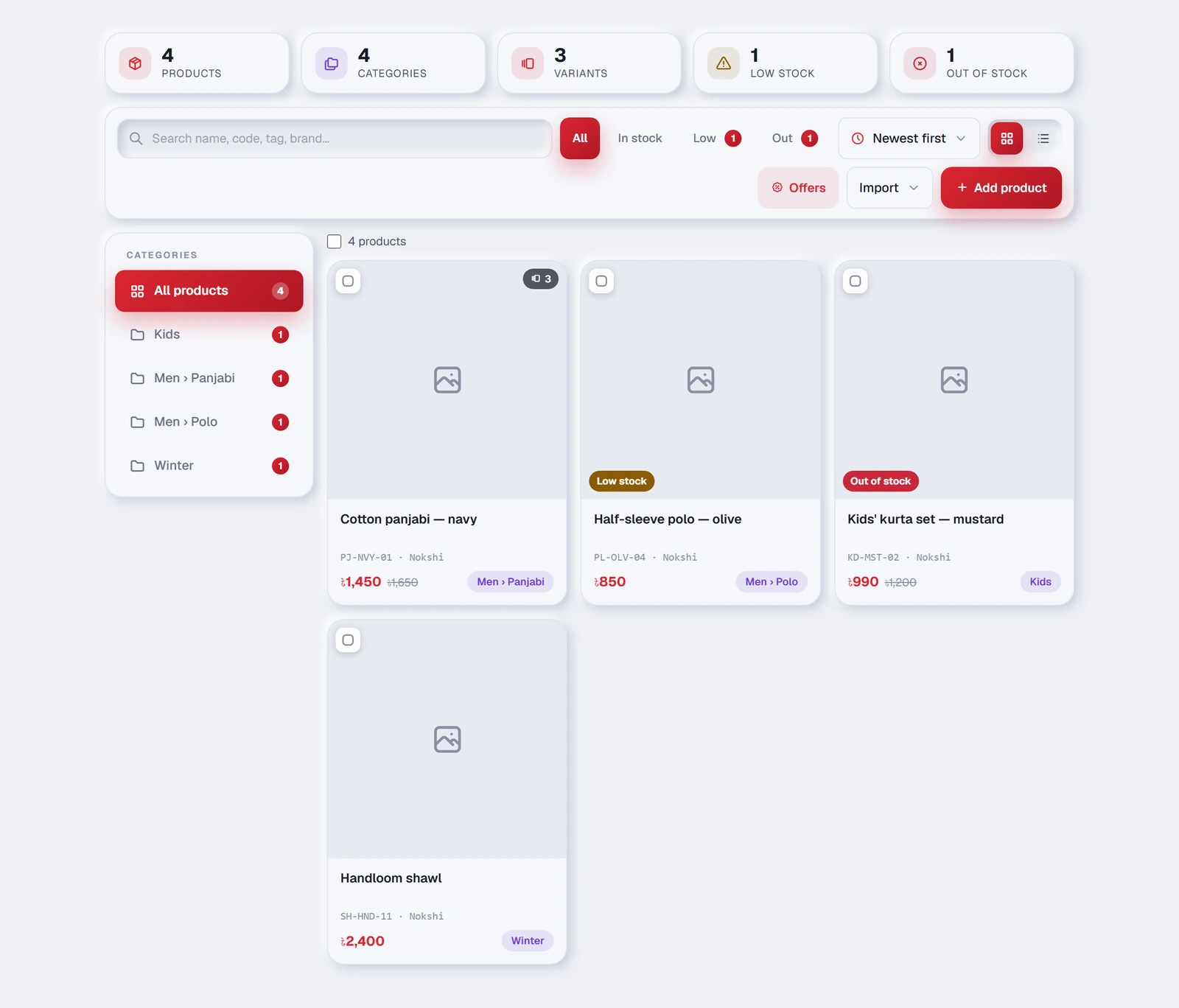
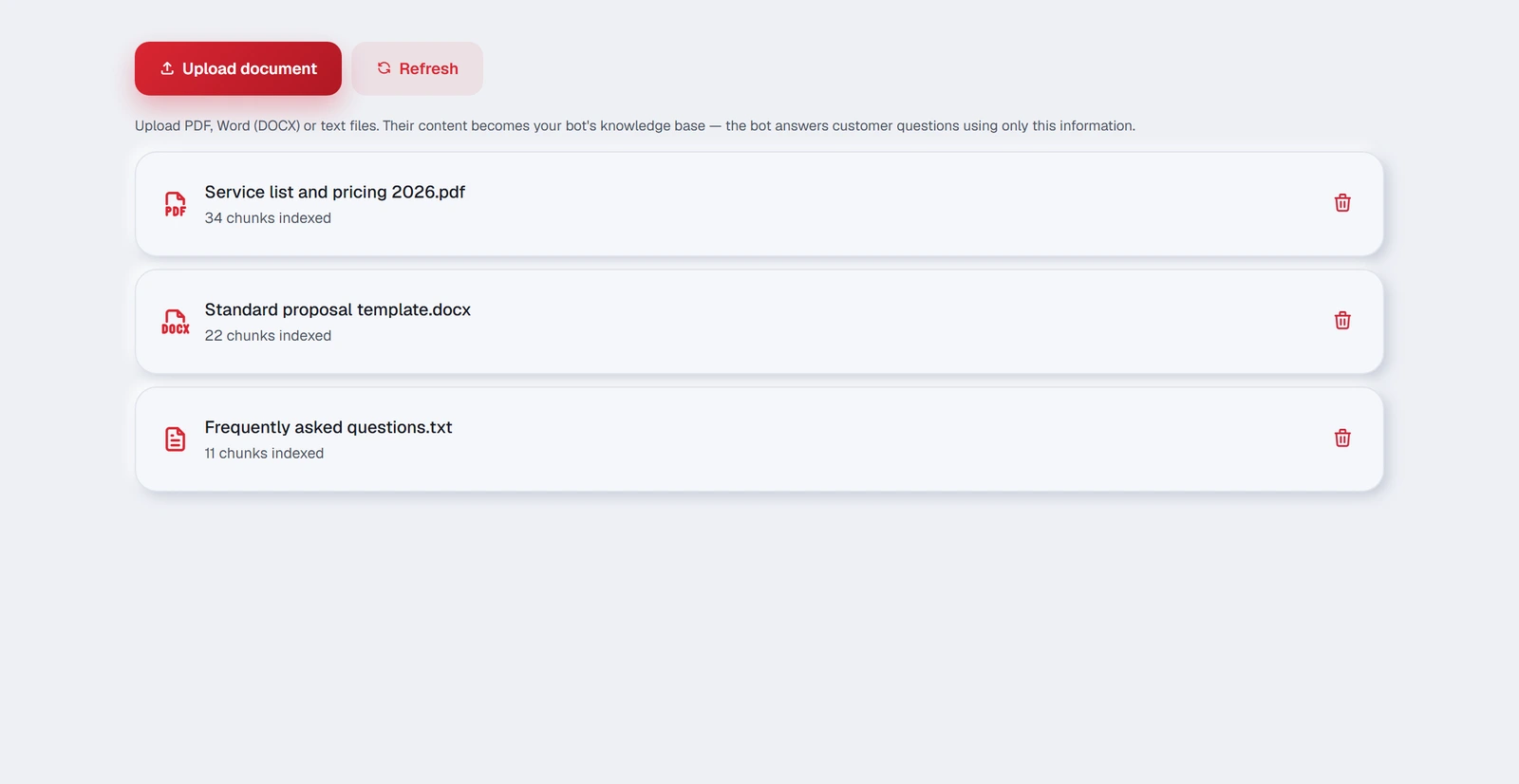
Your video library
For a shop: at the top of this tab, switch from Products to Videos. (A service business has no video library; it can still send a video from its phone in a chat.) Keep your own videos here — a product shown on, how to use it, an offer — and send any of them to a customer from the inbox. No AI is involved, so a video costs you nothing on your AI allowance.
Press Choose a video, give it a name, then Upload. MP4 or MOV, up to 25 MB each; a library holds up to 200 MB for now. WhatsApp only accepts videos up to 16 MB, so a bigger one is marked Too big for WhatsApp and can still go on Messenger and Instagram.
Rename or delete a video from its tile. A customer who has already received a video keeps it after you delete it. Your team members do not see this page; they send your videos from the inbox.
A product's own video: open the product, go to Photos, and under Product videos link a video from your library or upload a new one. In the inbox, a product with a video shows a small camera mark in Products, and Send the product video too sends it right after the product's photos.
TellMore AI sends it too: when a customer asks to see a video of a product (“video ache?”), TellMore AI finds the product the usual way — from the customer's photo or the name or code in the chat — and, if that product has its own video, sends it. TellMore AI never watches a video, so this costs nothing extra; on WhatsApp only a video up to 16 MB goes, and the website chat gets none.
A video FROM a customer is never shown to TellMore AI (no AI cost). The customer gets one short line saying a person will look, the chat moves to Needs you and you are told — open it in your Page or WhatsApp inbox to watch it.
Adding products
Press Add products and choose a way in.
| Way | Best for |
|---|---|
| Add a single product | Typing one in by hand — name, photos, price, sizes and colours |
| Add many products from photos | A pile of product photos — each photo becomes one product |
| From a product link | The product is already on a website. We fetch the name, photo and price for you |
| From a spreadsheet | A CSV from Excel or Google Sheets — or a Shopify product export. Hundreds at a time |
| From WooCommerce | Your whole WooCommerce shop, with a read-only key pair |
| From Shopify | Your whole Shopify shop, through a small read-only app (next section) |
Bringing a Shopify shop over
- 1Since January 2026 Shopify makes apps in its Dev Dashboard: open dev.shopify.com/dashboard (signed in as the shop owner) → Create app → Start from Dev Dashboard → name it TellMore → Create.
- 2Open Versions → under Scopes add only read_products → Release. That lets us read your products and nothing else.
- 3On the app's page press Install app and choose your shop → Install.
- 4Open App settings → in Credentials, copy the Client ID and the Client secret.
- 5Here: Add products → From Shopify. Enter your
your-shop.myshopify.comaddress (Shopify Settings → Domains shows it; your own domain will not work), the Client ID and the Client secret, then Import products. Keep the page open until it finishes.
shpat_ token still works — press *Have an older shpat_ access token?* in the form. Cannot make an app at all? Use Products → Export → All products → CSV file for Excel, Numbers, or another spreadsheet program, then From a spreadsheet here. Name, price, description, SKU, stock and the first photo are matched by themselves.Filling in a product
| Field | What to put |
|---|---|
| Product name | The only required field. Write it the way a customer would say it |
| Product code / SKU | Filled in automatically if you leave it empty |
| Brand | Optional |
| Category | Supports levels, like Men › Panjabi |
| Tags | Comma separated — cotton, summer, gift. TellMore AI uses these to match loose questions |
| Regular price / Sale price | In taka. A sale price shows the old one struck through |
| Quantity | Optional. Leave it empty if you do not track stock |
| Description | Describe it the way you would to a customer — this is what TellMore AI borrows from |
| Photos | Upload, or paste an image link starting with https:// |
| Variants | Add an option such as Size, then its values. Each value can carry its own code, price and quantity |
Finding things later
Once you have more than a handful of products, four controls do the work:
| Control | What it does |
|---|---|
| Search | Looks in name, code, tag and brand at once |
| Category filter | One category, or everything not yet filed under one |
| Sort | Newest first · Name A–Z · Price low → high · Price high → low · Stock issues first |
| Grid / table | Pictures for browsing, rows for working through a long list. Your choice is remembered |
The cards at the top — All products, In stock, Low stock and Out of stock, plus Not ready and Hidden from TellMore AI when there are any — are the quickest daily check, and each one is a filter: press it to see just those products, press it again to see them all. Under them, one line says how many categories and sizes or colours you have. Stock issues first in the sort menu puts everything that needs attention at the top of the list.
When the page finds more than one kind of problem — a product listed twice, one code on two products, products not ready to sell — they fold into one N things to fix card; Show opens each of them.
Changing several at once
Tick the boxes on several products and a bar appears at the bottom of the screen. From there you can mark them all in stock or out of stock, or delete them together — much faster than opening each one.
Hiding a product from TellMore AI
Every product has a TellMore AI sells switch — in the table view, and inside the product panel next to Availability. Switch it off and TellMore AI stops offering that product: it will not bring it up, match a customer's photo to it, or take an order for it. Nothing is deleted; the photos, prices and variants stay exactly as they were, and the Hidden filter lists them.
This is different from Out of stock. Out of stock is a fact TellMore AI tells customers who ask. Hidden means TellMore AI behaves as if the product were not there — a seasonal line you are resting, a wholesale-only item, something being photographed again.
Uploading documents
An agency's TellMore AI answers from your own documents rather than a price list. Press Upload and pick a PDF, Word (DOCX), text, Markdown or CSV file — or, on a computer, drop the files onto the dashed strip above the list. Several at once is fine; they are read one after another.
TellMore AI reads the file, breaks it into pieces and indexes them. The card then shows Ready with how many pieces were indexed — that number is only a progress signal; a bigger document simply makes more. A document that is still being read, or that could not be read, says so on its card instead.
Good documents to upload: your service list with prices, your standard proposal, your terms, a frequently-asked-questions sheet, case studies. Anything you find yourself sending clients over and over.
The bin icon removes a document and everything indexed from it, immediately. Upload a corrected version afterwards if you are replacing it rather than dropping it.
If something goes wrong
Orders and Bookings
What TellMore AI closed for you. An online shop gets orders taken in chat; an agency gets meetings booked straight into Google Calendar.
Which one you have
The tab is Orders for an online shop and Bookings for an agency. Your business type in Profile decides which one appears.
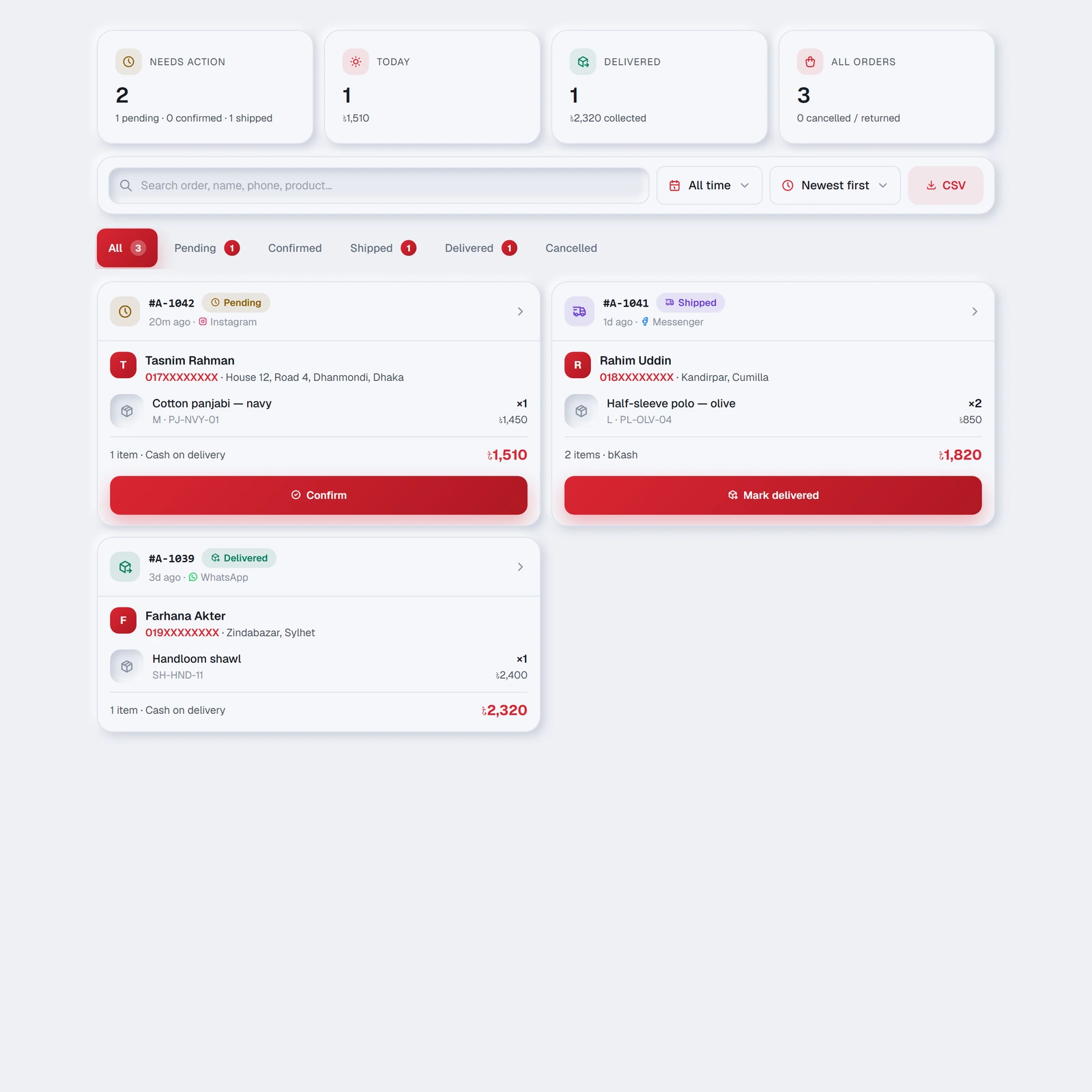
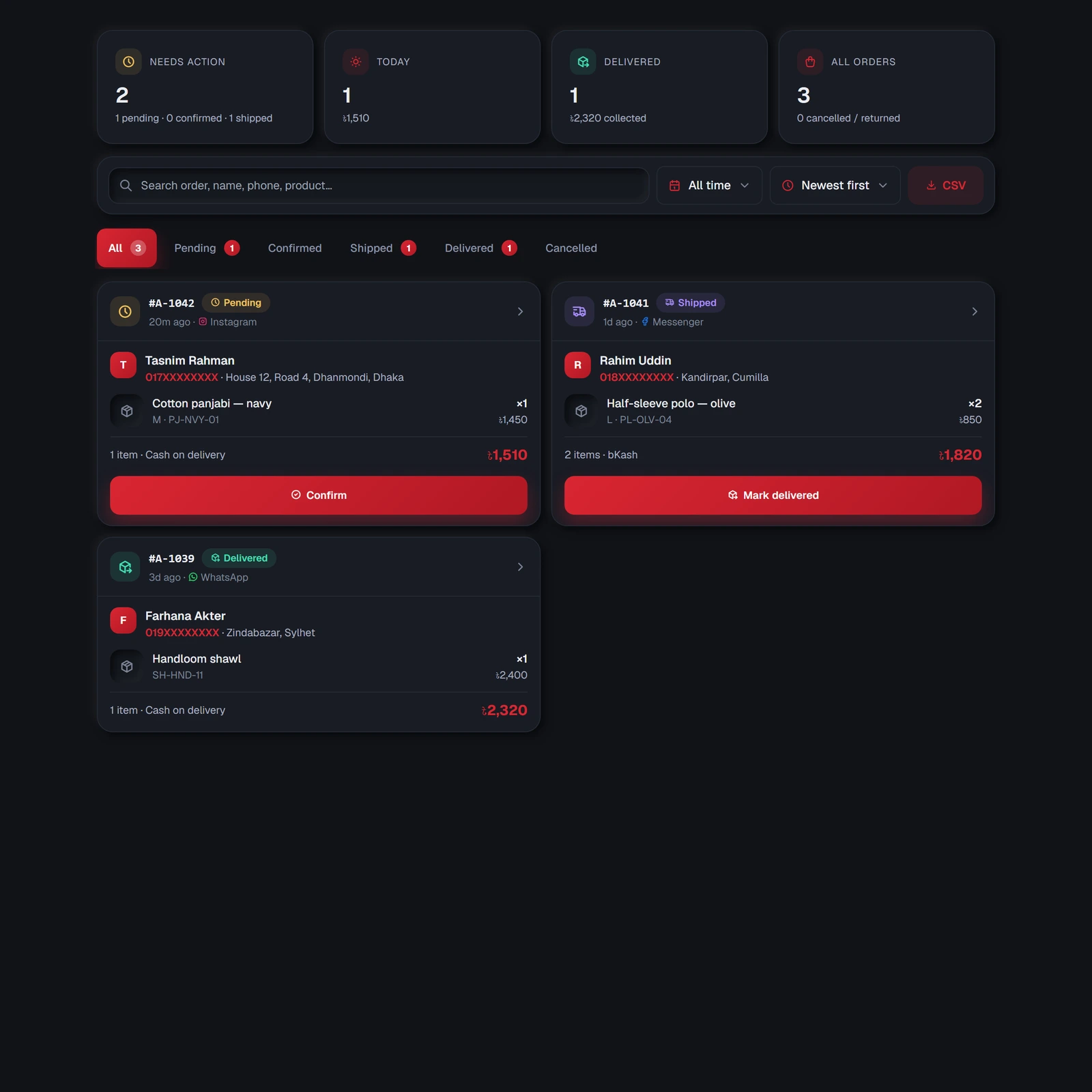
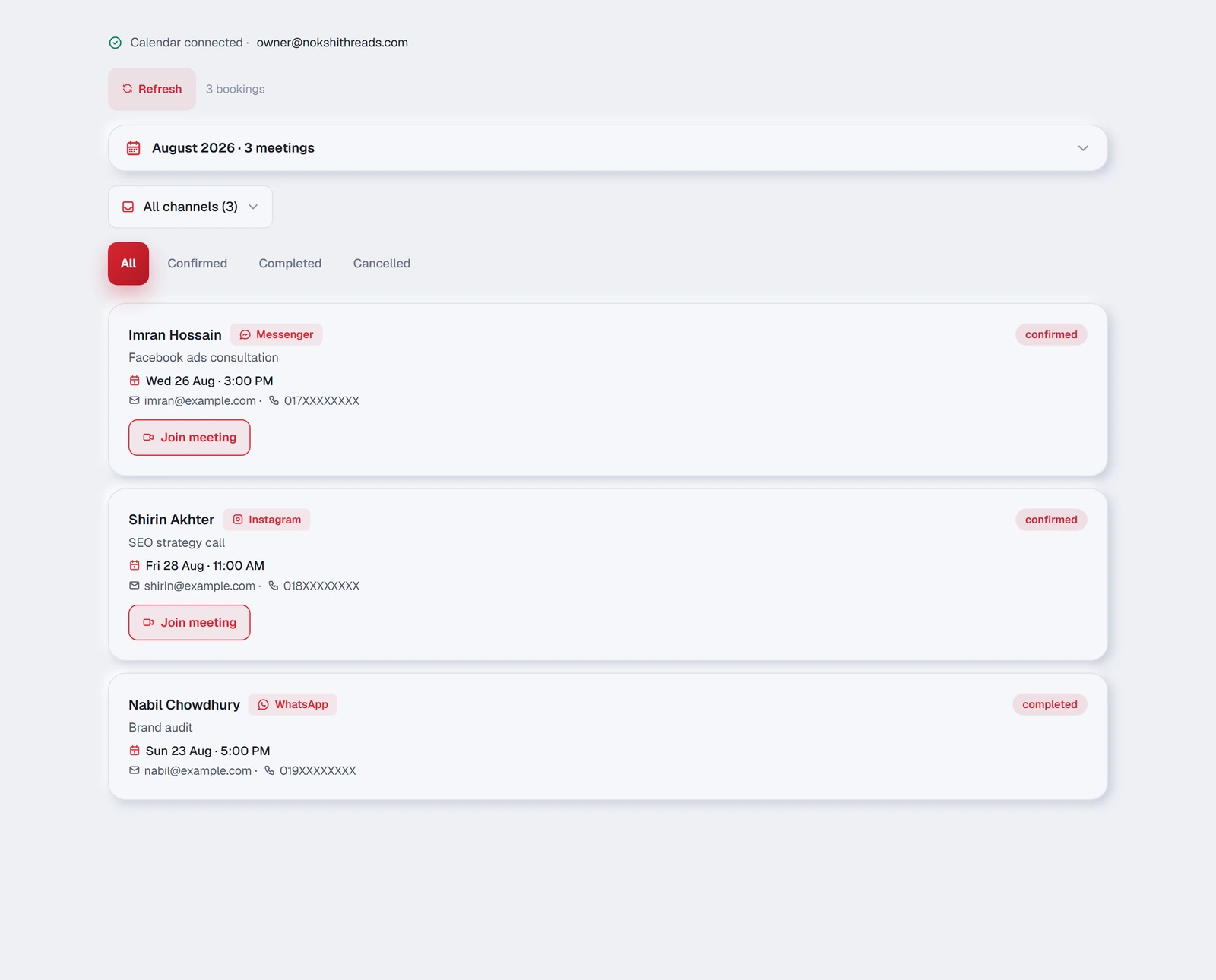
How an order gets here
TellMore AI takes it during the conversation. When a customer says what they want and gives a name, phone number and address, TellMore AI writes the order down and it appears here as Pending.
Nothing is shipped or charged automatically. Everything after this point is yours to do.
An order marked By hand was not taken by TellMore AI: you or a team member recorded it from the Inbox with Record a sale, and the name beside it says who. It is an order like any other — same statuses, same place in your revenue.
Moving an order along
Each order carries a status, and the buttons walk it forward one step at a time:
| Status | What it means | Button |
|---|---|---|
| Pending | TellMore AI took it, you have not checked it yet | Confirm |
| Confirmed | You have accepted it | Mark shipped |
| Shipped | It is with the courier | Mark delivered |
| Delivered | Finished, with the money in your hand | — |
| On Hold | Paused, with the reason you chose (customer not answering, waiting for the advance, waiting for stock…). Still counted in revenue | Resume — back to the step it was on |
| Cancelled · Returned | Did not complete. Left out of revenue | — |
Sending an order to your courier
Connect your courier once: press Couriers above the order list, then Connect Steadfast, and paste the API Key and Secret Key from your Steadfast panel (Settings → API). They are checked with Steadfast before they are saved, kept encrypted, and only ever shown masked.
For Pathao, press Connect Pathao and fill in the Client ID and Client Secret (Pathao merchant panel → Developer API) and your Pathao login email and password. The password is used once to sign in and is never saved; Pathao's own sign-in is kept, encrypted, and renewed by itself. Orders go from your default Pathao store, and Pathao works out the city and zone from the address. If Pathao ever stops accepting the saved sign-in, the card says Connect again.
Then open any order and press Send to Steadfast (or Send to Pathao — with both connected, pick one first) in the Courier card. It shows what the rider will collect — the total less any advance — and asks once, because this books a real parcel. The order then moves to Shipped and keeps the tracking code, with Track and Copy tracking link to send the customer.
If the order is missing something Steadfast needs — the customer's name, a valid mobile number (01XXXXXXXXX) or the full address — the card says what to add first. An order can be sent only once.
After that you do not have to check. Every 30 minutes the parcel's status is read from the courier and shown on the order. When the courier marks it delivered, the order becomes Delivered by itself (and the customer is asked how it went); when it is cancelled or returned, the parcel is coming back, so the order becomes Returned and its items go back into stock. You get a notification either way. An order you put On Hold after it was shipped is still followed, and settles the same way.
When the courier says partly delivered (the customer kept only some items), the order becomes Delivered with a note on it: the courier does not say which items came back, so check the parcel, put those items back in stock and correct the total.
If you change the customer's name, phone, address, delivery charge or discount after the parcel is booked, the courier still has the old details: the order shows a note reminding you to change it in your courier's panel too.
When a customer asks TellMore AI "where is my parcel?", it answers from their own order — which courier has it, where it is now — and gives them the tracking link. It only ever sees the orders of the person writing.
Return risk — check a customer before you send
Every order still to be sent has a Return risk card. With you counts this customer's earlier orders with your shop — the same chat or the same mobile number, however it was written — and how they ended: delivered, returned, cancelled.
With Steadfast connected, the order is also checked with Steadfast when you open it: how many Steadfast parcels went to this number from every Steadfast shop, how many were delivered and how many were cancelled. The answer is kept on the order, so it is asked only once; press Check again for a fresh one. Steadfast limits how many checks a shop can run, and says so when the limit is reached. Pathao does not offer this check.
The card then gives a return-risk score from 0 to 100 and the reasons behind it, biggest first — for example *+40 most of their Steadfast parcels were not delivered*, *+20 no valid mobile number*, *−15 paid an advance*. It counts their record with you and with Steadfast, and this order: an advance (paid in full brings it to 0), a large cash-on-delivery total, a missing or wrong mobile number, a very short address, and delivery outside Dhaka. From the score it says how careful to be: Good record, No history yet, Be careful (35 or more — call the customer to confirm first) or High return risk (60 or more — ask for an advance, at least the delivery charge, before sending). The list marks those orders Check first or Risky, so you see them before opening anything. It is advice: nothing is blocked, and the customer is never told.
To have new orders checked without opening them, tick Check each new order's customer by itself under Steadfast in Couriers. Every half hour the new orders still to be sent are checked, so the score is ready when you look. It is off until you turn it on, because each check uses one of Steadfast's daily checks for your shop.
Advance payment and what to collect
When a customer pays part of the price before delivery — on bKash, Nagad or any other way — the order records it: open the order and press Add advance in the Payment card, then enter the amount, how they paid and the transaction ID (TrxID). The order then shows To collect on delivery: the total less the advance, which is what your courier should collect. The list shows it under each total, and the CSV has Advance, TrxID and To collect columns.
If the customer sends their TrxID in the chat while ordering, TellMore AI writes it on the order for you. That is only what the customer said, so it shows Not checked yet until you find the payment in your own bKash / Nagad app and tick I found this payment in my payment app. TellMore AI never tells a customer their payment is received — you confirm it.
An invoice for an order
Open the order and press Make invoice. Then Open shows the invoice — your business name and logo, the order number and date, the customer, every item with its price, the delivery charge, the total, any advance paid and what is left to pay on delivery — with a Print / Save as PDF button; Copy link copies its address so you can send it to the customer in their chat. It opens in your phone's browser, so printing and saving a PDF work from the app too.
The link works for 180 days and shows only that one order. It never shows your private note, why an order is on hold, or anything about your business beyond its name and logo.
Stock follows your orders
When you accept an order — Confirm, or straight to Shipped or Delivered — its items are taken from the stock you keep in Catalog: the size or colour's own count when it has one, otherwise the product's count. It happens once per order, however often you move it along. Cancel the order or mark it Returned and the items go back into stock: exactly what it took, so if only 1 was left when an order of 3 was confirmed, 1 goes back. Deleting an order that took stock puts it back too. When TellMore AI changes an order that already took stock (a product added, removed, or a quantity changed), stock moves by the difference. If two people change the same order at the same moment, the first change wins and the second is asked to refresh, so stock is never taken twice. A message at the top says what moved ("2 items taken from stock") and names anything it could not count — a product you do not keep a count for, or one that is no longer in Catalog.
When a count reaches 0 the item shows out of stock, and TellMore AI stops offering it. You can switch this off in Settings → Products & stock → Stock follows orders if you count stock yourself somewhere else.
Putting an order on hold
Open the order and press Put on hold under *Update status*. Pick the reason — Customer not answering, Waiting for advance payment, Waiting for stock, Customer asked to wait, Address to confirm — or Other reason… and write your own. The reason shows on the order in the list and at the top of the order, with how long it has been waiting, and On Hold has its own filter. Resume takes it back to the step it was on; Change reason updates the reason.
Asking how it went
When you mark an order Delivered, the customer is asked — once, in the chat, in your business's voice — how it was, for a rating from 1 to 5 and a word or two. If they wrote to you in the last 24 hours the question goes straight away; otherwise (Meta only allows a business to message first within 24 hours) TellMore AI asks it in its reply the next time they write.
Their answer is saved by itself — a number, stars, or just how they felt — and shows in the order under Customer rating, and on Home with your average. A rating of 1 or 2 sends you a notification and puts the chat in Needs you, so a person can make it right. Switch it off in Settings → Automatic messages → Ask how it went.
The three quick filters
Above the list: Needs action, Today, Delivered and All orders. Needs action is the one to open every morning — it is everything waiting on you.
Then Search (order number, name, phone or product) and Couriers. More opens a date range of All time · Last 7 days · Last 30 days, a sort of Newest · Oldest · Highest amount and CSV; a small dot on More says a range or sort is on while it is closed.
Below them, one button per status — All · Pending · Confirmed · Shipped · Delivered · On Hold · Cancelled · Returned — each showing how many orders it holds. Needs action counts Pending, Confirmed, Shipped and On Hold orders.
Opening one order
On a laptop the orders are a table — one row each, with the next step's button at the end of the row. On a phone they are cards. Either way, tap an order and a panel slides in with everything about it — customer, address, items, subtotal, delivery, discount, payment method and which channel it came from.
Three buttons sit at the top of the panel: the next step (Confirm, Mark shipped, Mark delivered), Call, which dials the customer's number, and Chat, which opens their conversation in the Inbox — handy when you need to ask about a size or an address before you ship.
| What you can do | Why |
|---|---|
| Edit name, phone, delivery area, address | TellMore AI writes down what the customer typed; typos happen |
| Set delivery charge | Inside or outside the city usually differ |
| Set payment method | Defaults to cash on delivery |
| Copy name, phone, address | One tap, ready to paste into your courier's form |
| Add a note | Courier and tracking number, or a special request. Only you see it |
The download icon exports what you are currently looking at as a CSV file, filters included — useful for accounts, or for handing a day's orders to someone else.
In the Android app the file opens in the phone's browser and is saved to Downloads. That download link works for ten minutes; press the button again for a fresh one.
Connect Google Calendar first
Bookings only work once your calendar is connected — and this is where you connect it. If it is not connected, the tab says so and shows you the button.
It takes about a minute, there is nothing to install, and you log in with your own Google account. TellMore AI only uses it to check when you are free and to create the meetings — nothing else in your calendar is read or touched.
Once connected, the top of the tab shows which Google account is linked, with a Disconnect button right there. Disconnecting removes our access at once; bookings already made stay listed, but TellMore AI stops taking new ones.
How a booking gets here
- 1A customer asks for a meeting during a conversation.
- 2TellMore AI checks your calendar for a free slot.
- 3It offers times, the customer picks one, and TellMore AI confirms.
- 4The event is created in your Google Calendar with a Google Meet link, and the customer is sent that link on the channel they wrote from.
The calendar
The month view marks every day that has something booked; tap a day to see just that day. Above it, Next 7 days and This month switch the range, and the arrows move between months. On a laptop the month is open from the start; on a phone a strip of the next seven days sits above it — a dot for each meeting — and the month is one tap away below.
The list underneath is grouped by when: Today, Later this week, Coming up, and Past at the bottom. Choose a day or a range and the headings give way to that day's list.
Each booking shows the person, the time, which channel they came from, and a video icon that opens the Meet link.
Open a booking and Before with you shows this customer's earlier bookings — the same chat, mobile number or email — and how many were done or cancelled. After two cancellations it says CONFIRM FIRST: worth a quick message before you keep the time free.
| Status | What it means |
|---|---|
| Confirmed | Booked and in your calendar |
| Completed | The meeting has happened |
| Cancelled | Called off. The calendar event is removed too |
Asking how the meeting went
When you mark a booking Mark done, the customer is asked — once, in the chat — how the meeting was, for a rating from 1 to 5 and a word or two: straight away if they wrote in the last 24 hours, otherwise in TellMore AI's reply the next time they write. The answer shows in the booking under Customer rating and on Home. A rating of 1 or 2 notifies you and puts the chat in Needs you. Switch it off in Settings → Automatic messages → Ask how it went.
Reminders to your customers
Every confirmed booking gets two reminders, sent in your business's name: the day before and about an hour before. Each one goes by email — to the address the customer gave when booking — and also in the chat when they wrote to you in the last 24 hours (Meta only allows a business to message in the chat then). It says when, what the meeting is about, has the Meet link as a Join the meeting button, and tells them to reply if they need to change or cancel. It is written in Bangla if the customer writes in Bangla.
A reminder is never sent twice, never for a cancelled or completed booking, and not when it makes no sense — someone who booked this morning for this afternoon does not get a "tomorrow" note. An hour before each meeting you get a notification too.
Open a booking to see its Reminders: what went, when, and how (email, chat), or when it will go. Switch reminders off, or keep only one, in Settings → Automatic messages → Booking reminders.
When a customer wants another time
When a customer writes "I want to change the time", TellMore AI moves their existing meeting itself — nobody from the team is needed. It asks for the new day and time (offering the free times as buttons), checks once — "Move your meeting from Tuesday 11 AM to Wednesday 3 PM?" — and moves it when they say yes.
The new time has to be free in your Google Calendar, at least 2 hours away, and inside the days and hours in Settings → Meeting times. The same calendar event moves, so the Meet link stays the same and Google tells the customer the new time. The reminders start again for the new time, and your phone gets a 📅 Booking moved notification.
If the time is not free, too close, or unclear, nothing changes — the customer is told the meeting stays where it was and is asked for another time. If they have two meetings, TellMore AI lists them and asks which one.
If they have no upcoming meeting at all (it was cancelled, or is over), TellMore AI books a new one for the time they asked, with the name, email and phone from their earlier booking — and asks only for what it does not have.
When a customer wants to cancel
TellMore AI cancels the customer's own meeting itself. It checks once which meeting and that they want it cancelled, then marks it Cancelled — the same as pressing Cancel in Bookings — and removes it from your Google Calendar, so Google tells the customer. Your phone gets a ❌ Booking cancelled notification.
If they have two meetings, TellMore AI asks which one; if they have none, it says so and offers a new time. Only when something breaks on our side does the chat go to your team.
If something goes wrong
Train TellMore AI
Where you teach TellMore AI your business. Answer its questions and it writes its own training from your answers — then set your offers, your bargaining rule and how it sounds.
Why the tab is called this
It used to be called Settings, and owners looked straight past it. Everything on this page teaches or tunes TellMore AI, so it says what it does.
This is the single most valuable tab in the dashboard. TellMore AI trained for twenty minutes here answers better than one connected to five channels and taught nothing.
Five sections across the top: Teach, Offers, Bargaining, TellMore AI's style and Advanced. Everything here is what TellMore AI is told, and it goes live together when you press Publish. A checklist above them shows how far along you are — Identity, Business, Policies, Services, Q&A, Offers, Bargaining.
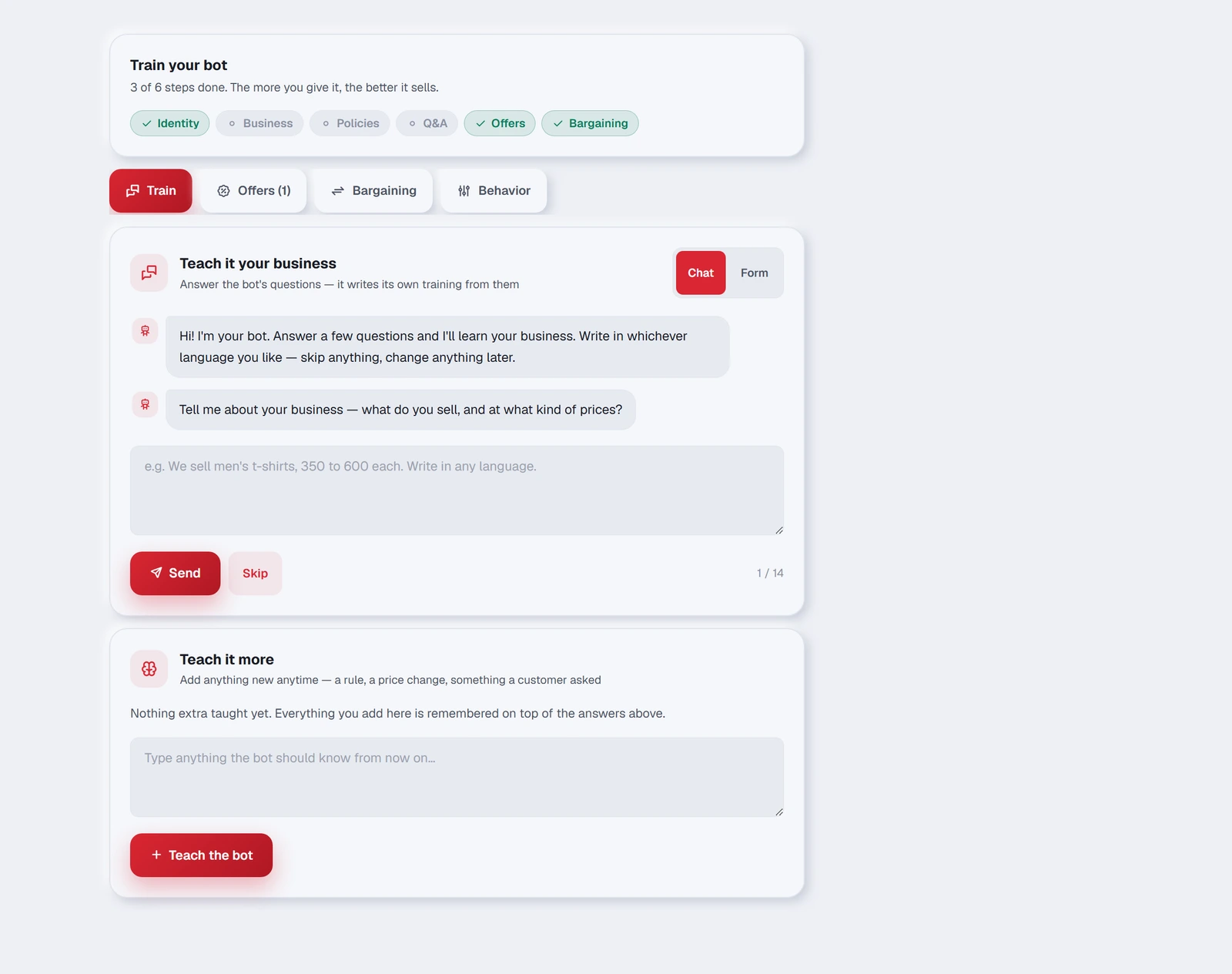
Teach — the interview
TellMore AI asks you questions about your business, one at a time, and writes its own training from your answers. You can switch between a Chat view and a Form view; the form is faster once you know the questions.
Write in whichever language you like. Bangla, English or a mix — TellMore AI understands all three, and it will still answer each customer in whatever language that customer used.
It asks about your products and best sellers, delivery time and charge, where you deliver, payment methods, advance payment, your return policy, what to say when something is out of stock, warranty, opening hours, how to handle an angry customer, and your most common questions with your answers.
It asks what you do and for whom, your services and prices, how pricing works, how you work with a client step by step, how long before results show, who you usually work with, contract and payment terms, how clients book a consultation, your availability, common objections and how you answer them, and your most common questions with your answers.
- 1Answer as many as you can. Skip anything that does not apply — nothing is required.
- 2Press Generate my TellMore AI's profile. TellMore AI turns your answers into the text it works from.
- 3Press Publish — that is when TellMore AI starts using it. Until then it is only on your screen (or in a draft).
Underneath sits Teach it more — a box for anything new, any time. A rule you forgot, a price change, something a customer asked that TellMore AI fumbled. What you add there is remembered on top of everything above, so you never have to redo the interview.
Try a change before it goes live — and take it back
Nothing you change on the Train TellMore AI page reaches your customers until you press Publish. While you have changes, the bar at the bottom offers three things:
Test TellMore AI opens a test chat. Write as a customer would; TellMore AI answers with your changes exactly as a customer would see it — products, prices, buttons. It is only a test: no order or booking is saved, no calendar event is made, nobody is messaged. When TellMore AI would have saved an order or booked a meeting, the chat says so instead (*Would save order A-1043 … Nothing was saved*), and it shows when TellMore AI would stay silent or hand the chat to your team. With no changes on the page, it tests the live TellMore AI.
In the test chat you can also tap a ready-made question made from your own products (a price, delivery, an order, a discount…; for a service business: booking, moving or cancelling a meeting), send a photo of a product, or record a voice note — TellMore AI reads them exactly as it reads a customer's. Under every answer, 👍 says it was right; 👎 asks What should TellMore AI have said? — write it the way you would tell a customer and press Teach TellMore AI: it is saved under Teach it more, and TellMore AI answers that way from the next message on.
Save draft keeps your changes without making them live — come back later and press Open draft at the top of the page, or Discard it.
Publish makes them live at once. What was live before is kept: History at the top lists the last 20 versions with what changed in each, and Put back makes any of them live again. Putting a version back changes only what TellMore AI is told — your switches (follow-ups, reminders, cards…) stay as they are, and the answers you taught from the questions below are kept.
Questions TellMore AI couldn't answer
When a customer asks something your information does not cover — *do you deliver to Sylhet?*, *is there parking?* — TellMore AI never makes an answer up, and it never says anything like *I don't have that information* — your customer must never feel they are talking to a machine. It answers whatever else they asked and says nothing about that part. Your team is told at once: the chat moves to Needs you in the inbox (and to a team member, if you have a team), you get a notification, and you or your team answer the customer yourselves. The question also goes to the top of the Teach tab, under Questions TellMore AI couldn't answer, and the Train TellMore AI menu shows how many are waiting.
If the customer's whole message was such a question, TellMore AI does not reply at all — a person does. The same question asked by several customers, in different words, appears once on the list, with how many times it was asked and the customer's own words.
- 1Open Train TellMore AI. The questions are at the top of the Teach tab.
- 2Press Teach the answer and write it the way you would tell a customer — *Yes, we deliver to Sylhet in 3 days; delivery is 150 taka.*
- 3Press Save answer. It works at once — there is no separate Save to press — and from the very next message TellMore AI answers it by itself.
Your answer is kept in Teach it more as a *Q:* and *A:* pair, where you can remove it any time. Open chat takes you to the conversation where it was asked, so you can answer that customer if nobody has yet. Not needed takes a question off the list for good — if it is asked again it will not come back.
Offers — deals TellMore AI quotes exactly
Write a running offer once and TellMore AI brings it up whenever a customer asks about the things it applies to. It quotes your wording rather than inventing its own.
- 1Press Add offer.
- 2Pick which products the offer applies to.
- 3Write the offer the way a customer should hear it, and add the conditions underneath.
- 4Set Valid until.
- 5Press Organise with AI to tidy your wording, then Publish.
- 1Press Add offer.
- 2Type the service names the offer applies to.
- 3Write the offer the way a client should hear it, and add the conditions underneath.
- 4Set Valid until.
- 5Press Organise with AI to tidy your wording, then Publish.
Bargaining — how it answers “can you do it cheaper?”
Customers will ask. This section decides what happens when they do, and it is one of three choices:
| Choice | What TellMore AI does |
|---|---|
| Never discount | Politely holds your listed price, and talks about value or a running offer instead |
| Discount up to a limit | Negotiates in small steps and never goes below the percentage you set |
| My own rule | Follows a rule you write in your own words, in any language |
My own rule is worth using once your rules have exceptions — *no discount under 500; above that, at most 50 off; three or more, free delivery may be offered*. Write it the way you would explain it to a shop assistant.
TellMore AI's style — how it sounds
| Setting | What it controls |
|---|---|
| TellMore AI name | What it calls itself |
| Business name | What it calls you |
| Greeting | The first thing a new customer sees |
| Reply when a photo is not in your shop | Online shops: when a customer sends a photo and TellMore AI checks it is not one of your products, this exact sentence is sent. Empty = TellMore AI says it in its own words |
| Tone | Friendly and helpful · Professional and formal · Casual and fun |
| Customer languages | Follow the customer's language · Bangla only · English only |
Follow-ups, ratings, reminders — now in Settings
What TellMore AI does on its own — the follow-up message, asking how it went, booking reminders, meeting times, how products are shown, stock that follows orders, and handing a chat back to TellMore AI — is in Settings now, under Automatic messages, Products & stock and Meeting times. Each one saves the moment you change it; there is nothing to publish, and Publish here never changes them. The TellMore AI's style tab has an Open Settings button that takes you there.
Guardrails
On the Advanced tab. A set of platform rules that are always on and cannot be changed — they keep every TellMore AI on the service safe and within Meta's policies. Press See the rules to read exactly what they are. They are added on top of your training automatically; you never have to write them yourself.
Advanced — TellMore AI's business profile
This is the exact text TellMore AI works from, on the Advanced tab. The Teach tab writes it for you, and most owners never need to open it.
You can edit it freely if you want to — the guardrails are still added on top. But if you are not sure why you are changing something, use the Teach tab and Teach it more instead: they cannot break anything.
If something goes wrong
AI Engine
Which AI powers TellMore AI. By default it is ours, included in your plan — and on an own-key package, this is where you put your own Google Gemini or OpenAI key.
You probably do not need this tab
Out of the box TellMore AI runs on TellMore AI's AI. Nothing to set up, nothing extra to pay, it is part of your plan. Most owners never open this tab, and that is fine.
It exists for businesses that want the AI usage billed to their own account instead of ours — and every package is half price that way (see Packages).
On our AI, the tab shows See own-key packages: it opens Billing & payments on the package list with the own-key prices already selected.
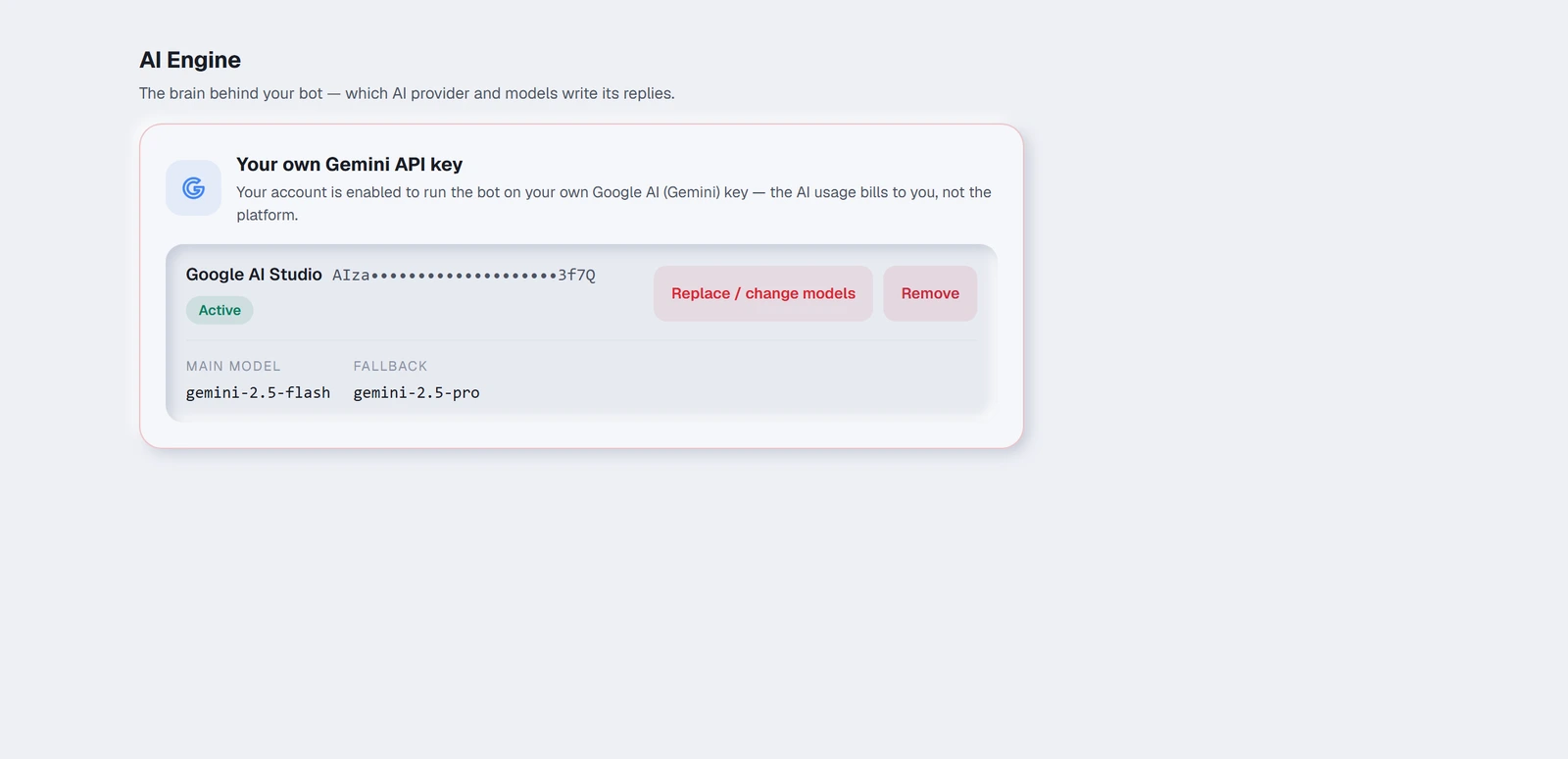
Bringing your own key
Two things have to be true before you can:
- 1Your package must be an own-key one. In Billing & payments, choose any package and switch it to Own AI key before you pay. When the payment is confirmed, this tab opens by itself.
- 2You need an API key of your own: Google AI (Gemini) from
aistudio.google.com→ *Get API key*, or OpenAI fromplatform.openai.com→ *API keys*. OpenAI needs prepaid credit in Settings → Billing — a ChatGPT Plus subscription is not API credit — and shows a new key only once, so copy it straight away.
Once enabled, the tab shows a box for the key.
- 1Paste your key.
- 2Press Check key & load models. We test it with Google or OpenAI before saving anything.
- 3If it works, we pick a sensible main model and a fallback for you. Change them if you want to. With OpenAI the list shows only models that can do the whole job — chats and photos (GPT-4o, GPT-4.1, GPT-5 and newer).
- 4Press Verify & activate.
Main model and fallback
The main model answers your customers. The fallback takes over if the main one is busy or unavailable, so a momentary problem at the provider does not leave a customer waiting. A higher-quality main model gives better answers and costs you more per message — the choice is yours, since it is your bill.
What happens if your key stops working
If your key runs out of quota, is revoked, or stops working for any reason, the tab says Not working — TellMore AI paused and TellMore AI stops replying, politely.
It does not fall back to TellMore AI's AI.
Going back to ours
To run on our AI again, renew on a Standard package in Billing & payments. That closes this tab and removes your saved key, and TellMore AI answers on our AI, included in the plan.
On an own-key package, removing the key here does not switch you to our AI — TellMore AI waits until a key is saved again. Nothing about your training, channels or history changes either way.
Everything runs on your key
On your own key, all of the AI runs on it: replies, reading photos, voice notes, and the search that matches your products and documents. That is why the package is half price.
Searching your products and documents needs every item turned into numbers by the same provider. When you switch provider, we redo that for your items: a small catalogue (up to 40 items) straight away as the key is saved, anything larger in the background overnight — until then some items may not be found.
If something goes wrong
Settings
Everything you can change, in one place — and where every part of the dashboard lives.
Where everything is
The menu on the left (on a phone: More at the bottom) is in five groups. The names follow Meta Business Suite, so they feel familiar if you already use it for your Page.
| Group | What is in it |
|---|---|
| Inbox | Home, Inbox and Comments — where customers reach you, and your day at a glance. |
| Commerce | Orders and Catalog — what you sell and what was bought. A service business sees this group as Bookings, with Bookings and Services & info. |
| Insights | Insights and Marketing messages — reading the numbers and reaching customers. |
| TellMore AI | Test TellMore AI, Train TellMore AI and the AI Assistant — trying and teaching TellMore AI. |
| Business | People, Connected accounts, Settings and Billing & payments — your team, your Pages and numbers, every setting, and your package. |
Every setting in one place
Open Settings to see every setting, grouped, each with one line saying what it does. Tap a line to open it.
Type in the search box to find one by any word, in English or Bangla — for example *courier*, *language*, *notifications* or *কুরিয়ার*.
Couriers and Google Calendar open right inside Settings — the same cards as the Couriers button in Orders and the calendar card in Bookings, so you can connect, change or disconnect from either place.
| Group | Settings |
|---|---|
| Your business | Business profile (name, logo, phone, city, website, business type) · Connected accounts (Facebook, Instagram, WhatsApp, website chat) · Comment replies · Couriers (shops) · Google Calendar (service businesses) · Products & stock (shops) · Meeting times (service businesses) |
| TellMore AI | Train TellMore AI · Automatic messages (follow-up, asking for a rating, booking reminders, when a chat goes back to TellMore AI) · TellMore AI's style (opens Train TellMore AI) · AI key |
| Your team | Settings → Team rules — how chats are shared, waiting alerts, the nightly summary, the AI coach and commission (the same as People → Rules) |
| Package & account | Billing & payments · Co-owners · Activity · Notifications for this phone or computer · Language and light/dark · Account and log out |
Co-owners: partners with their own login
If you run the business with a partner — a brother, a friend, your husband or wife — do not share your password. Give each partner a co-owner login of their own in Settings → Co-owners.
A co-owner can do everything you can: the inbox, orders, products, Train TellMore AI, channels, the team, Billing & payments. Because each person signs in with their own email, you can always tell who did what.
Only you, the main owner, add, turn off or remove a co-owner, change the main login, or delete the business.
Your package includes co-owners: 1 on a Basic package, 3 on Pro, 5 on Enterprise, and 1 on the free trial, Pay as you go and the Inbox packages.
- 1Open Settings → Co-owners and fill in Add a co-owner: their name and their email.
- 2Press Add co-owner. We email them an invite with a Set your password button: they choose their own password and are signed straight in. Their line says Invite sent until they come in; Send again sends a new link. (To give a password yourself instead, press Set a password yourself instead first.)
- 3To stop someone for a while, press Turn off. To end it for good, press Remove: their login is deleted, and their phone stops getting your notifications.
Need more? Open Billing & payments → Add more and press + on Co-owners: ৳500 a month for each one (half on an own-key package), for the days left in your package. Press − before you renew to go back to fewer.
Activity: who did what
Settings → Activity lists every change with who made it, newest first — the same list for the main owner and every co-owner: a product added, changed or deleted, a price changed (old and new price), TellMore AI's instructions published or put back, the AI key, a channel paused or disconnected, a payment started, co-owners added or removed, and the team's own work.
Each line says You, The main owner, or the co-owner's or team member's name. Team members never see this list — it shows money.
Told at once when another owner changes something important
When a co-owner (or a team member) lowers a price or deletes a product, publishes TellMore AI's instructions, changes the AI key, pauses or disconnects a channel, starts a payment, or adds or removes a co-owner, every other owner is told on their phone and in the bell 🔔 at once. The AI key, a channel disconnected and co-owner changes come by email too. You are never told about your own changes.
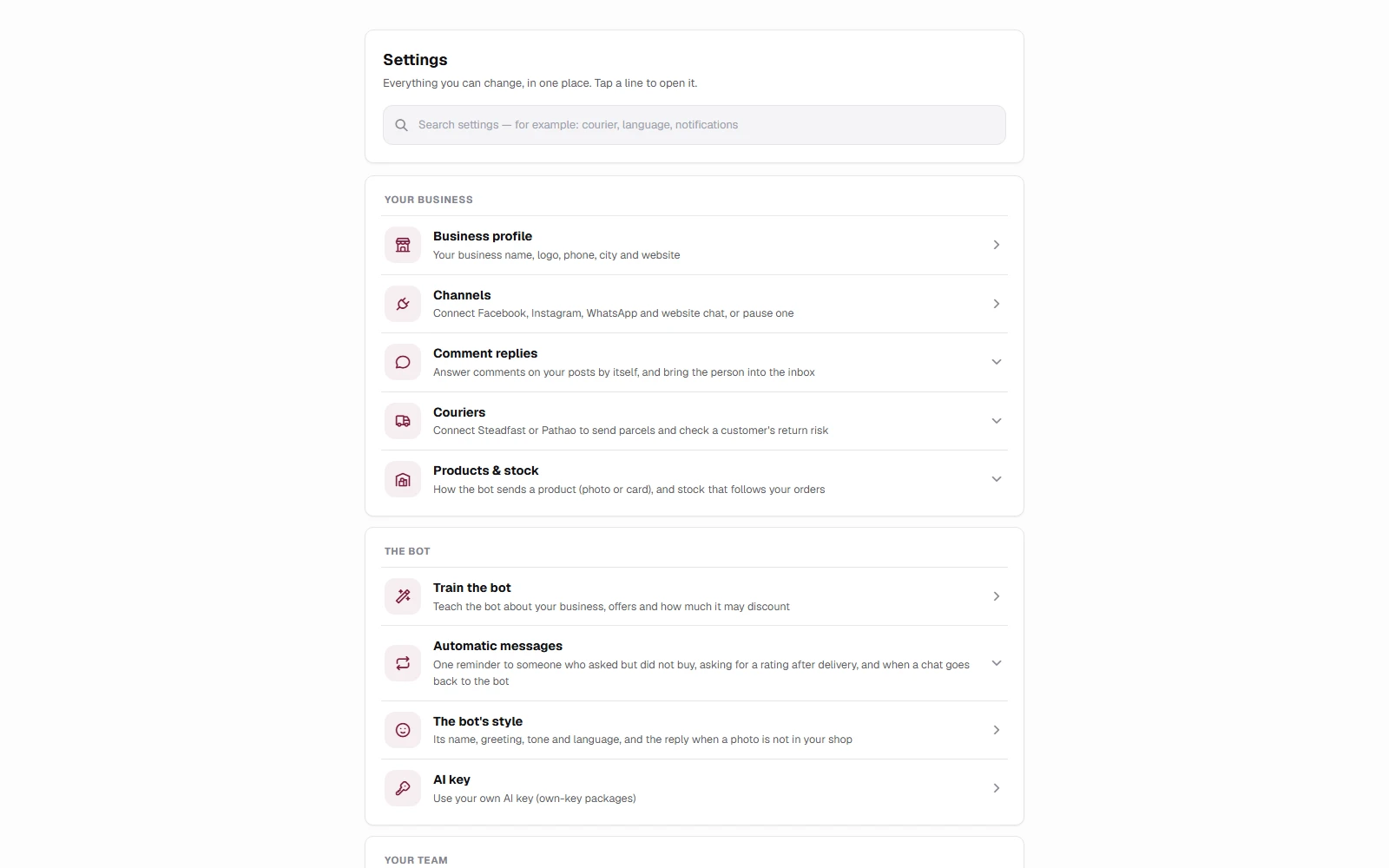
Automatic messages, products & stock, meeting times
These open right inside Settings. Each switch saves the moment you flip it and shows Saved; if it could not be saved it goes back and says so. They used to be in Train TellMore AI → Behavior and waited for its Publish — not any more.
| Setting | What it does |
|---|---|
| Follow-up message | Someone asked but never ordered or booked — TellMore AI sends them one reminder after the hours you choose (1 to 22). They get it once, and it stops if they reply. Change the hours or the words, then press Save message; leave the words empty for the default message. |
| Ask how it went | After an order is delivered or a meeting is done, the customer is asked once for a 1–5 rating. A 1 or 2 alerts you. |
| Booking reminders | Service businesses: the day before and one hour before a confirmed meeting, by email and in the chat. Keep both, one, or none. |
| Hand chats back to TellMore AI | When you or your team took over a chat and then went quiet, TellMore AI takes it back after the time you choose — or never. |
| How products are shown | Shops: a photo and text, or a card with Order this and More details buttons. |
| Stock follows orders | Shops: an accepted order takes its items out of your stock; a cancelled or returned one puts them back. |
| Meeting times | Service businesses: the days and hours TellMore AI offers free times from your Google Calendar. |
Billing & payments
Your package, how much of it you have used, and how to renew it, change it or set your own numbers — on our AI or your own key at a lower price.
My package
The Billing & payments page opens on your own package and nothing else: its name, whether it runs on our AI or your own key, what it costs you, the date it ends and how many days are left, and what you have used — TellMore AI replies this month, products or documents added, AI Assistant questions.
A “message” here is one TellMore AI reply to one customer message — one, even when the answer comes as two or three bubbles. Replies you send yourself, from anywhere, are never counted, and nothing is counted while TellMore AI is off.
Under it is everything your package includes. Every package has every feature; what changes is how much.
You can also add team members who take over from TellMore AI when a customer needs a person. A package includes none — add them in Billing & payments with the Team members step — and the free trial includes one. Without them, a chat that needs a person waits for you.
When anything reaches 90% — TellMore AI replies, products or documents, AI Assistant questions — its meter warns you, every page of the dashboard shows a bar, and an Add more button takes you straight to raising it.
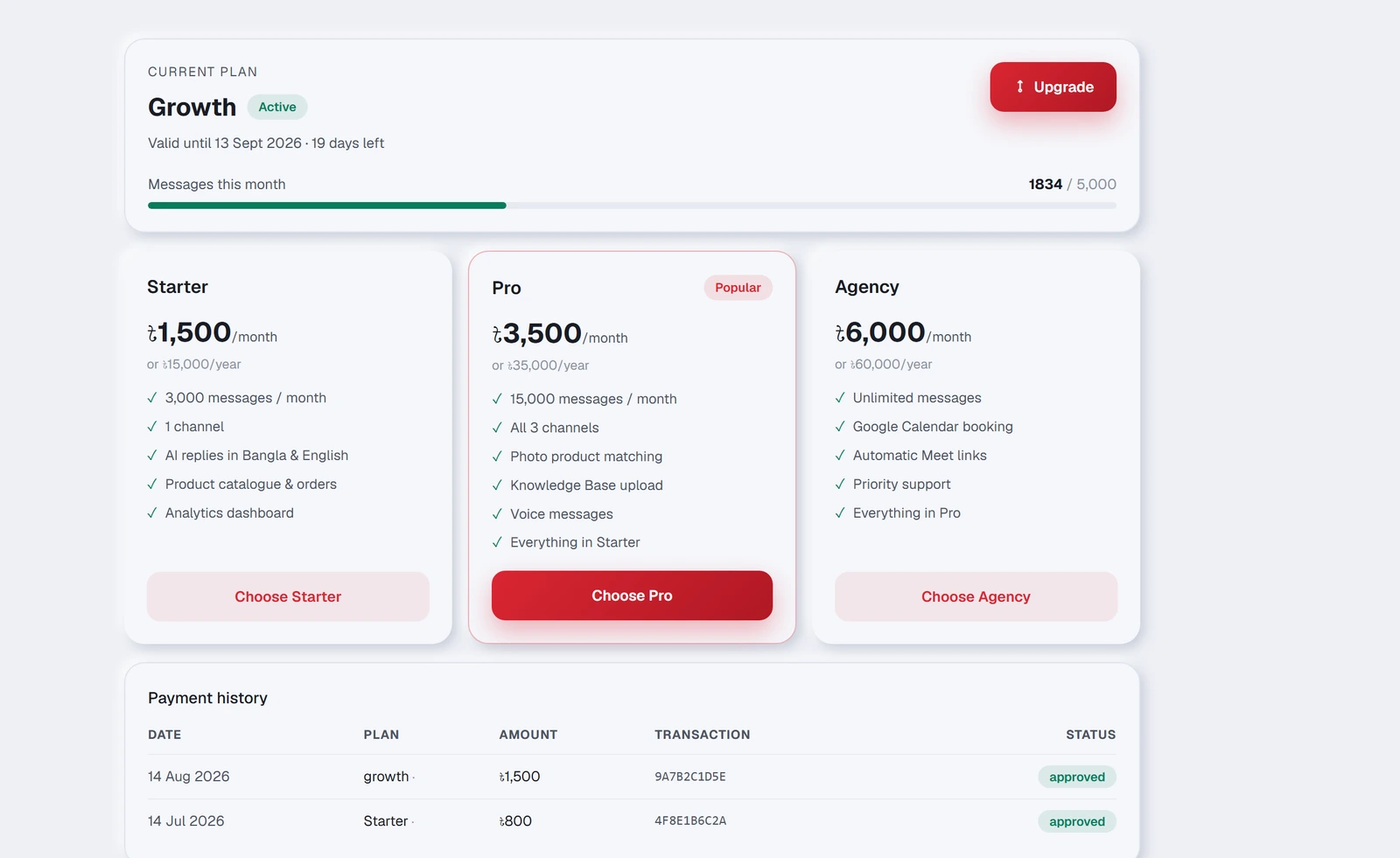
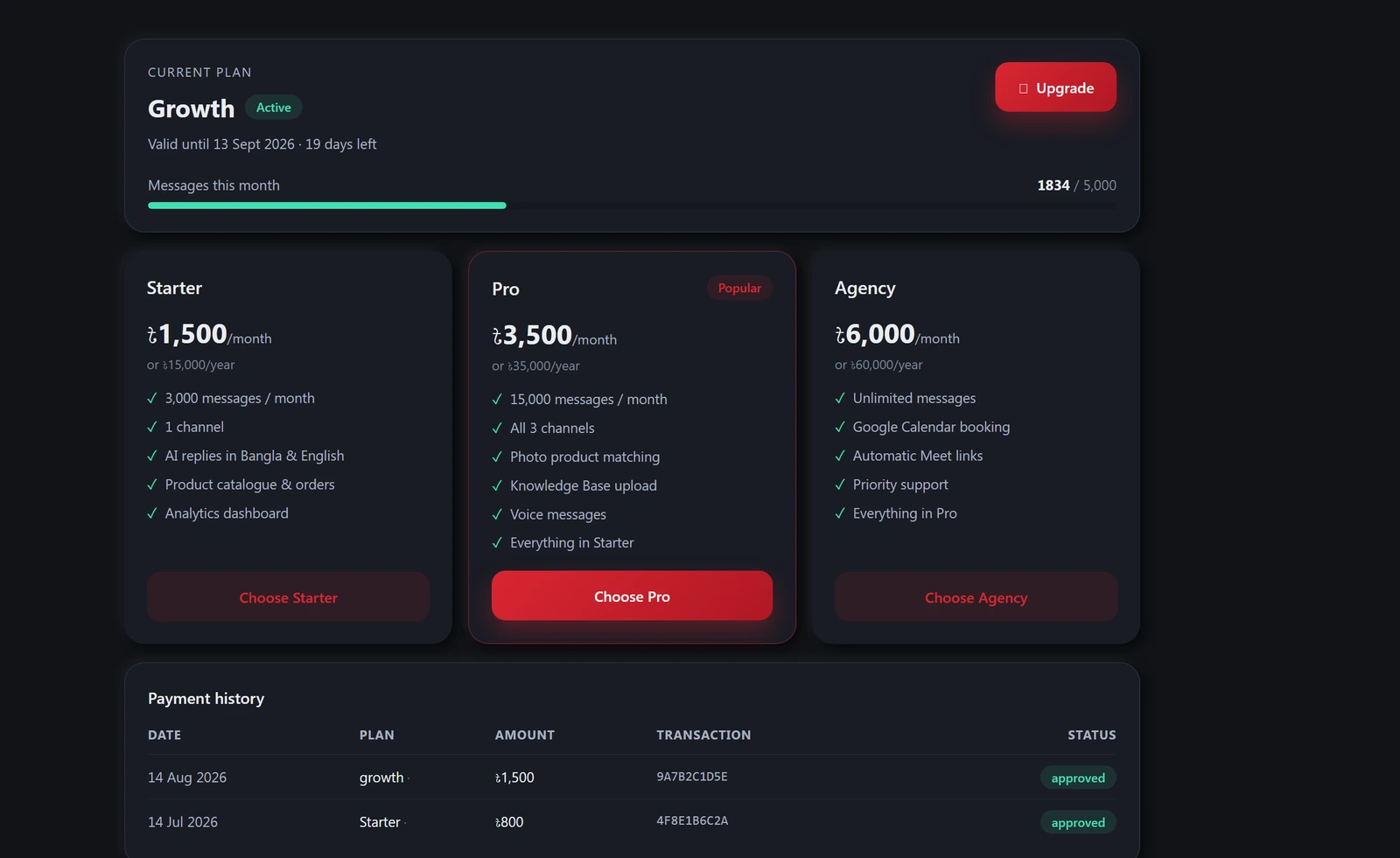
Choosing or updating a package
- 1Press Update package (or Choose a package).
- 2Pick a package. The one you are on is marked Current.
- 3Choose Standard (our AI) or Own AI key · lower price. On your own key every AI reply runs on your own Google Gemini or OpenAI key, so the package is half price — after approval the AI Engine tab opens for you to add the key.
- 4Choose Monthly or Yearly. Yearly gives you two months free.
- 5Need more? Set your numbers. TellMore AI replies a month, products (shops) or knowledge files (services), AI Assistant questions and Team members each have a slider, like a mobile pack. Each starts at the package's own number and only goes up — drag it or press + — and the price changes as you go. Reset puts them back to the package.
TellMore AI and your team, in one package
A business holds one package at a time. Every Shop and Service package runs TellMore AI and includes a sales team: TellMore AI answers every customer first, and your team members take over when a customer needs a person. Each member has a login of their own.
Each number moves in steps: 50 replies, 50 products, 5 files, 50 questions, 1 team member. A number never goes below the package's own, and goes up as far as the biggest package's number and half again. Each step adds its price.
One ladder: once your numbers cost as much as a bigger package, they ARE that package — the screen picks it by itself and says so. Raise Basic until it reaches Pro's price and you are buying Pro, with Pro's numbers wherever they are bigger; the same at Enterprise. You always pay the least any package costs for the numbers you chose.
Your numbers renew with your package until you change them.
Add more in the middle of the month
Running low before the month is over? Press Add more, raise the numbers you need, and pay. You pay only for the days left on your package — half a month left, half the price.
The higher numbers apply as soon as the payment is approved, and from your next renewal they are part of your package.
Paying
Press Pay online and pay on PayStation's secure page with bKash, Nagad, Rocket, Upay or a card. You pay exactly the price shown — the payment charge is on us. The purchase switches on as soon as the payment goes through, and you land on a page that says so.
From the Android app, the payment page opens in your phone's browser. When you have paid, simply go back to the app — the Billing & payments page updates by itself.
- 1Choose your package (or press Add more) and press Pay online.
- 2On PayStation's page, pick bKash, Nagad, Rocket, Upay or a card, and pay.
- 3You come back to a page that says whether the payment went through. Open Billing & payments shows your purchase already switched on.
Moving to a bigger or a smaller package
Bigger: the days left on your current package are worked out and taken off the new price — the screen shows the line "Unused days of …". The bigger package starts the same day.
Smaller: your current package keeps running until the end of the period you paid for, and the smaller one starts from the next period. The Billing & payments page shows the date it changes. There is no adjustment for the days left.
Cancelling your package
Press Cancel package at the bottom of the My package card and tell us why — out of budget, not needed right now, changed your mind, disappointed with the service, found a better platform, or another reason.
Your package keeps working until the end of the period you paid for and is not renewed; renewal reminders stop. Cancelling does not give money back. Changed your mind? Press Keep my package, or simply buy again.
Asking for a refund
Money comes back in two cases: the same purchase was charged twice (tell us within 7 days of the payment), or you paid and your package was not activated within 7 days (ask within 30 days of the payment). The full rules are on the [refund policy](/refund-policy) page.
In Payment history, press Ask for a refund next to the payment, choose the reason and where the money should go — bKash, Nagad, Rocket (the number) or a bank account (name, number, bank, branch). You are told the decision in Billing & payments and on your phone; an approved refund arrives within 1 to 7 days and ends the package it paid for.
After you pay
As soon as PayStation confirms the payment, your purchase switches on — usually within seconds. You are told on your phone and by email, and the page updates by itself. The email is your receipt: the amount, how you paid, the payment number, the package and the date it runs to.
If PayStation has not confirmed it yet, the Billing & payments page shows Confirming your online payment at the top. It switches on by itself the moment PayStation does. If bKash or your card showed "failed", or you cancelled, nothing was taken — you can pay again straight away.
Payment history at the bottom lists every payment with its payment number, so you always have a record. A payment that was started but never finished shows as not completed.
If something goes wrong
Packages
A free trial, then three sizes for shops and three for services, each at a lower price on your own AI key, with numbers you can set yourself. Every package has TellMore AI and a sales team together: TellMore AI answers first, and your team members take over when a customer needs a person. Which is yours, and what happens when you reach a limit.
TellMore AI and your team, one package at a time
Shop packages and Service packages run the TellMore AI, and every one of them can have team members: none are included, and you add as many as you need in Billing & payments. TellMore AI answers every customer first. When a customer needs a person — a complaint, a refund, someone who asks for a person, a question TellMore AI cannot answer — the chat goes to one of your team members, each with a login of their own, and you see who answered, who sold and how long each was online.
A business holds one package at a time. The free trial is TellMore AI with one team member, so you can see how the two work together.
| Shop / Service package | Free trial | |
|---|---|---|
| Who answers | TellMore AI first; your team when a person is needed | TellMore AI first; your team member when a person is needed |
| Team members with their own login | Yes — none included, add them in Billing & payments | 1 |
| Chats given to a person, sales recorded by hand, lead status, per-person report | Yes | Yes |
| AI Assistant, comment automation, photo and voice understanding, Train TellMore AI | Yes | Yes |
| One inbox for every channel, broadcasts, website chat, analytics | Yes | Yes |
| Own AI key at a lower price | Yes | — |
Two ladders, not one
A shop and a service do not buy the same thing. A shop shows customers a catalogue, matches a photo to a product and takes an order. A service answers from documents you upload and books time in your calendar.
So the packages come in two sets. You see only the set for your own business — the one you chose when you signed up. Everything below that is not marked as one or the other is in both.
| Shops | Services | |
|---|---|---|
| Answers from | Your product catalogue | Documents you upload |
| Takes | Orders | Bookings |
| Photo from a customer | Matched to a product | — |
| Google Calendar | — | Books the meeting and sends the link |
The free trial
The same for everybody, because when you start you may not have chosen yet. It gives you 30 TellMore AI replies a day on one channel, with everything switched on so you can see what TellMore AI does with your own customers. It also includes one team member, so you can see how TellMore AI hands a chat to a person before you choose a package.
It costs nothing and needs no card. When it ends TellMore AI stops replying, but nothing is deleted — your products, documents and conversations wait for you.
The three sizes
Two sets of three: one for shops, one for services. They grow the same way — replies, channels, AI Assistant questions, team members — but a shop is sized by the products it adds and a service by the knowledge documents it adds. Services cost less, because there is no catalogue for the AI to read. Each set has a lower price for a business on its own AI key.
Every tier has every feature. Moving up does not unlock anything — photo matching, comment automation, calendar booking and the AI Assistant are in all three, and in the free trial. Every paid package can also be bought on your own AI key, at a lower price. What you are buying is size: how many replies TellMore AI may send, how many channels it answers on, how many team members you have, how big a catalogue or how many documents it can hold.
Each package's card lists only its numbers — replies, products or documents, team members, AI Assistant questions, broadcasts. Below the packages, Every package includes lists what all of them do, in four groups: answers your customers, sells and delivers (a service business: books and follows up), your team, and grows your business. The same list is in Billing & payments, in the package choice when you sign up, and on Home under Your package → What your package does.
| Basic | Pro | Enterprise | |
|---|---|---|---|
| TellMore AI replies | 3,000 / month | 8,000 / month | 18,000 / month |
| Channels | 2 + website widget | All 3 + website widget | All 3 + website widget |
| AI Assistant questions / month | 100 | 400 | 800 |
| Broadcasts / month | 10 | 40 | 100 |
| Team members | 0 — add them | 0 — add them | 0 — add them |
| Every feature | Yes | Yes | Yes |
| Priority support | — | — | Yes |
| For shops | Shop Basic | Shop Pro | Shop Enterprise |
|---|---|---|---|
| Price / month (launch price to 31 Dec 2026) | ৳2,799 | ৳5,999 | ৳11,999 |
| On your own AI key / month | ৳1,399 | ৳2,999 | ৳5,999 |
| Products you can add (total, never resets) | 500 | 1,000 | 2,500 |
| Products from a website link / month | 10 | 40 | 100 |
| Photo product matching | Yes | Yes | Yes |
| Add products from photos | Yes | Yes | Yes |
| For services | Service Basic | Service Pro | Service Enterprise |
|---|---|---|---|
| Price / month (launch price to 31 Dec 2026) | ৳2,499 | ৳4,999 | ৳9,999 |
| On your own AI key / month | ৳1,249 | ৳2,499 | ৳4,999 |
| Knowledge documents you can add (total, never resets) | 20 | 60 | 150 |
| Google Calendar booking | Yes | Yes | Yes |
| Comment automation | Yes | Yes | Yes |
One card that grows
On the pricing page and the home page the AI package is one card. It starts as Basic; raise any number with + — replies, products or documents, AI Assistant questions, team members — and the price follows. The moment your numbers cost as much as Pro, the card becomes Pro, and then Enterprise the same way, so you never pay more than the next package for less.
The buttons at the top of the card — Basic · Pro · Enterprise with their prices — jump straight to each package's own numbers. Buy sells the package the card shows, with your numbers. Your own AI key and the yearly price work the same way, at their own prices.
Pay as you go: credits
For a business with few customers, or one that is just starting: no monthly fee. You recharge credits, like a mobile balance, and every AI use takes its own credits. Every feature is in it; TellMore AI works as long as you have credits.
৳1 = 10 credits, so ৳500 = 5,000 credits. Every recharge is at least ৳500, in Billing & payments → Recharge; buying the package is your first recharge. Before paying, the screen says what it buys (৳500 = 5,000 credits ≈ 1,250 replies). Replies your team types are free. Billing & payments → What each use costs lists every price.
Each recharge is usable for 12 months; after that, what is left of it lapses. You are told at 20% left, when it is almost gone and when it runs out: then every AI use stops (replies and the dashboard's AI tools) until you recharge. Customers' messages are still saved for 3 days, with a reminder each day; after that the account sleeps: new messages are not kept (your chats, products and settings are), and a recharge wakes it at once. Billing & payments shows your credits, how many replies they pay for, when the next part lapses, and a statement: each recharge, and each day's replies and other AI uses. Recharges are not refunded.
| What uses credits | Credits | Taka |
|---|---|---|
| A TellMore AI reply | 4 | ৳0.40 |
| Answering a comment | 3 | ৳0.30 |
| Reading a customer's photo | 7 | ৳0.70 |
| Hearing a voice note | 5 | ৳0.50 |
| A question to the AI Assistant | 4 | ৳0.40 |
| Inbox AI helper (summary, draft, details) | 5 | ৳0.50 |
| Reading one product photo | 2 | ৳0.20 |
| Reading one page of your website | 20 | ৳2.00 |
| A team AI report | 16 | ৳1.60 |
Without the AI: Shop Inbox and Service Inbox
For a business that wants one inbox for every channel and its own team answering, with no AI: Shop Inbox and Service Inbox. Your team answers every chat — Messenger, Instagram, WhatsApp and the website chat in one place — with 3 team members included, more in Billing & payments, and 500 MB for the photos and voice notes customers send (more in steps of 500 MB).
Want a little AI, only where it helps? Add it pack by pack in Billing & payments after you buy — each pack is a monthly allowance, counted and shown as you use it, up to 10 packs each. The AI never answers your customers on these packages.
| Per month | Per year | |
|---|---|---|
| Shop Inbox / Service Inbox | ৳1,999 | ৳19,990 |
| AI you can add | Per pack / month | Each pack gives |
|---|---|---|
| Inbox AI helper — summary, reply draft, customer details beside each chat | ৳99 | 200 uses |
| AI Assistant — adds products, sets offers, answers about your business | ৳49 | 100 questions |
| AI team reports — the AI coach and the nightly team summary | ৳69 | 60 reports |
| Products from photos (shops) | ৳49 | 50 products |
Set your own numbers
Need a little more than a package? Press Need more? Set your numbers on any package — here, on the home page or in Billing & payments — and raise its numbers with a slider. The price follows, and you buy the package with your numbers — once they cost as much as a bigger package, that bigger package is what you buy, at its price, with its numbers wherever they are bigger. Each step adds the price below; numbers never go below the package's own. In the middle of the month, Add more raises them for only the days left; numbers that would make a bigger package move you to it, with the unused days of the current one taken off. On your own AI key every step is half price; on a yearly package, ten months. Team members can be raised too, one at a time, with the Team members step. Billing & payments always shows the current prices.
| Each step | Standard / month | On your own AI key / month |
|---|---|---|
| +50 TellMore AI replies | ৳40 | ৳20 |
| +50 AI Assistant questions | ৳50 | ৳25 |
| For shops | Standard / month | On your own AI key / month |
|---|---|---|
| +50 products | ৳50 | ৳25 |
| For services | Standard / month | On your own AI key / month |
|---|---|---|
| +5 knowledge files | ৳50 | ৳25 |
When you reach a limit
You cannot run out of features — you already have all of them. What you can run out of is room: replies for the month, products or documents added, AI Assistant questions, website imports, broadcasts.
Products and documents are counted as you add them, as a total for as long as you use the package — the number does not start again each month. Each one added uses one, and deleting it does not give it back: every add is read and indexed by the AI, so it has already been paid for. Need more room? Raise it with Add more in Billing & payments, or move up a package — the new, bigger total counts what you have already added.
Billing & payments shows every meter under your package — how much is used and how much is left — and so does Profile.
When that happens the dashboard says which limit and what it is, and nothing is deleted. Out of replies, TellMore AI stops answering new customers until the month turns, you raise your replies with Add more, or you move up; your inbox keeps working and you can answer by hand. Out of product slots, the ones you have keep selling and the next one is refused.
The tables above are the real numbers — the same ones TellMore AI and the dashboard enforce, read from your package as the admin panel has it, not from a page written once.
How a reply is counted
The unit is one TellMore AI reply to one customer message. Everything else is free:
| What happens | Counts as |
|---|---|
| A customer writes, TellMore AI answers | 1 — even when the answer arrives as two or three bubbles |
| A customer sends three messages in a row, TellMore AI answers once | 1 |
| You answer yourself — from the dashboard, Messenger, Business Suite, WhatsApp or Instagram | 0 |
| TellMore AI is off, or that chat is on manual, and a customer writes | 0 |
| A broadcast or a follow-up you send | 0 |
What the features mean
The words on a package, in plain language.
| What it does | |
|---|---|
| TellMore AI replies | How many customer messages TellMore AI may answer in a month — one per answer, however many bubbles it takes. When they run out TellMore AI stops replying until the month turns or you move up. Your own replies never count. |
| Channels | How many Facebook Pages, Instagram accounts or WhatsApp numbers you may connect. The website chat widget is separate and does not use one. |
| Voice message understanding | TellMore AI listens to a voice note and answers it, instead of asking the customer to type. |
| Comment automation | Replies to comments on your posts, and can carry the conversation into the inbox. |
| Broadcasts & follow-ups | Sending one message to many people, and nudging somebody who went quiet. Both only ever reach people who wrote to you in the last 24 hours — that is Meta's rule, not ours. |
| Website chat widget | The same TellMore AI, on your own website, in one line of code. |
| Your own AI key | Buy any paid package on your own Google Gemini or OpenAI key: every AI call runs on it, you pay the AI provider directly, and the package is half price. TellMore AI waits until the key is added in AI Engine. |
| For shops | What it does |
|---|---|
| Products | How many products your catalogue may hold. TellMore AI answers from these. |
| Photo product matching | A customer sends a picture instead of a name, and TellMore AI finds that product in your catalogue and quotes its real price. |
| Website imports | Reading your existing shop or a WooCommerce/Shopify store to fill the catalogue without typing. |
| For services | What it does |
|---|---|
| Knowledge documents | Files you upload — price lists, policies, service descriptions — that TellMore AI answers from. |
| Google Calendar booking | TellMore AI checks when you are free, books the meeting, makes the Meet link and sends it. |
| Website imports | Reading pages from your own site into Services & info without typing them. |
Moving between packages
- 1Open Billing & payments in your dashboard. You will see only the packages for your business.
- 2Pick one and press Pay online — bKash, Nagad, Rocket, Upay or a card.
- 3The package starts as soon as the payment goes through.
Profile
Your business details, your logo, your business type, and your package at a glance.
Business information
Your business name, phone, city / area and website. TellMore AI uses these when a customer asks where you are or how to reach you, so keeping them accurate saves you answering the same question by hand. The name, the phone and the city / area are required; the website is optional.
| Field | Where it shows up |
|---|---|
| Business name | How TellMore AI refers to you in every conversation |
| Phone | Given out when a customer asks how to call you |
| City / area | Given out when a customer asks where you are — the area and city are enough, e.g. Agrabad, Chattogram |
| Website | Shared when a customer wants to browse |
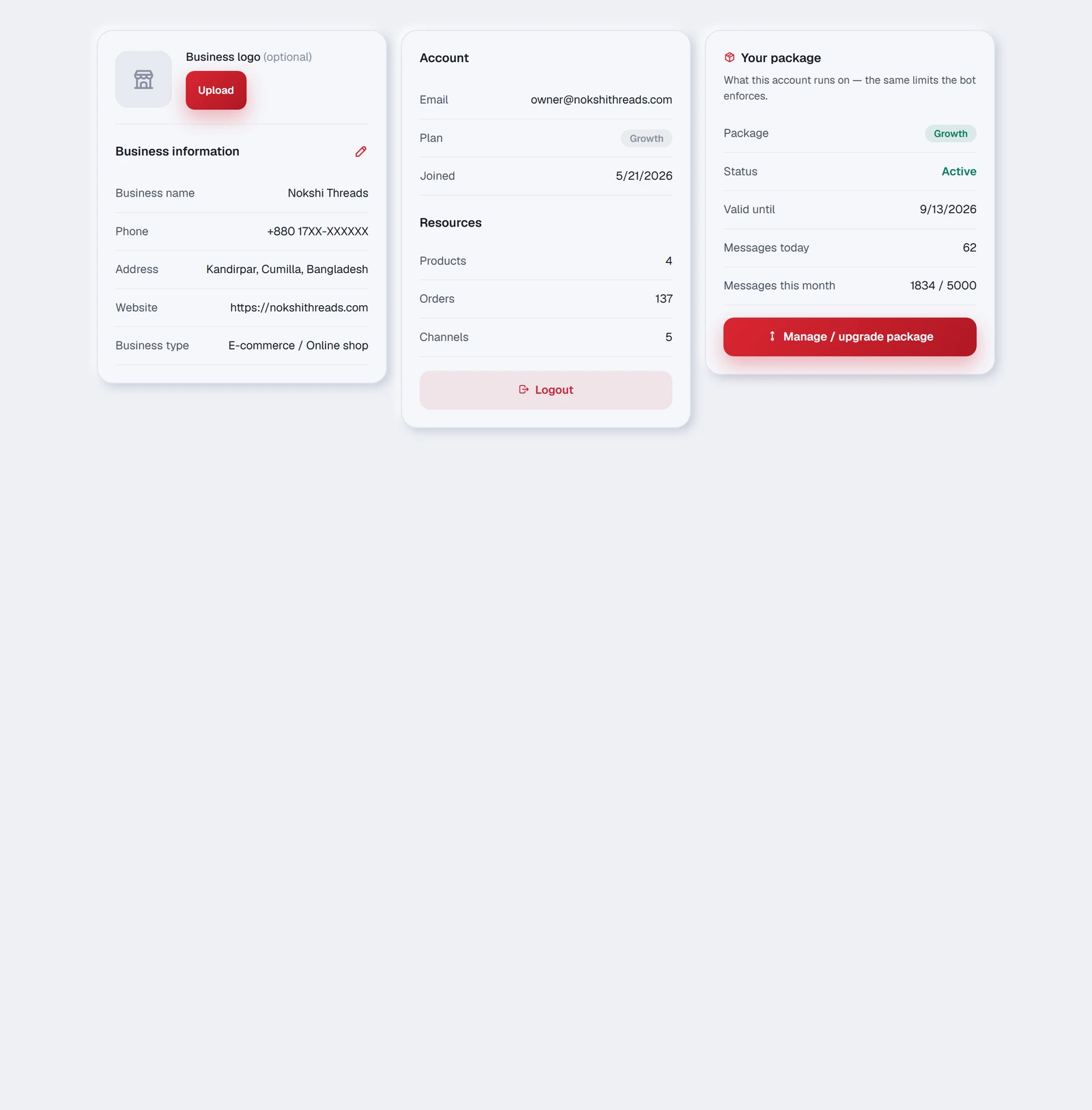
Business logo
Upload your logo here. It appears in the dashboard and on your website chat widget, so a visitor sees your brand rather than a generic robot.
Business type
E-commerce / Online shop or Agency / Service provider. This is not a label — it changes the dashboard.
| Online shop | Agency | |
|---|---|---|
| Two tabs become | Catalog · Orders | Services & info · Bookings |
| TellMore AI is taught with | Your product catalogue | Your documents |
| TellMore AI can | Take an order in chat | Book a meeting on your calendar |
| Its tags are | Order, Product Inquiry, Delivery, Complaint, Other | Booking, Service Inquiry, Complaint, Follow-up, Other |
Resources
A count of what TellMore AI has to work with — your products, or your knowledge files. A quick way to notice that an import did not land, or that a document you thought you uploaded is not actually there.
Your package
The same figures as the Billing & payments page, repeated here so you can see them without leaving your profile: TellMore AI replies today, TellMore AI replies this month, and what your plan includes. The button takes you to Billing & payments to change it.
Notifications
One switch. On, this device gets a notification even when the dashboard is closed — a new order, a new booking, a chat that needs you, a channel that stopped working. Off, the bell in the top bar still works; only the phone stays quiet.
The first time you turn it on, the phone or browser asks for permission. If it is blocked, the row says so and tells you where to allow it. The full picture — the bell, the phone, the emails — is on the Notifications page of this manual.
If something goes wrong
Common questions
The questions that come up most often, and the ones that do not belong to any single tab.
TellMore AI is not replying
Work through these in order — it is almost always one of the first three.
- 1Inbox → is the TellMore AI ON switch at the top of the chat list on? That one covers everything.
- 2Is that particular chat on manual? Its own switch is at the top of the open chat.
- 3Connected accounts → is that channel's switch on, and its dot green?
- 4Billing & payments → have you run out of messages for the period?
- 5AI Engine → if you run on your own key, has it stopped working?
About TellMore AI's answers
About the 24-hour rule
Facebook, Instagram and WhatsApp all close the messaging window 24 hours after the customer's last message. After that you cannot write to them until they write to you again.
This is Meta's rule and it applies to every business tool, not only TellMore AI. It explains three things people often ask about: why a broadcast reaches fewer people than expected, why the follow-up message caps at 22 hours, and why some private replies to comments fail.
About your customers' privacy
About phones and computers
Still stuck
Write to us. Include what you did, what you expected, and what happened instead — and a screenshot if you can. A real person answers.
Comments
Every comment left on your Facebook Page and Instagram posts, what TellMore AI replied publicly, and whether it also reached the person privately.
What this tab is for
A comment on a post is a customer raising their hand in public. TellMore AI answers it twice: a public reply underneath the comment so everyone reading the post sees an answer, and a private message to that person so a real conversation can start in your inbox.
This tab is the record of both. It does not send anything itself — it shows you what already happened, and tells you plainly when something did not work.
Turn it on first
Comment replies are set per Facebook Page and Instagram account, not once for everything — so you can let TellMore AI answer comments on one Page and stay quiet on another.
Reading one comment card
Finding one comment among many
Two filters sit above the list, and they work together.
When the private message fails
A red panel appears at the top of the tab counting how many could not be delivered, and each affected card prints its own reason underneath.
This is normal and it is not a fault in your setup. A private reply is blocked when:
If something goes wrong
The tab is empty even though people are commenting.
TellMore AI's public reply was wrong or off-topic.
I do not want TellMore AI replying in public at all.
I deleted a comment here — why is it still on Facebook?
One comment got two replies.